Have you ever had a Zoom meeting where your name remained a nickname or you wanted to change it to your real name but you didn't know how?
Especially in business meetings or online interviews, it can be a bit awkward if the display name is not appropriate. In the latest version of Zoom as of March 2026, the timing and procedure for changing the name differs slightly between PC and smartphone.
In this article, we will divide the Zoom display name into three patterns: before the meeting, during the meeting, and profile settings, and explain the steps for each on PC and smartphone in an easy-to-understand manner. We have also summarized the causes and solutions for when "Rename" cannot be pressed or is grayed out.
What exactly is Zoom's "display name"? Where will it be displayed?
Zoom's display name is the name that appears in the participant list and video tile during a meeting.
This name will appear in the following locations:
- Bottom left of video screen
- List of participant panels
- Speaker name in chat field
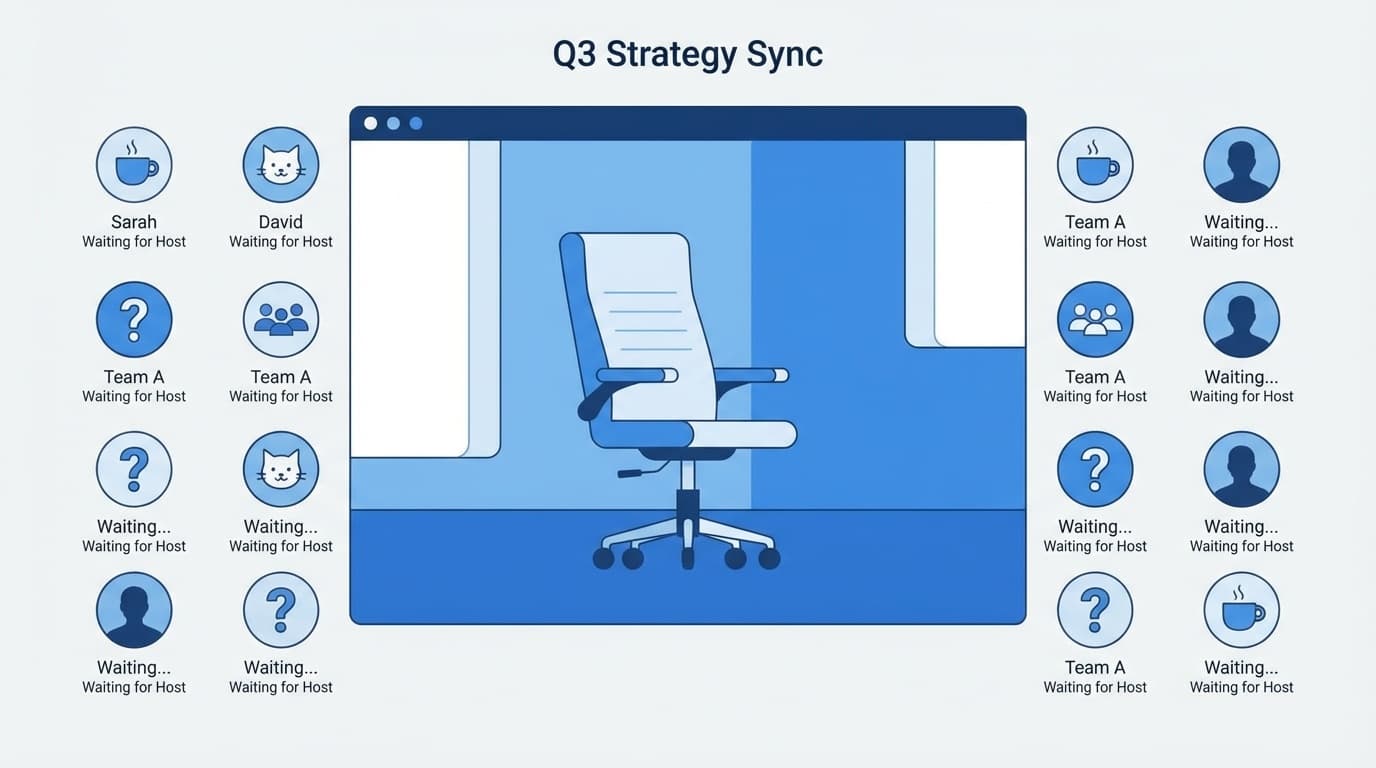
- Name shown to host in waiting room
That is your name as other participants see it during the meeting. It would be awkward if "Pienmaru" was displayed in a business setting.
Your display name is tied to your Zoom account profile, but you can temporarily change it for each meeting. However, whether or not this can be changed depends on the settings on the host side.
[Before the meeting] How to change the display name before entering the room (PC/smartphone)
This is a way to change your name before joining the meeting. The most reliable method is to change from the profile settings, but there is also a way to quickly change it from the entry screen.
Method 1: Change from profile settings (permanent)
When you change in this way, the new name will appear in all future meetings.
For PC:
- Sign in to Zoom Web Portal in your browser
- Click "Profile" from the left menu
- Click Edit to the right of your name
- Change the Display Name and click Save
For smartphones (iPhone/Android):
- Open the Zoom app and sign in
- Tap "Details" (or "Settings") at the bottom right of the screen
- Tap the profile field at the top (the part where your name and icon are displayed)
- Tap Display Name to change the name, then tap Save
Method 2: Change on the meeting ID input screen (temporary)
If you manually enter the meeting ID to join, you can participate with a different name by rewriting the name field on the input screen.
- Tap "Join" in the Zoom app
- Enter meeting ID
- Rewrite the name field below
- Tap “Join”
However, there are some caveats. If you click the invitation URL to join, this name input screen will not be displayed. You will enter the room using your account's profile name, so be sure to change your profile settings before clicking the URL.
[During a meeting] How to change your name during a meeting (PC/Smartphone)
It's okay if you want to change your name even though you've already signed up. Names can be changed even during a meeting.
For PC
- Click "Participant" from the menu bar at the bottom of the screen
- A list of participants will be displayed on the right side
- Hover over your name and click “…” (three dots)
- Click “Rename”
- Enter a new name and click Change
For smartphones (iPhone/Android)
- Tap "Participant" at the bottom of the screen
- Tap your name from the list
- Select "Rename"
- Enter a new name and tap Done
Important:Any name changes made during a meeting are only for that meeting. When you leave, your original profile name will revert to your original profile name. If you don't want to change it every time, change it from the profile settings mentioned above.
5 reasons why "Rename" cannot be pressed or is grayed out and how to deal with it
If you say, "I want to change the name, but the change menu doesn't appear!", there are five possible causes:
Cause 1: The host prohibits renaming
Zoom allows the host to prohibit participants from changing their names. If the host has unchecked "Allow participants to change their name," participants will not be able to change their name.
What to do:Tell the host via chat that you would like to change your name. It is also possible for the host to change the participant's name.
Cause 2: Your company or school administrator has locked your settings
If you are using a Zoom account (licensed account) managed by your company or school, the administrator may have locked the name change at the account level. In this case, it cannot be changed regardless of the host settings.
What to do:Contact your IT administrator to change the settings, or consider joining using your personal Zoom account.
Cause 3: Participating as a guest without signing in
If you join as a guest without signing in to Zoom, you will not be able to change your name from your profile settings. However, you can change your name during the meeting if the host allows it.
What to do: Exit, sign back in to your Zoom account, and then rejoin.
Cause 4: The version of the Zoom app is outdated
If the app is on an older version, some features may not work properly.
Workaround: Update the Zoom app to the latest version. You can update the PC version from the profile icon in the top right corner of the Zoom app → "Check for updates", and the smartphone version from the App Store / Google Play.
Cause 5: Participating in a webinar
If you are participating in a "webinar" as a participant (attendee) instead of a regular meeting, the name change menu may not be displayed. For webinars, only panelists and hosts can change their names.
Workaround:For webinars, participants cannot change the name. Be sure to enter the correct name in your profile settings in advance.
How hosts should know how to manage name changes
Meeting hosts can manage participant name changes. This is useful for volunteer activities or business meetings where you want everyone to use their real names.
Allow or prohibit participant name changes
- Click “Participants” in the bottom menu during the meeting
- Click “…” (more) at the bottom of the participant panel
- Toggle "Allow participants to rename themselves"
Rename participant from host
- Hover over the name of the person you want to change in the participants panel
- Click “…” → “Rename”
- Enter a new name and click Change
You can also change the names of participants in the waiting room. However, according to the Zoom Official Help, renaming in the waiting room requires that the "Allow host or co-host to rename participants in the waiting room" setting is turned on.
FAQ
Will other participants be notified of the Zoom name change?
No, other participants will not be notified if you change your name. However, since the display name in the participant list changes in real time, you may notice it by comparing the name before and after the change.
Can I change my name without a Zoom account?
Yes, even if you are a guest without an account, you can set a name when entering the meeting ID. You can also change your name during the meeting if the host allows it. However, permanent changes from your profile settings require an account.
When joining from the invitation URL, how can I change my name before joining?
Clicking the invitation URL will skip the name input screen, so be sure to change your display name in your Zoom profile settings (web portal or app settings) before entering the room.
Will the name once changed be carried over to the next meeting?
If you change it from your profile settings, it will be carried over. If you make changes during a meeting, they are only for that meeting and will be restored when you leave.
References
- Changing your name on Zoom — Zoom official help
- Allowing participants to rename themselves — Zoom Official Help
- Enabling and customizing the waiting room — Zoom official help
- Finding and changing your personal account profile — Zoom official help