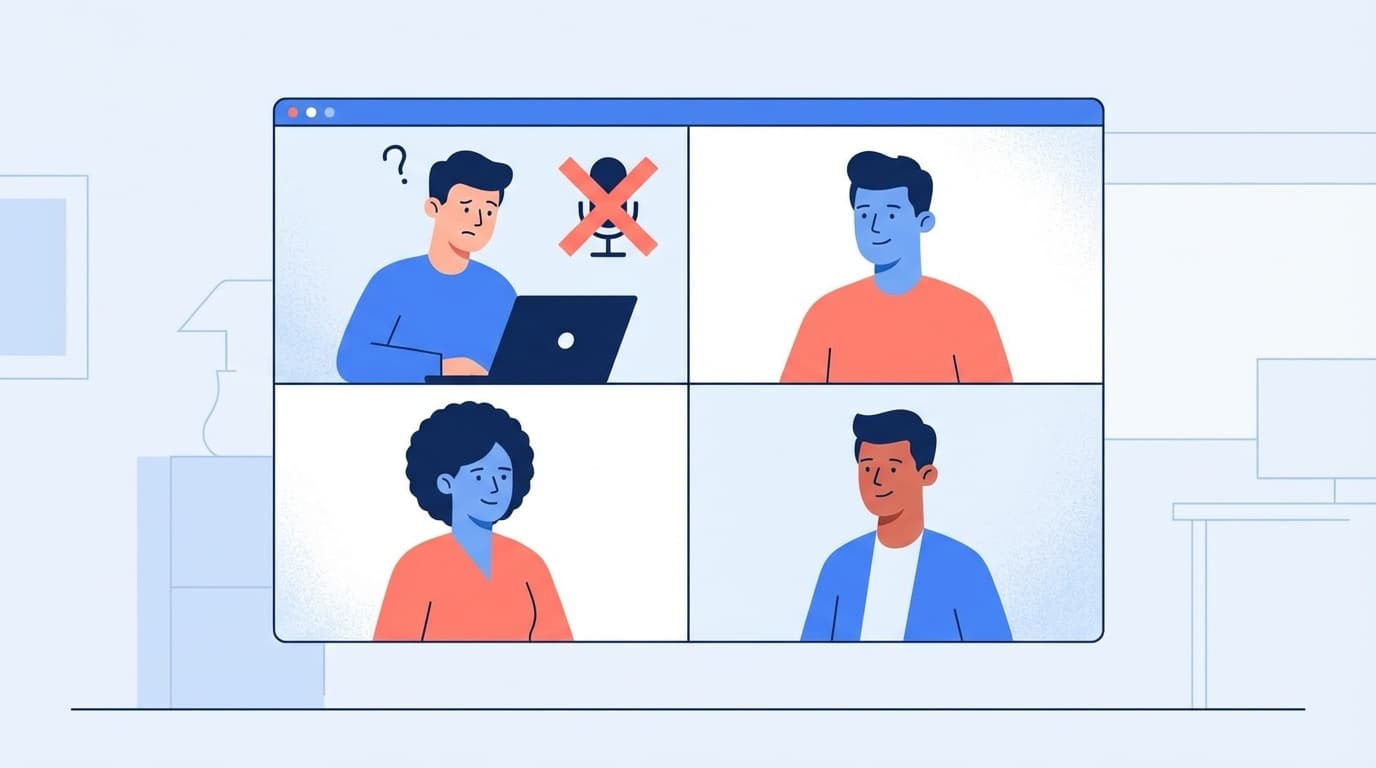
“I clicked on the Zoom link, but I can’t join the meeting!” “I can’t hear the other person!”—When this happens right before an important meeting, you get really nervous.
As of February 2026, Zoom has been updated to version 6.7, and there are an increasing number of cases where users cannot connect if they are using an older version. In this article, we will explain the causes and solutions for not being able to participate in Zoom or audio problems, both on computers and smartphones.
Causes and solutions for not being able to enter or participate in Zoom
First, let's start with the pattern of not being able to attend meetings in the first place. There are four common causes:
Cause 1: Incorrect meeting ID or passcode
This is the most common. If you manually enter the ID instead of the invitation link, if you make even one mistake in the 11-digit meeting ID, an "invalid meeting ID" message will be displayed and you will not be able to enter it.
The solution is simple. Your best bet is toclickdirectly on the invitation link sent by the organizer. If you enter it manually, copy and paste your ID and passcode.
Cause 2: The version of the Zoom app is outdated
Zoom is frequently updated, and the latest version as of February 2026 is 6.7.2 (from Zoom official support). If the version is too old, you may not be able to connect to the meeting.
The update method is as follows.
- Open the Zoom app
- Click the profile icon in the top right corner
- Select "Check for Updates"
- If there are any updates, press the "Update" button
For smartphones, search for "Zoom Workplace" in the App Store or Google Play, and if the "Update" button is displayed, update it.
Cause 3: Stopped in the waiting room
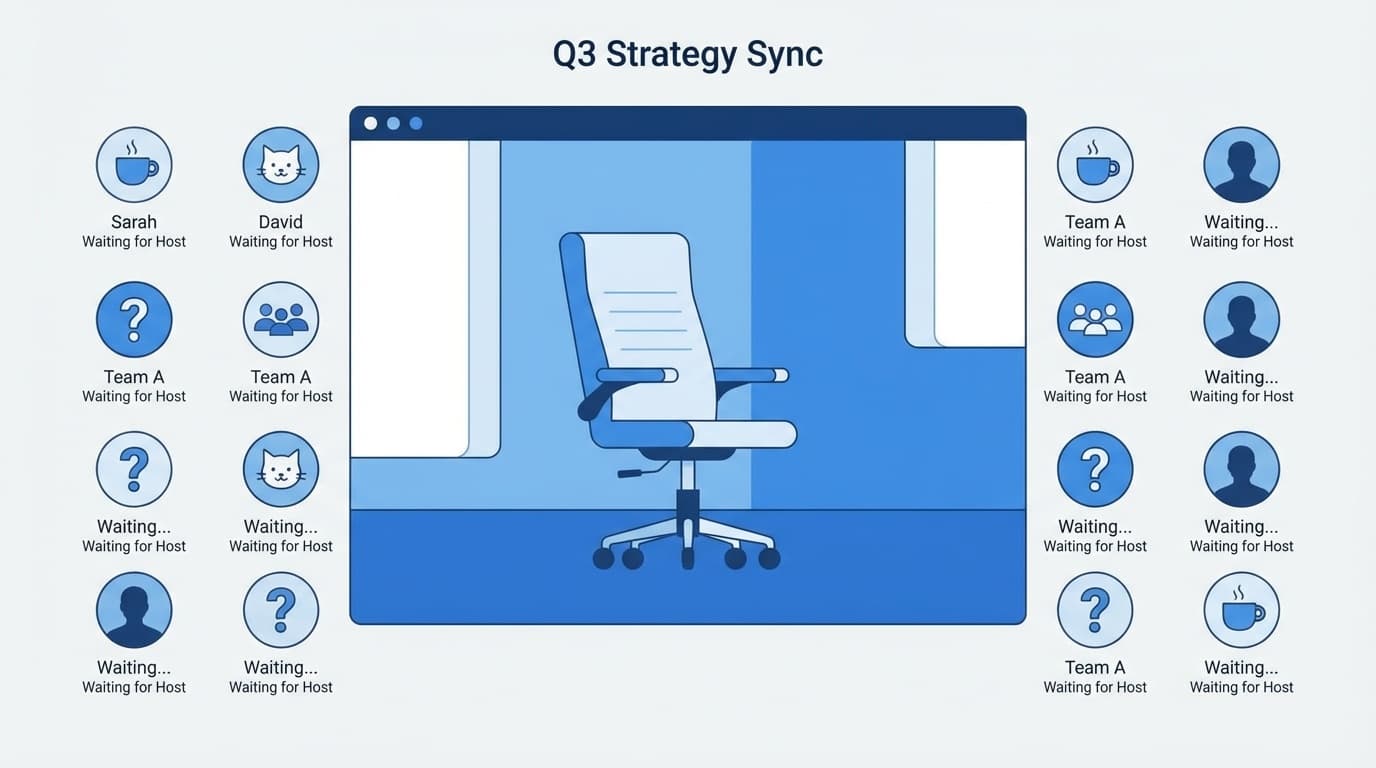
If the meeting organizer (host) has turned on the Waiting Room feature, you will not be able to enter the meeting until the host gives you permission. ``Please wait until the host allows you to join'' will appear on the screen, so just wait.
If you are not granted permission even after waiting several minutes, please contact the host by means other than Zoom (LINE, phone, etc.) and say, ``I'm in the waiting room.''
Cause 4: Unstable network connection
If you are underground or in a place where the signal is weak, you may not be able to connect to Zoom or it may crash during the connection. If you see error code 5003, there is most likely a network connection problem (Zoom Official: Error Code 5003).
Click here for the solution.
- Restart your Wi-Fi router (unplug it, wait 30 seconds, then plug it back in)
- If using a smartphone, turn off Wi-Fi and try connecting using mobile data communication
- If you can use wired LAN (LAN cable), switch to wired
- Your VPN or firewall may be blocking the connection, so try turning it off temporarily
Causes and solutions for no sound or microphone usage on Zoom
There are many cases where people join a meeting but can't hear their voice or can't hear their voice.
Cause 5: Not participating in audio
This is surprisingly a blind spot. Even if you connect to Zoom, the audio exchange will not begin unless you press the "Join Audio" button.
If the headphone icon is displayed at the bottom left of the screen, you are not yet able to participate in the audio. Click and select "Join with computer audio" (Zoom official: Speaker and microphone troubleshooting).
Cause 6: Muted
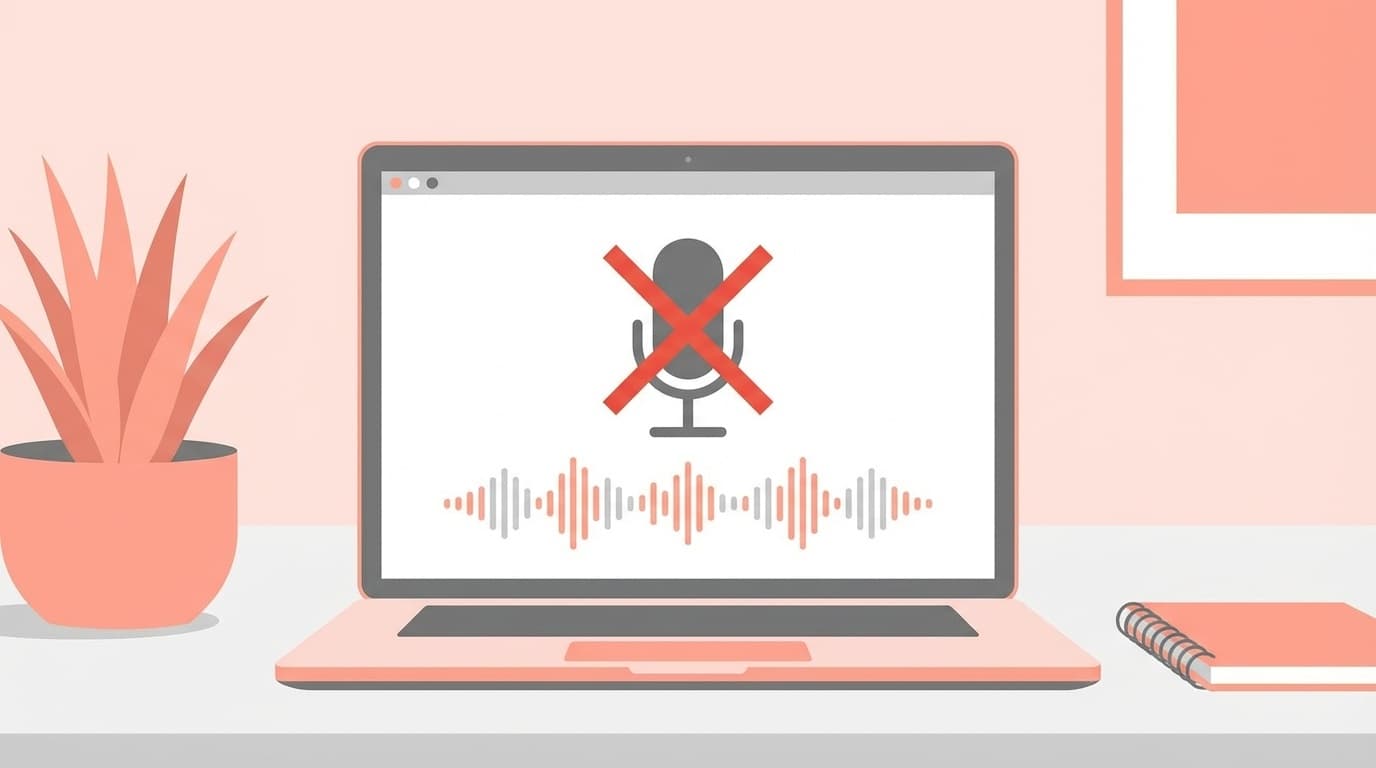
If the microphone icon at the bottom left of the screen has a red diagonal line, you are muted. You can cancel it by clicking or holding down the spacebar.
By the way, the host may force participants to mute. In this case, you will receive a notification saying ``The host has asked you to unmute you.'' Just press ``Unmute.''
Cause 7: Incorrect speaker/mic settings
If multiple audio devices (built-in speakers, external headsets, Bluetooth earphones, etc.) are connected to your computer, Zoom may use an unintended device.
Click here for steps to confirm/change.
- Click the "^" mark to the right side of the microphone icon at the bottom left of the meeting screen
- Select the device you want to use for "Speaker" and "Microphone"
- Click "Test Speaker & Microphone" to check operation
If you are using Bluetooth earphones, the key is to pair them with the earphones first and then start Zoom. If you connect earphones after starting Zoom, they may not be recognized.
Cause 8: Another app is using the microphone
If other video calling apps, such as Teams or Discord, are running in the background, they may occupy the microphone, making it impossible to use it with Zoom.
Completely close any calling apps you are not using before starting Zoom. Especially in Windows, it may reside in the system tray at the bottom right of the taskbar, so right-click and select "Exit".
Additional checks when you cannot enter Zoom on your smartphone (iPhone/Android)
There are also problems specific to smartphones. Check the following points.
Zoom app is not installed
On smartphones, You cannot participate in Zoom using just a browser. Installation of the "Zoom Workplace" app is required.
- iPhone: Download from App Store
- Android: Download from Google Play
Microphone/camera permissions not allowed
If you change the pop-up "Do you want to allow access to your microphone?" to "Do not allow" immediately after installing the app, you will not be able to use audio.
For iPhone: Settings → Zoom Workplace → Turn on microphone
For Android: Settings → Apps → Zoom Workplace → Permissions → "Allow" microphone
Last resort if the problem still persists
If all of the above doesn't work, try the following in order.
- Restart the Zoom app (quit completely and then restart)
- Restart your computer/smartphone (surprisingly, this alone often fixes the problem)
- Uninstall Zoom → Reinstall it
- Check for failures on the Zoom side (Check the current operating status with Zoom Service Status)
- Join from a browser (If the app does not work, you may be able to join from a browser such as Chrome.Click "Join from a browser" at the bottom of the screen where you open the invitation link)
Precautions to take before the meeting
We have put together a list of precautions you can take in advance to avoid getting flustered during important meetings.
- Start Zoom 5 minutes before the meeting (as updates may run)
- Pre-check at test meeting: You can check the operation of the camera, microphone, and speaker by accessing https://zoom.us/test
- Use wired LAN: More stable than Wi-Fi. Especially if you are participating from home, investing in a LAN cable that costs around 1,000 yen is a good idea
- Prepare a backup method: If your PC doesn't work, you can use your smartphone, and if your smartphone doesn't work, use your PC, so it's safe to prepare to participate using another device
FAQ
Why is there a 40 minute limit on the Zoom free plan?
As of February 2026, Zoom's free plan (Basic plan) limits each meeting to 40 minutes. It will be automatically disconnected after 40 minutes. However, even if the participant is on a free plan, there is no time limit if the host is on a paid plan.
What should I do if "Error code 5003" appears?
Error code 5003 means Network connectivity problem. Try restarting your Wi-Fi router, temporarily disabling your VPN/firewall, or switching to mobile data.
Why can I hear the other person's voice but not my own?
There is a high possibility that the microphone selection is incorrect. Select the correct microphone device from the "^" next to the microphone icon. Also, other apps may be using the microphone, so try closing unnecessary apps.
I don't see "Audio connection" on Zoom on my smartphone?
If the microphone permission for the Zoom app is set to "not allowed" in the smartphone settings, the audio connection button itself may not appear. Please allow the microphone from device settings → Apps → Zoom Workplace → Permissions.
References
- Troubleshooting when you can't join a Zoom meeting — Zoom official support
- Troubleshooting speaker or microphone issues in the desktop app — Zoom Official Support
- Zoom error code 5003 — Zoom official support
- Updating Zoom to the latest version — Zoom Official Support
- Summary of causes and solutions when unable to enter or connect to Zoom — NEC Netssi