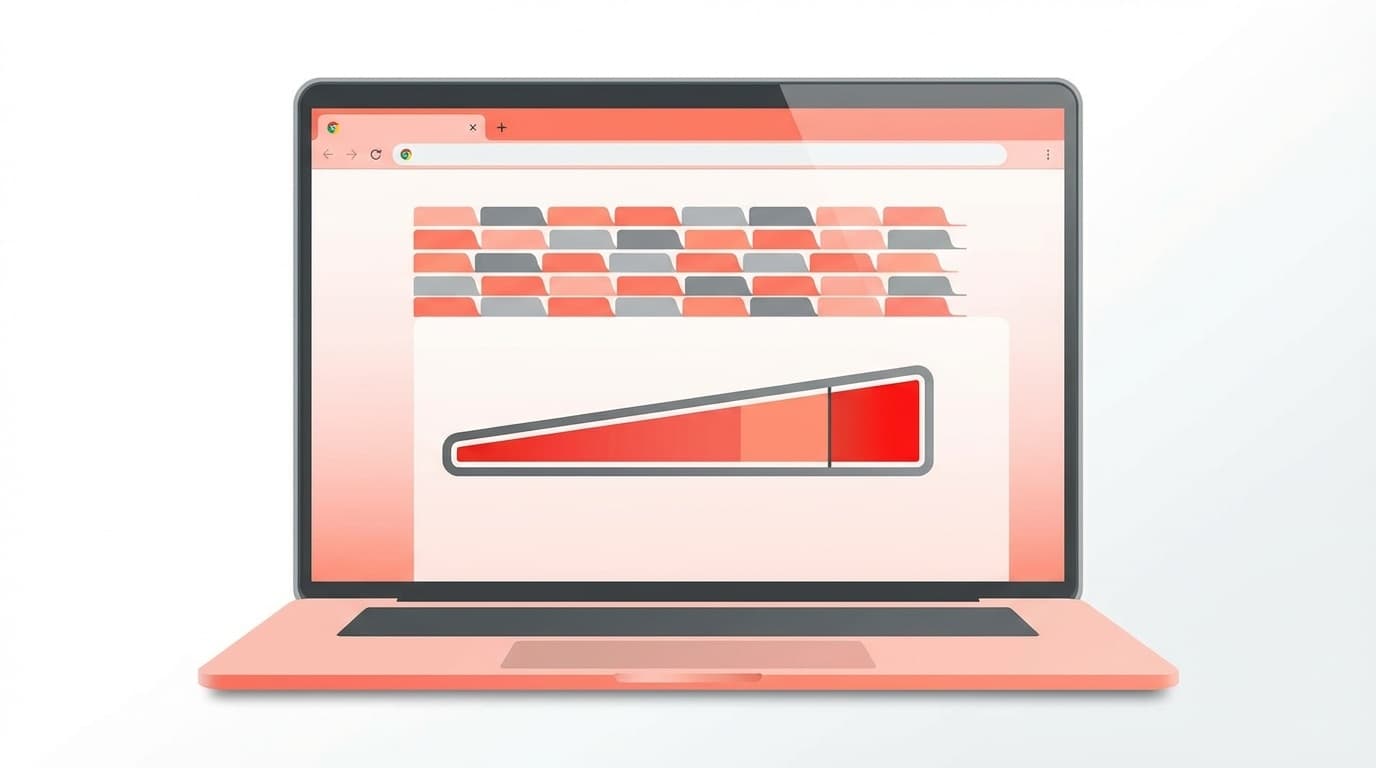
“I had about 20 Chrome tabs open, and suddenly my computer got painfully sluggish...” Sound familiar? Google Chrome runs each tab as a separate process, so the more tabs you open, the more memory (RAM) Chrome uses.
As of March 2026, Chrome includes several built-in features designed to save memory. In this guide, we’ll break down why Chrome gets so heavy and seven fixes you can try right now. These steps work for both Windows 11 and Mac.
Why Does Chrome Use So Much Memory?
The biggest reason Chrome is often called heavier than other browsers is its “one process per tab” design. In simple terms, if you open 10 tabs, it’s a bit like running 10 copies of Chrome behind the scenes.
There’s a benefit: if one tab crashes, the others usually won’t go down with it. The tradeoff is that Chrome uses a lot of memory.
Here are the three biggest memory hogs:
- Tabs left open: Those “I’ll read this later” tabs are usually the main culprit
- Extensions and add-ons: Ad blockers, translators, screenshot tools, and similar add-ons all use memory
- Video-heavy or ad-heavy sites: YouTube and social media tabs can be especially demanding
Fix 1: Turn On Memory Saver First
Chrome has an official memory-saving feature called “Memory Saver”. When it’s turned on, Chrome automatically frees up memory from tabs you haven’t used in a while. When you click one of those tabs again, Chrome reloads it automatically.
How to Turn It On
- Click the “︙” three-dot menu → “Settings” in the top-right corner of Chrome
- Select “Performance” from the left menu
- Turn “Memory Saver” on
- Choose a saving level:
- Moderate: Makes tabs inactive after a longer period of time
- Balanced: Makes tabs inactive sooner than Moderate
- Maximum: Makes tabs inactive as quickly as possible, which is best for PCs with limited memory
According to Google’s official help page, Memory Saver’s “Maximum” mode can reduce memory use from inactive tabs by up to 80%. Independent benchmark testing has also found 30–40% memory savings in environments with around 50 tabs open.
If there are sites you always want to keep active, such as email or chat apps, add them to “Sites to always keep active” so Memory Saver won’t suspend them.
Fix 2: Find the Culprit with Chrome’s Task Manager
If you’re wondering, “Which tab is eating all my memory?”, use Chrome’s built-in Task Manager. It’s separate from the Windows Task Manager.
How to Open It
- Click Chrome’s “︙” menu → “More tools” → “Task manager”
- Or press Shift + Esc on Windows
You’ll see a list of each tab and extension, along with its memory usage and CPU usage. If you find a tab or extension using a huge amount of memory, select it and click “End process” to force it to close.
In short, this is the tool that helps you identify exactly what’s chewing through your memory.
Fix 3: Disable or Remove Extensions You Don’t Use
Extensions are convenient, but the more you install, the more memory Chrome uses. It’s especially common to have old extensions running in the background even though you don’t use them anymore.
How to Check and Remove Extensions
- Type chrome://extensions/ in the address bar and press Enter
- If you find an extension you don’t use, click “Remove”
- For extensions you don’t want to delete but rarely use, turn them off with the toggle switch
As a rule of thumb, try to keep five or fewer extensions enabled all the time.
Fix 4: Organize Tabs with Tab Groups
If you don’t like closing tabs, Tab Groups are worth using. Grouping related tabs and collapsing them keeps your browser cleaner, and it also pairs nicely with Memory Saver.
How to Use Tab Groups
- Right-click a tab → “Add tab to group” → “New group”
- Choose a group name and color
- Click the group name to collapse or expand the group
In Chrome versions released from 2025 onward, Google also added a “Tab Organizer” feature that can analyze your open tabs with AI and suggest automatic groups (Google official blog). You can access it from the right-click menu by choosing “Organize tabs with AI.”
Fix 5: Clear Cache and Browsing Data
If you’ve been using Chrome for a long time, cached files and browsing history can build up to several gigabytes. That can slow down Chrome’s startup time and general performance.
How to Clear It
- In Chrome, press Ctrl + Shift + Delete on Windows or Command + Shift + Delete on Mac
- Set the time range to “All time”
- Check “Cached images and files”
- Select “Browsing history” and “Cookies” only if needed. Clearing cookies will sign you out of many sites
- Click “Delete data”
After clearing the cache, some sites may load a little more slowly at first, but Chrome will rebuild fresh cache files as you browse.
Fix 6: Check Hardware Acceleration
Chrome has a feature called “hardware acceleration”, which lets your GPU handle graphics-related work. Usually, leaving it on makes Chrome smoother. But on older PCs or systems with GPU driver issues, turning it off can sometimes make Chrome feel lighter.
How to Change the Setting
- Go to “︙” → “Settings” → “System”
- Toggle “Use hardware acceleration when available” on or off
- Restart Chrome and see whether performance improves
If your screen flickers or videos stutter, try turning it off. If you don’t have any issues, it’s usually best to leave it on.
Fix 7: Update or Reset Chrome
If none of the fixes above help, Chrome itself may be outdated, or your Chrome profile may be damaged.
Update Chrome to the Latest Version
- Go to “︙” → “Help” → “About Google Chrome”
- Chrome will automatically check for updates. If an update is available, click “Relaunch”
Reset Chrome Settings as a Last Resort
- Go to “︙” → “Settings” → “Reset settings”
- Click “Restore settings to their original defaults”
Resetting Chrome will restore settings such as your startup page, search engine, pinned tabs, and extension enabled/disabled states. Your bookmarks, history, and passwords will be kept, so you don’t need to panic.
FAQ
How much memory usage is normal for Chrome?
It depends on your number of tabs and extensions, but it’s not unusual for Chrome to use 1–2GB with around 10 tabs open, or 3–4GB with 20 or more tabs. If your PC has 8GB of RAM, Chrome alone can use more than half of it, so Memory Saver is especially useful.
Should I switch to a lighter browser instead of Chrome?
Microsoft Edge is also based on Chromium, the same browser engine Chrome uses, so memory usage may not be dramatically different. That said, Edge’s Efficiency Mode and Firefox’s memory management are both solid, so they’re worth considering if Chrome still feels heavy after trying these fixes.
Will Memory Saver erase the contents of my tabs?
No. When you click an inactive tab, Chrome reloads it automatically. However, text you were typing into a form may disappear, so add important sites to the always-active list if you need them to stay loaded.
Will adding more RAM make Chrome faster?
Yes, it can help. If your current PC has 8GB of RAM, upgrading to 16GB can make a noticeable difference. Still, it’s best to try software-side fixes first, such as turning on Memory Saver and removing unnecessary extensions. Even laptops that can’t be upgraded often improve quite a bit with settings alone.
References
- Customize Chrome performance — Google Chrome Help
- Boost your browsing with Chrome's new performance controls — Google official blog, October 2024
- New Chrome features to save battery and make browsing smoother — Google official blog