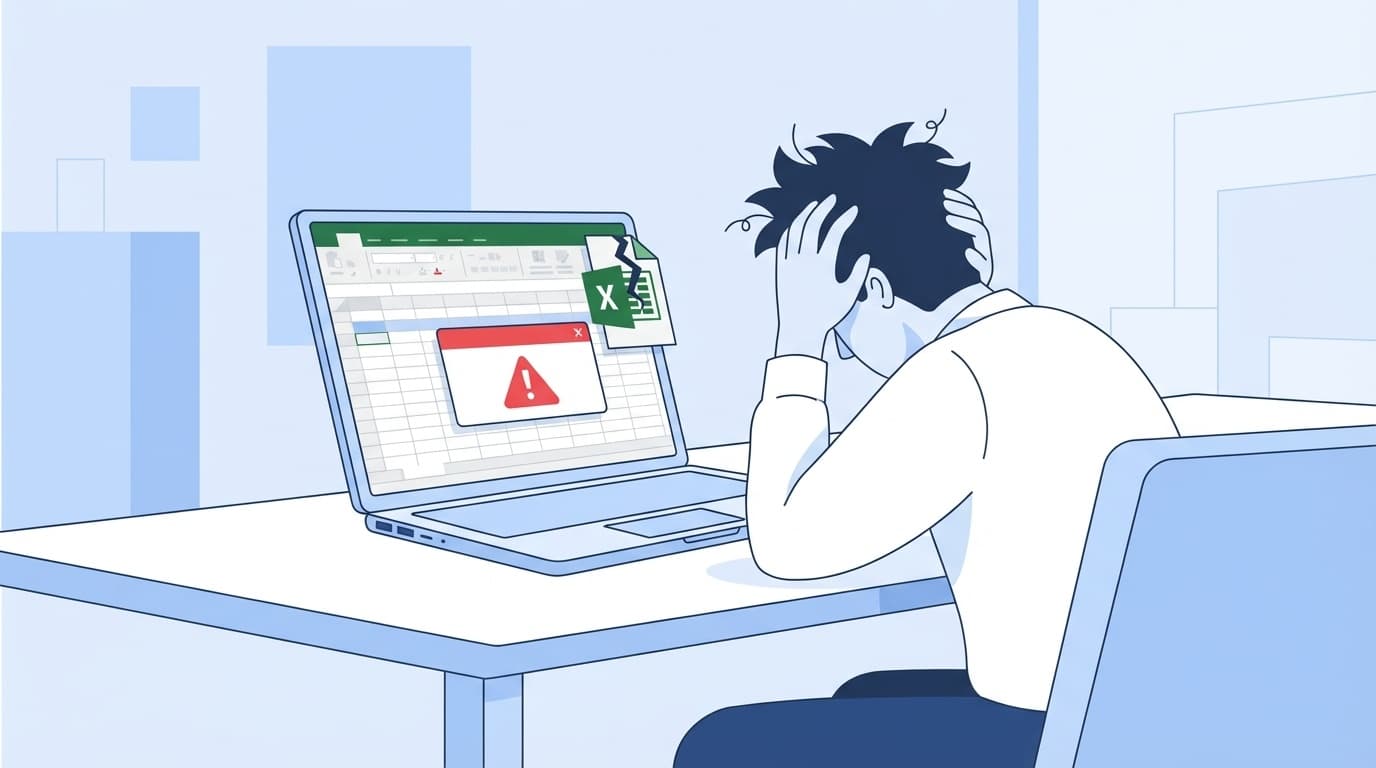
Every time I open Excel, the message "We're sorry, Excel is no longer able to function properly due to an error" is displayed and the work does not proceed. As of March 2026, the number of people reporting this problem in Windows 11 environments is increasing on SNS.
There are multiple causes for this error, including add-in conflicts and corrupt Office files. In this article, we will organize the causes of Excel startup errors into six categories and explain in an easy-to-understand manner the solutions that you can try right away.
What's really going on? Let's know what the error is
When you start Excel, the following message may appear.
- "We're sorry, Excel has encountered an error that prevents it from working properly"
- "Excel has stopped working"
- Starts but the screen remains blank
- "Not responding" when trying to open a file
These are all signs that something in Excel's startup process is stumbling. There is not just one cause, but it can be divided into several patterns, such as add-ins, printer drivers, and damage to Office itself.
The key point is that Even if you think your computer broke without doing anything, it is often caused by automatic updates of Windows Update or Office. There are reports that Excel-related problems have increased especially after the Windows 11 version 24H2 update (Microsoft official: Fixes or workarounds for recent issues in Excel for Windows).
Cause 1: The add-in is doing something wrong (the most common cause)
Excel has a mechanism that allows you to add extensions called "add-ins." There are things that are added automatically by the company's system, things that you add yourself as useful tools, and things that increase without you even realizing it.
If this add-in becomes incompatible with an Excel version update or conflicts with other add-ins, an error will occur every time it is started.
How to check: Try booting in safe mode
- Press Windows + R to open Run
- Type
excel /safeand Enter - Excel starts with "Safe Mode" displayed in the title bar
If it works fine in safe mode, the problem is most likely caused by an add-in.
Workaround: Disable the add-in
- Open "File" → "Options" → "Add-ins" in Excel in safe mode
- Select "COM Add-in" under "Management" at the bottom of the screen and click "Settings"
- Uncheck everything and click "OK"
- Restart Excel and check if it opens in normal mode
- If it opens successfully, install add-ins one by one toidentify the culprit
Roughly speaking, the best way to do this is to turn everything off and turn it back on one by one.
Cause 2: Office program files are corrupt
If Windows Update or automatic updates of Office stop midway, or if the power is suddenly turned off, Office files may become corrupted. In this case, the error continues to occur even in safe mode.
Workaround: Use Office's repair function
- Open Settings in Windows + I
- Select “Apps” → “Installed apps”
- Find “Microsoft Office” or “Microsoft 365” and click “…” → “Change” on the right
- Select and run "Quick Repair"
If Quick Repair does not fix the problem, try "Online Repair". Online repair requires an Internet connection and takes time, but is more reliable as it re-downloads the entire Office file (Microsoft official: Repair an Office application).
In other words, try a two-step process: "Quick repair → Online repair if it doesn't work."
Cause 3: Default printer is not responding
It is surprisingly little known, but Excel is designed to load printer information at startup. If the default printer is a network printer and that printer is offline or has a corrupted driver, Excel may start extremely slowly or cause errors.
Workaround: Temporarily change the default printer
- Open "Settings" → "Bluetooth and devices" → "Printers and scanners"
- Turn off "Let Windows manage my default printer"
- Select "Microsoft Print to PDF" and click "Set as default"
- Start Excel and check if there are any errors
If this fixes the problem, please update the original printer driver to the latest version, or delete and reinstall it.
Cause 4: Personal macro workbook (PERSONAL.xlsb) is corrupted
If Excel macros are saved in the "Personal Macro Workbook", if this file (PERSONAL.xlsb) is corrupted, Excel will not be able to start.
Workaround: Save PERSONAL.xlsb
- Type
%appdata%\Microsoft\Excel\XLSTARTin the address bar of Explorer and Enter - If
PERSONAL.xlsbexists, move it to another location such as the desktop (we recommend moving it rather than deleting it) - Start Excel and check if it improves
If this fixes the issue, you will need to recreate the contents of the macro into a new PERSONAL.xlsb. It's a hassle, but if you continue to use a corrupted file, the same error will occur again, so it's safer to recreate it.
Cause 5: Hardware graphics accelerator issue
Excel uses the GPU (graphics board) to draw graphs and diagrams. If the GPU driver is outdated or incompatible with Excel, the screen may turn white or a drawing error may occur.
Workaround: Disable hardware acceleration
- Start Excel in safe mode (Windows + R →
excel /safe) - Open "File" → "Options" → "Advanced Settings"
- Check "Disable hardware graphics acceleration" in the "Display" section
- Click OK and restart Excel
If this fixes the issue, please try updating your GPU driver to the latest version from the official website of NVIDIA or AMD.
Cause 6: Office license authentication or account issue
If you are using Microsoft 365 (subscription version), an error may occur due to license expiration or inconsistent sign-in information. This is especially likely to occur immediately after the administrator changes the license on a company PC.
Workaround: Sign out & sign in again
- If Excel can be started, select "File" → "Account" → "Sign out"
- Close and restart Excel, then sign in again
- If you cannot launch it, try signing out from another Office app such as Word or PowerPoint
If the problem still persists, you can also use Microsoft's official Microsoft Support and Recovery Assistant (SaRA) to diagnose Office problems.
Last resort if the problem still persists
If the problem persists even after trying all of the above, please consider the following methods.
- Reinstall Office: Uninstall Office from Settings → Apps and reinstall from office.com
- Try with a new Windows user account: If the user profile is corrupted, a new account may work fine
- Microsoft Support and Recovery Assistant (SaRA): A free diagnostic tool from Microsoft that automatically detects and repairs Office problems
If that doesn't work, consult the PC manufacturer or your company's IT department. If you have a memo of what you tried, it will be easier for the support side to narrow down the cause.
FAQ
What should I do if Excel does not start even in safe mode?
If it does not start even in safe mode, there is a high possibility that the files in Office are corrupted. Try "Settings" → "Apps" → "Changes" → "Online Repair" in Office. If that doesn't work, you will need to reinstall Office.
Which should I try first, "Quick Repair" or "Online Repair"?
Try "Quick Repair" first. It only takes a few minutes and will fix any minor damage. If the quick repair does not resolve the issue, run "Online Repair". Online repair re-downloads the entire Office, which may take 30 minutes to an hour.
Can I repair my work PC without administrator privileges?
Administrator privileges may be required to repair or uninstall Office. If you do not have administrator privileges on your work PC, try solutions that do not require administrator privileges, such as starting in safe mode or disabling add-ins. If the problem still persists, contact your IT department.
Does the same error occur in Excel Online?
No, the error explained in this article is a problem specific to the desktop version of Excel. Excel Online (browser version) doesn't rely on add-ins or local printer settings, so you won't get the same error. If you have something urgent to do, you can also use Excel Online from office.com.
After Windows Update, Excel no longer opens. Is it possible to restore it?
You can remove the most recent updates from "Settings" → "Windows Update" → "Update history" → "Uninstall updates". However, since security updates may also be included, we recommend that you try repairing Office or disabling add-ins first.
References
- Excel not responding, hangs, freezes or stops working — Microsoft Support
- Repair an Office application — Microsoft Support
- Fixes or workarounds for recent issues in Excel for Windows — Microsoft Support
- Excel won't start? Did you know that Excel also has a safe mode? — @IT, February 2021