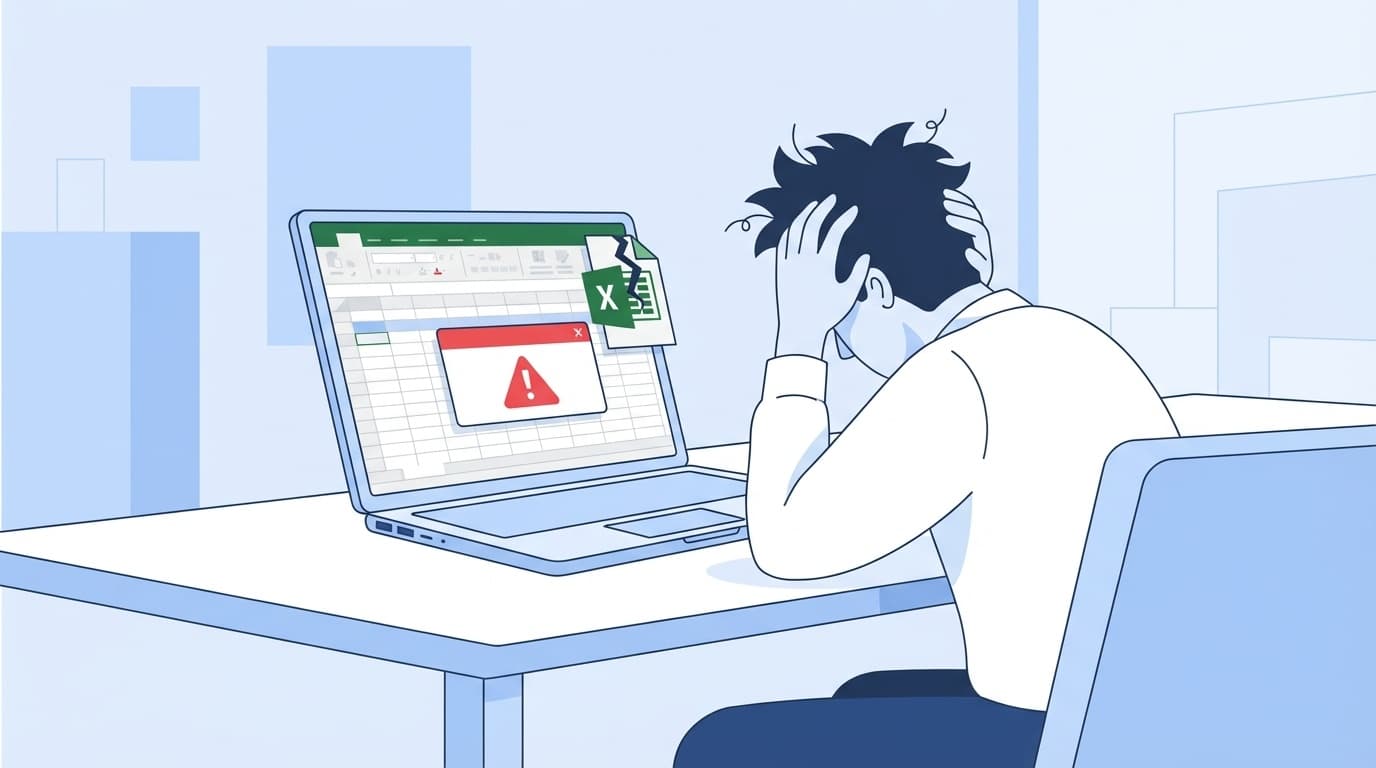
Have you ever had an Excel macro your team uses at work suddenly stop running, or inherited a VBA macro from a former coworker only to have it crash with an error?
Excel macros (VBA) can be incredibly useful for automating repetitive work, but they often end up in a “only the person who made it understands it” state. When that person transfers teams or leaves the company, nobody knows how to fix the file.
In this article, based on Microsoft 365 / Excel 2021 as of March 2026, we’ll walk through six common reasons macros won’t run or stop with an error, plus fixes you can try even if you’re not comfortable with VBA.
Cause 1: The macro is blocked by security settings
This is the most common cause. Since Microsoft 365 updates in 2022, macros in files downloaded from the internet are fully blocked by default.
Files received by email, or even files copied from an internal company server, may sometimes be treated as “files from the internet.” If you open the file and see a red bar saying “Security Risk: Microsoft has blocked macros from running” instead of the usual yellow warning bar, this setting is probably the reason.
How to fix it
Option A: Unblock the individual file
- Right-click the Excel file and open “Properties.”
- At the bottom of the “General” tab, find the security message saying the file came from another computer, then check “Unblock.”
- Click “OK,” then reopen the file.
Option B: Save it in a Trusted Location
- Open Excel, then go to “File” → “Options” → “Trust Center” → “Trust Center Settings.”
- Select “Trusted Locations” from the left menu.
- Use “Add new location” to register the folder where you’ll store the macro file.
- Move the file into that folder, then open it again.
In short, you’re telling Excel, “This file, or this folder, is safe.”
Cause 2: The file is saved as “.xlsx”
One detail that’s surprisingly easy to miss is the file extension. Excel macros only run in a macro-enabled workbook (.xlsm).
If someone uses “Save As” and accidentally saves the file as an “Excel Workbook (.xlsx),” the macro code may still be there, but it won’t run. This also happens often when copying or re-saving files created by a previous employee.
How to fix it
- Choose “File” → “Save As.”
- Change the file type to “Excel Macro-Enabled Workbook (*.xlsm)” and save it.
- Open the newly saved file and run the macro again.
Also note that when you try to save a macro-enabled file as .xlsx, Excel shows a warning that the file contains a VB project. If you ignore that warning and save anyway, the macro won’t work the next time you open the file.
Cause 3: The VBA “References” are broken
This one is a little more intermediate, but it’s a very common issue. VBA macros sometimes use external libraries, which are like collections of reusable parts, through “References.”
When you replace a computer or upgrade Office, VBA may no longer be able to find one of the referenced libraries, leaving it marked as “MISSING”. If you run the macro in that state, you may see “Compile error: Can’t find project or library.”
How to fix it
- Open the file in Excel, then press Alt + F11 to open the VBA Editor (VBE).
- Click “Tools” → “References” in the menu.
- If anything in the list is marked “MISSING”, uncheck it.
- If needed, check the correct version of the library instead.
- Click “OK,” then run the macro again.
A common example is when “Microsoft ActiveX Data Objects 2.8 Library” has been replaced by “6.1 Library.” Unchecking the old version and checking the new one often solves the problem.
Cause 4: A sheet name or cell range has changed
VBA macros often refer directly to sheet names and cell ranges. For example, you may see code like this:
Sheets("売上データ").Range("A1:D100").Copy
In this case, if someone renames the sheet “売上データ” to “売上データ_2026,” or deletes that sheet, the macro may stop with “Run-time error '9': Subscript out of range.”
How to fix it
- Press Alt + F11 to open the VBA Editor.
- Open the code for the macro that’s causing the error.
- Look for parts written like Sheets("〇〇") or Range("A1:D100").
- Check whether they match the actual sheet names and cell ranges in the workbook.
- If they don’t match, update the text in the code and save the file.
Basically, you’re checking whether “the name written in the macro” matches “the actual sheet or cell name.” Even if you don’t understand VBA, it’s worth trying because you’re mostly looking for text inside double quotation marks ("").
Cause 5: A 32-bit / 64-bit compatibility error
When a company replaces computers, the old Excel installation may have been 32-bit, while the new computer has 64-bit Excel. As of 2026, new Microsoft 365 installations use 64-bit by default.
If a VBA macro created for 32-bit Excel includes a Declare statement, which calls an external Windows API, 64-bit Excel may show a compile error saying the code must be updated for use on this platform.
How to fix it
If you see Declare Function or Declare Sub near the top of the VBA code, update it like this.
Before, 32-bit only:
Declare Function GetTickCount Lib "kernel32" () As Long
After, compatible with both 32-bit and 64-bit:
#If VBA7 Then
Declare PtrSafe Function GetTickCount Lib "kernel32" () As Long
#Else
Declare Function GetTickCount Lib "kernel32" () As Long
#End If
The key idea is to add the “PtrSafe” keyword. If you’re not comfortable making this change yourself, it’s best to ask your IT department or a VBA support specialist.
Cause 6: A macro run-time error, such as type mismatch or missing object
This is when the macro starts running but stops partway through with a message like “Run-time error '13': Type mismatch” or “Run-time error '91': Object variable or With block variable not set.”
This usually happens when the data format the macro expects doesn’t match the actual data. For example, a cell that should contain a number may contain text, or a required cell may be blank.
How to fix it
- When the error appears, click “Debug.”
- The VBA Editor will open, and the yellow highlighted line shows where the error occurred.
- Check which cell or sheet that line is referring to.
- Look for unexpected data, such as blanks, text, or error values, in the target cells.
- Fix the data, then run the macro again.
A common pattern is that the format changes slightly when a new month’s data is entered. Added or deleted columns and merged cells can also cause this kind of error.
3 ways to prevent macro problems
Here are a few everyday habits that can help you avoid panicking every time a macro stops working.
1. Make it a rule to save macro files as .xlsm
Set a clear team rule: files with macros must always be saved in .xlsm format. The same applies when saving them in shared folders on SharePoint or OneDrive.
2. Standardize on one shared Trusted Location
Store macro files in one shared folder and register that folder as a Trusted Location in everyone’s Excel settings. This greatly reduces security-block issues. Ideally, your IT department can configure it for everyone through Group Policy.
3. Leave a simple macro spec note
Just leaving a quick note in a text file or separate Excel sheet can prevent a lot of trouble when responsibilities change. Include what the macro does, which sheets and cell ranges it uses, and what data format it expects.
FAQ
I don’t understand VBA at all. Can I fix macro errors myself?
Cause 1, security blocking, and Cause 2, file format issues, can be fixed without knowing VBA. Cause 4, mismatched sheet names, is also beginner-friendly because you’re mainly checking text in the code. For the other issues, it’s usually better to ask your IT department or a coworker who knows VBA.
I don’t see the yellow “Enable Macros” bar. What should I do?
Since Microsoft 365 updates in 2022, files downloaded from the internet may show a red bar, meaning a full block, instead of the yellow warning bar. Open the file’s Properties and check “Unblock,” or save the file in a Trusted Location.
Is there a way to check whether a file contains macros?
Press Alt + F11 to open the VBA Editor. If the Project Explorer on the left shows items like “Modules,” “ThisWorkbook,” or “Sheet,” and there’s code inside, the file contains macros. In general, a file with the .xlsm extension is macro-enabled.
Is it okay to set macro security to “Enable all macros”?
It’s not recommended. A malicious macro could run automatically. It’s safer to register your work folder as a Trusted Location.