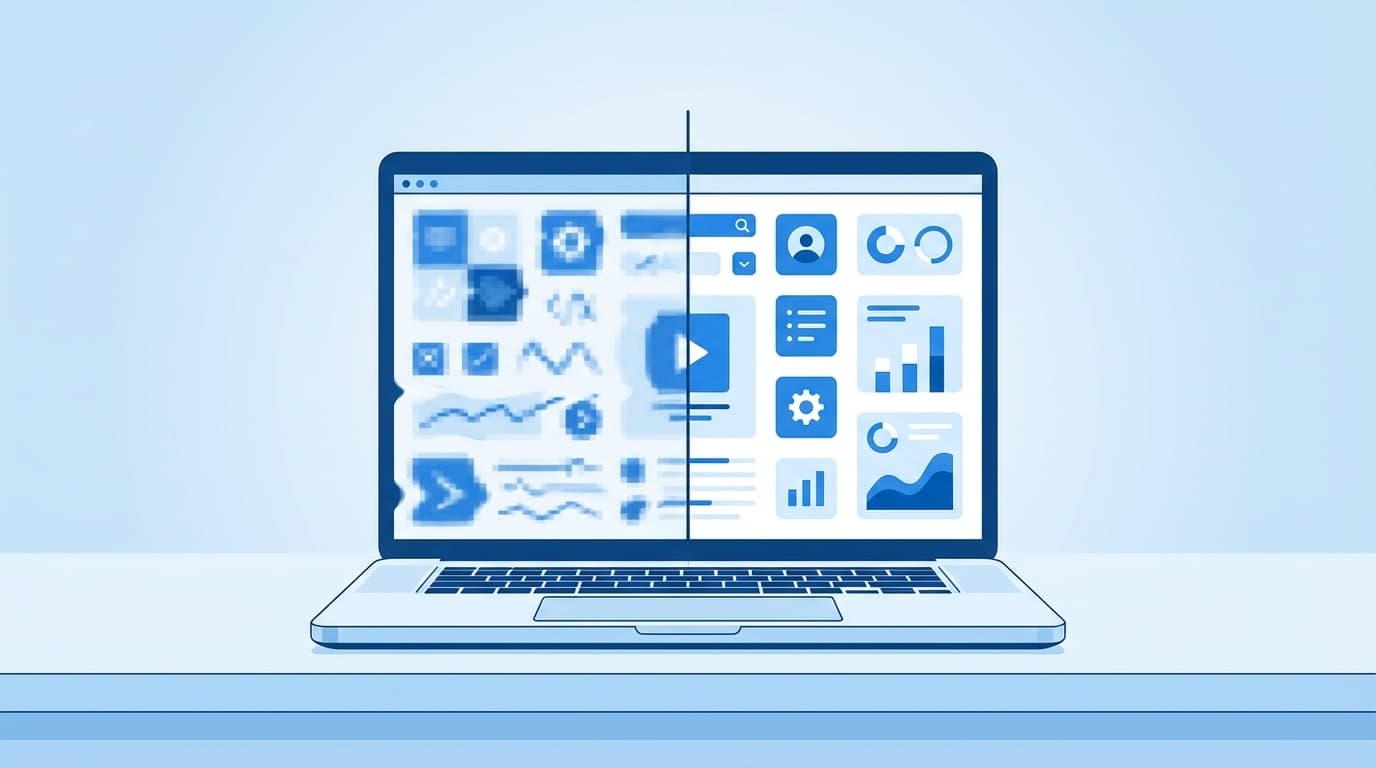
Are you using a Windows 11 laptop or high-resolution monitor and seeing problems like “blurry text,” “smeared-looking app buttons,” or “browser and cloud app screens getting cut off”?
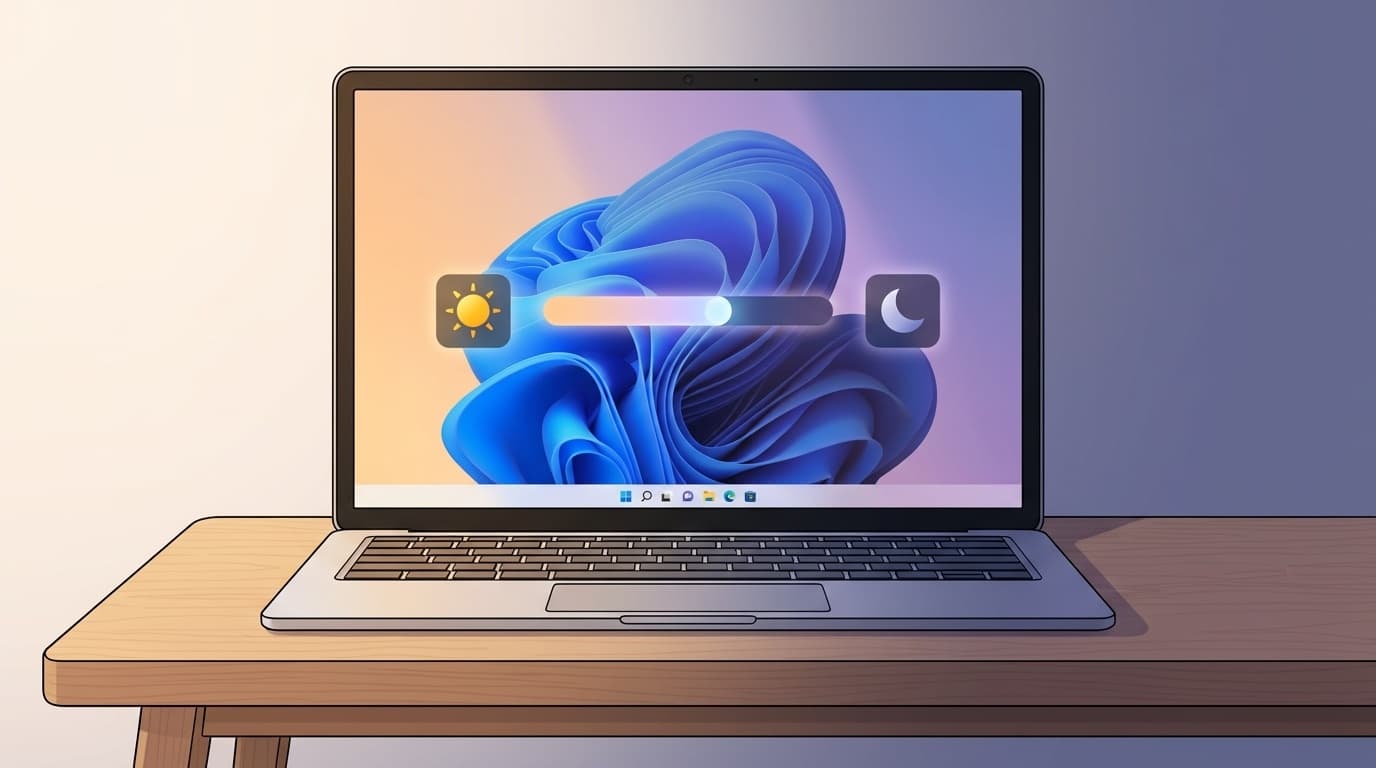
In many cases, the cause is Windows’ display scaling setting. When scaling is set to 125% or 150%, some apps may show fuzzy text or broken layouts.
In this guide, based on Windows 11 version 24H2 as of March 2026, we’ll explain why scaling can make things look wrong and walk through six fixes you can try right away.
What Is “Scaling,” and Why Does It Make Text Blurry?
Scaling is a feature that makes text, icons, and other on-screen items appear larger. In simple terms, it works kind of like a magnifying glass.
Modern laptops often have high-resolution screens, usually Full HD or higher. At 100%, text can be too small to read comfortably. So Windows often sets scaling to 125% or 150% automatically. The real problem is that some apps don’t handle that enlargement properly.
You’re more likely to see this with apps like these:
- Older desktop apps, such as software from the Windows 7 era
- Business cloud software, especially browser-based tools with fixed layouts
- Some games and utilities, when the developer hasn’t added proper scaling support
When an app doesn’t support scaling well, Windows may force it larger using a method called bitmap stretching. That can cause the same kind of blur or smearing you see when you enlarge a photo too much.
Fix 1: Switch Scaling Back to the Recommended Value
The first thing to check is whether your current scaling value is the recommended one.
Steps:
- Right-click the desktop and choose “Display settings.”
- Check the “Scale” section.
- You’ll see options such as “100%,” “125%,” “150%,” “175%,” and “200%” in the dropdown.
- Choose the value marked “Recommended.”
One thing to watch for: make sure you haven’t set an odd custom scaling value, such as 110% or 135%. Custom values are more likely to cause blur, so start by going back to the recommended setting.
According to AskVG’s testing article, Windows 11 may render things differently when you choose a scaling value from the dropdown versus entering the same value manually in custom scaling, such as 150%. If the dropdown value looks blurry, entering the same value manually under custom scaling may improve the result in some cases.
Fix 2: Override High DPI Scaling for a Specific App
If only one app looks blurry, it often helps to change the setting just for that app.
Steps:
- Right-click the blurry app’s icon, or its exe file.
- Open “Properties,” then select the “Compatibility” tab.
- Click “Change high DPI settings.”
- Check “Override high DPI scaling behavior.”
- Change “Scaling performed by” to one of the following:
- “Application”: Let the app handle scaling itself. Try this first.
- “System (Enhanced)”: Use Windows’ improved scaling method.
- Click “OK,” then restart the app.
In many cases, choosing “Application” clears up the blur. However, the app may appear smaller because Windows is no longer enlarging it. If that makes it hard to read, try “System (Enhanced)” instead.
Fix 3: Turn On Automatic Fixing for Blurry Apps
Windows 11 includes a feature that automatically detects and tries to fix apps that look blurry because of scaling. A lot of people don’t know it exists, so it may be turned off.
Steps:
- Open “Settings” → “System” → “Display.”
- Click the arrow icon next to “Scale,” or open “Advanced scaling settings.”
- Turn on “Let Windows try to fix apps so they’re not blurry.”
Once this is on, Windows will try to redraw blurry apps when it detects a problem. It won’t fix every app, but there’s very little downside, so it’s worth leaving enabled.
Fix 4: Correct Scaling Mismatches in Multi-Monitor Setups
If you connect an external monitor to your laptop, blur can happen when each display uses a different scaling percentage.
For example, if your laptop screen is set to 150% and your external monitor is set to 100%, an app may look blurry for a moment and then redraw itself when you drag it between screens. Apps with proper support usually sharpen up after a few seconds. Older apps may stay blurry.
What to do:
- Go to “Settings” → “Display,” select each monitor, and check its scaling value.
- If possible, use the same scaling percentage on both monitors, such as 150% on both.
- If that isn’t practical, adjust the app’s high DPI settings to match the monitor you use most often.
As of March 2026, Windows 11 handles multi-monitor scaling much better than before, but older apps can still run into problems.
Fix 5: Tune Text Clarity with ClearType Text Tuner
If the main issue is fuzzy-looking text, adjusting ClearType may help.
Steps:
- Type “ClearType” into the taskbar search box.
- Open “Adjust ClearType text.”
- Make sure “Turn on ClearType” is checked.
- Follow the on-screen prompts and choose the text sample that looks sharpest on each screen.
- When you’re done, click “Finish.”
ClearType adjusts font subpixel rendering, which is basically the technology Windows uses to make text edges look smoother. If you’ve changed monitors or adjusted scaling recently, running ClearType again can make text look noticeably sharper.
Fix 6: Make Sure Your Resolution Is Set to “Recommended”
This is easy to miss, but sometimes the display resolution itself is wrong.
How to check:
- Open “Settings” → “System” → “Display.”
- Check the “Display resolution” section.
- Confirm that the resolution marked “Recommended” is selected.
If you choose anything other than your monitor’s native resolution, meaning the resolution the screen was designed for, the entire screen can look soft or blurry. This can happen after unplugging and reconnecting an HDMI cable or updating a display driver, so it’s worth checking.
If the recommended resolution is grayed out and you can’t select it, your display driver may not be installed correctly. Open “Device Manager,” go to “Display adapters,” and try updating the driver.
FAQ
Will setting scaling to 100% always prevent blur?
Yes, scaling-related blur won’t happen at 100%. However, on high-resolution monitors, text can become extremely small, so it’s often not practical. With 125% or 150% scaling, combining fixes 2 and 3 should make most apps look sharp.
Can scaling cause web apps or cloud software to get cut off in the browser?
Yes, it can. Scaling can affect how the browser calculates scrollbars and layouts. Try adjusting the browser zoom level, or reset it with Ctrl + 0. You can also try changing the browser’s high DPI setting using fix 2.
Do I have to redo the settings every time I connect an external monitor?
No. Windows 11 remembers scaling settings for each monitor. Once you set it up, Windows should restore the setting automatically when you connect the same monitor again. If you connect a different monitor, though, you may need to configure it separately.
What scaling percentage is recommended for a 4K monitor?
For a 27-inch 4K monitor, 150% is common. For a 32-inch 4K monitor, 125% to 150% is typical. Windows will suggest a “Recommended” value automatically, so that’s the best place to start.
References
- View display settings in Windows — Microsoft Support
- Windows scaling on high DPI displays — Microsoft Support
- Bug Discovered in Windows 11 Built-in DPI Scaling Levels — AskVG
- How to Fix Blurry Apps in Windows 11 — TechSpot