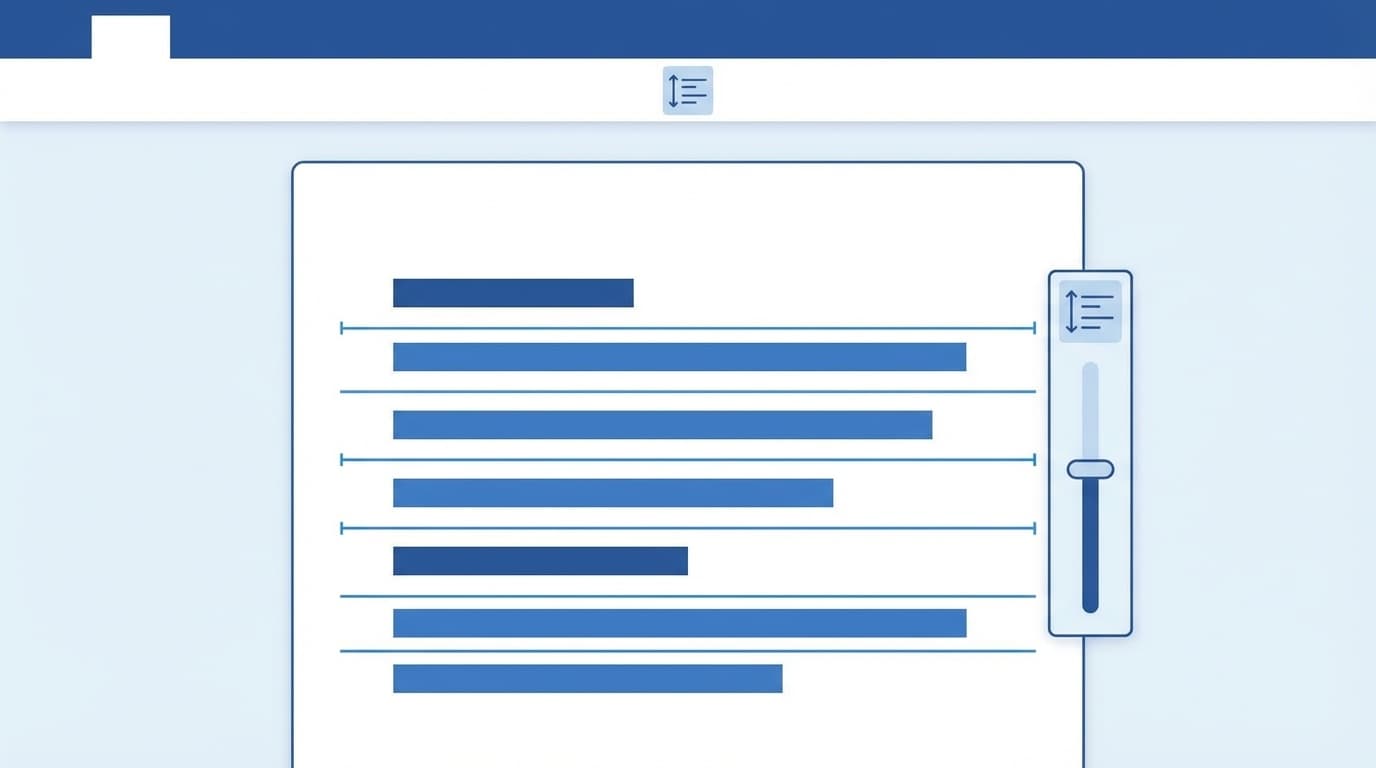
Have you ever opened a new document in Word and thought, “Why is the line spacing so wide? This is hard to read…”? Especially after Microsoft 365 updates from 2025 onward, more people on social media have been saying that Word’s default settings changed and made line spacing even wider.
The cause comes down to Word’s default Japanese fonts, “Yu Gothic” and “Yu Mincho,” plus the default settings related to line spacing. In this article, based on the latest versions of Word as of March 2026 (Microsoft 365 / Word 2024), we’ll explain how to fix the spacing and how to change the default settings so you don’t have to redo it every time.
Why does the line spacing get so wide? The issue is the “line grid” and Yu Gothic
The biggest reason Word’s line spacing gets wider is that “Snap to grid when document grid is defined” is turned on. This feature aligns text to invisible “grid lines” so the number of lines that fit on one page stays consistent.
In plain English, Word is deciding, “This page should always have 36 lines!” Depending on the font size and font type, that can create unnecessary extra space between lines.
Yu Gothic and Yu Mincho have slightly taller font metrics (ascenders and descenders) than the older standard fonts, “MS Mincho” and “MS Gothic.” So when Word snaps them to the grid, the line spacing can easily become even wider than expected.
On top of that, several sources have reported that around the January 2025 Microsoft 365 update, the default settings for new documents changed as follows.
- Font size: 10.5 pt → 11 pt
- Spacing after paragraphs: 0 pt → 8 pt
- Line spacing: 1.0 → 1.08 lines
In other words, if you’re creating documents the way you always have, it’s completely understandable to think, “Wait, why does this look so spread out?”
Fix it in 3 minutes: How to adjust line spacing in the document you’re working on
Let’s start with the quick fix for the document in front of you. If the spacing in a document you’re already editing is too wide, you can fix it with these steps.
Method 1: Turn off the line grid setting (recommended)
- Select the paragraphs you want to fix (or press Ctrl + A to select the whole document)
- Go to the “Home” tab, then click the small arrow in the bottom-right corner of the Paragraph group (the dialog box launcher)
- Open the “Indents and Spacing” tab
- Uncheck “Snap to grid when document grid is defined”
- Click “OK”
That alone can make the spacing look dramatically cleaner. If you want to keep using Yu Gothic, try this method first.
Method 2: Set the line spacing value directly
- With the paragraph selected, open the same “Paragraph” dialog box as above
- From the “Line spacing” dropdown, choose “Exactly”
- Enter 18 pt to 20 pt in “At” (when using a 10.5 pt font size)
- Click “OK”
When you use an exact value, the line spacing won’t expand on its own even if you change fonts. It’s useful when you need strict layout control for reports, forms, or documents you’ll submit.
Method 3: Reset it quickly from the ribbon
On the “Home” tab, click the “Line and Paragraph Spacing” icon in the Paragraph group (the icon with up and down arrows), then choose “1.0” from the menu to return line spacing to single spacing. If you also want to remove the 8 pt spacing after paragraphs, use the same menu and adjust “Add Space Before Paragraph” or “Remove Space After Paragraph.”
Tired of fixing it every time? How to permanently change the default font and spacing
If you’re thinking, “I don’t want to fix the spacing every time I make a new document…,” change Word’s Normal template (Normal.dotm). Do it once, and the settings will apply to new documents from then on.
Change the default font
- Open a new blank document in Word
- Go to the “Home” tab, then click the dialog box launcher in the bottom-right corner of the Font group
- Change the “Japanese font” to the font you prefer, such as BIZ UD Gothic, Meiryo, or MS Gothic
- Change the “Latin text font” too, if needed
- Change the font size to 10.5 (10.5 pt is a common size for Japanese business documents)
- Click the “Set As Default” button in the lower-left corner
- Select “All documents based on the Normal.dotm template,” then click “OK”
Now every new document you create will open with the font and size you selected.
Change the default line spacing
- In the same blank document, go to the “Home” tab and open the “Paragraph” dialog box
- Set “Line spacing” to “Single”
- Set “After” to “0 pt”
- Uncheck “Snap to grid when document grid is defined”
- Click the “Set As Default” button in the lower-left corner
- Select “All documents based on the Normal.dotm template,” then click “OK”
Once you’ve changed both the font and line spacing, you can close that document without saving it. The template file (Normal.dotm) will be updated automatically.
While you’re at it: Turn off Word’s annoying automatic changes
Along with line spacing, a lot of people get frustrated by Word’s AutoCorrect and AutoFormat features. “It turns my text into a bulleted list by itself,” “it capitalizes words for me,” “it turns URLs into blue links”… If any of that sounds familiar, review these settings.
How to open AutoCorrect settings
- Go to the “File” tab → “Options” (or “More” → “Options”)
- Click “Proofing” → “AutoCorrect Options”
Recommended settings to turn off
On the “AutoFormat As You Type” tab, unchecking these options can make Word much less frustrating.
- “Automatic bulleted lists” → Stops Word from creating bulleted lists on its own
- “Automatic numbered lists” → Stops Word from numbering lines automatically
- “Internet and network paths with hyperlinks” → Stops URLs from automatically becoming links
On the “AutoCorrect” tab, these are common troublemakers.
- “Capitalize first letter of sentences” → Prevents Word from capitalizing English sentences automatically
- “Capitalize names of days” → Prevents automatic changes like monday → Monday
You don’t need to turn off features you actually use, but if something keeps changing without your permission, disabling it can make Word much more comfortable.
3 recommended fonts to use instead of Yu Gothic
If Yu Gothic itself feels hard to read, changing the font may be the better fix. Here are some Windows 11 built-in fonts that work well for business documents.
1. BIZ UD Gothic / BIZ UD Mincho
These are universal design fonts developed by Morisawa and included by default in Windows 10 and later. The letter shapes are easy to distinguish, and line spacing tends to behave more predictably. They’re increasingly used in public-sector documents too, so if readability is your top priority, this is the best first choice.
2. Meiryo
Meiryo has been familiar to Windows users since Windows Vista. Its rounded shapes make it very readable on screen. However, Meiryo can also clash with the line grid and create extra-wide spacing, so be sure to turn off the grid setting described earlier.
3. MS Gothic / MS Mincho
These are the classic old-school fonts. They were Word’s standard fonts before Yu Gothic arrived, so they’re a good option if you want things to feel like they used to. They’re less likely to cause line-spacing issues, but they can look a bit rough on screen. If your main use is printing, they’re still perfectly usable.
FAQ
Why don’t my changes to Yu Gothic line spacing apply to existing documents?
Changes to the default settings (Normal.dotm) apply only to new documents. Existing documents need to be adjusted individually. Press Ctrl + A to select everything, then change the line spacing to fix the whole document at once.
I changed Normal.dotm and can’t get it back. What should I do?
If you delete the Normal.dotm file, Word will automatically create a fresh default template the next time it starts. The file is located at C:\Users\(ユーザー名)\AppData\Roaming\Microsoft\Templates\Normal.dotm. Make sure Word is completely closed before deleting it.
Can I fix line spacing the same way on a Mac?
The basic idea is the same, but on a Mac you’ll access settings from the “Word” menu → “Preferences” → “Edit.” The location of the “Set As Default” button is also different, so it’s best to check Microsoft’s official support site.
Should I use 11 pt or 10.5 pt?
For Japanese business documents, 10.5 pt is still the mainstream choice. That said, Microsoft’s latest default is 11 pt, and 12 pt is common overseas. If your company has its own template or rules, follow those.
Do Word’s default settings differ by version?
Yes. Microsoft 365 (formerly Office 365) can change default settings through automatic updates. There have been reports of wider line spacing after an update around January 2025. One-time-purchase versions like Word 2021 and Word 2019 are less likely to be affected by these default-setting changes.
References
- Change the default line spacing in Word — Microsoft Support
- Change the default font in Word — Microsoft Support
- “Word’s line spacing recently got wider” — It appears five settings, including line spacing, changed in the latest version — Curio Station
- Basic Word settings to review so you don’t spend another year with Word feeling awkward — Window Forest
- Narrowing line spacing in Word: Fix overly wide spacing with Meiryo, Yu Mincho, Yu Gothic, and more — Be Cool Users