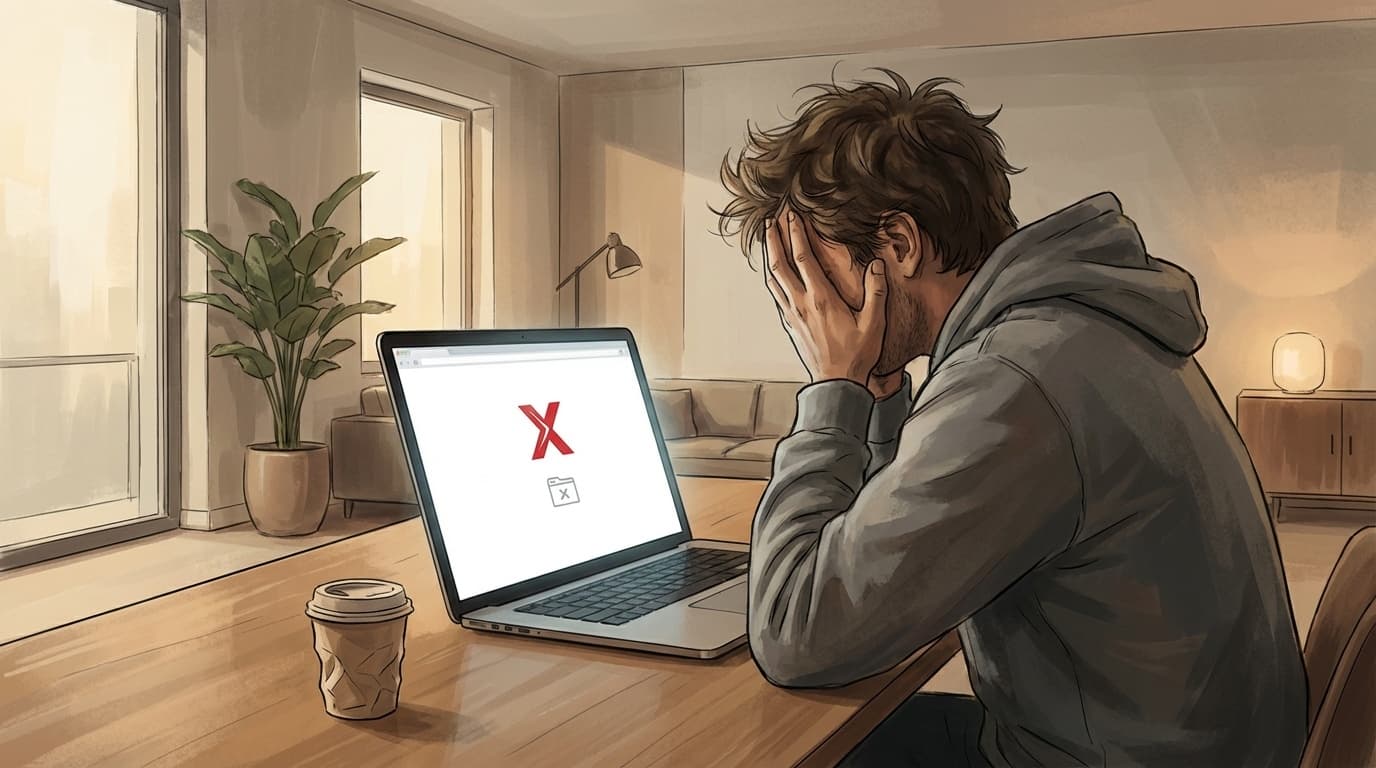
“I opened X on my PC and all I get is a blank page.” “It says ‘Something went wrong,’ and I can’t see my timeline.” These issues are pretty common. It’s also common for X to work fine in the phone app, while only the PC browser refuses to load.
In this article, we’ll walk through six common reasons X (formerly Twitter) won’t display or open in a desktop browser, plus browser-specific fixes for Chrome, Firefox, and Edge. Information is current as of March 2026.
Check This First: Is X Having an Outage?
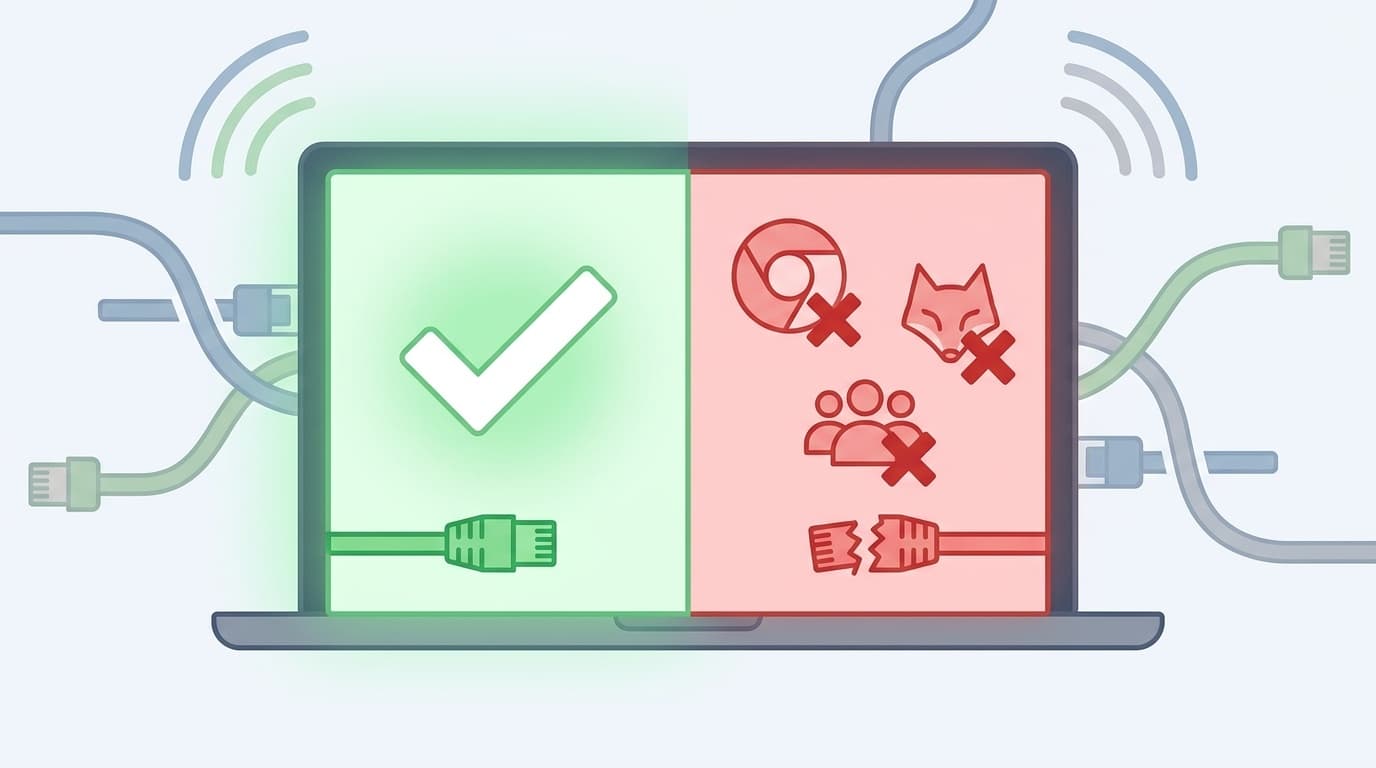
First, figure out whether the problem is only on your PC or whether X (Twitter) itself is having a server outage. If you skip this step, you may waste time changing settings that weren’t the problem in the first place.
How to Check for an Outage
- Try opening X on your phone: If the mobile app or mobile browser works normally, the issue is likely on your PC.
- Check Downdetector: You can see real-time reports of X outages. If the graph suddenly spikes, it’s probably an X-side issue.
- Make sure other websites open normally: If no websites load, your network connection is probably the issue.
If X is down, all you can really do is wait for it to recover. In past major outages, service has usually come back within a few hours to half a day.
Cause 1: Your Browser Cache or Cookies Are Corrupted
This is the most common reason X won’t load in a desktop browser. If the X data your browser saved earlier, such as cache or cookies, gets corrupted, the page may stop loading correctly.
Fix: Clear Your Cache and Cookies
In Chrome:
- Click the three-dot menu “⋮” in the top right, then click “Delete browsing data.”
- Set the time range to “All time.”
- Check “Cookies and other site data” and “Cached images and files.”
- Click “Delete data.”
In Firefox:
- Click the menu button “☰” in the top right, then go to “Settings” → “Privacy & Security.”
- Under “Cookies and Site Data,” click “Clear Data…”
- Check “Cookies and Site Data” and “Cached Web Content,” then click “Clear.”
In Edge:
- Click “…” in the top right, then go to “Settings” → “Privacy, search, and services.”
- Under “Clear browsing data,” click “Choose what to clear.”
- Set the time range to “All time,” select “Cookies and other site data” and “Cached images and files,” then click “Clear now.”
After clearing the data, reload X. Keep in mind that deleting cookies will sign you out of X, so make sure you know your login ID and password.
Cause 2: An Ad Blocker or Extension Is Interfering
Ad blockers such as uBlock Origin and AdBlock, as well as privacy-focused extensions, can block some of X’s resources. When that happens, your timeline may not appear, or images may fail to load. This is a very common pattern.
Fix: Temporarily Disable Extensions
- Open X in Incognito or a private window: Most extensions are disabled there, so if X displays correctly, you’ve confirmed that an extension is the cause.
- Chrome:
Ctrl + Shift + N - Firefox:
Ctrl + Shift + P - Edge:
Ctrl + Shift + N
- Chrome:
- If X works in Incognito or private mode, disable your extensions one by one to find the one causing the issue.
- If your ad blocker is the cause, add X’s domain (x.com) to the exception list or whitelist. That lets you keep blocking ads on other sites while allowing X to load normally.
Cause 3: Firefox’s Enhanced Tracking Protection Is Too Strict
This one mainly affects Firefox users. If Firefox’s Enhanced Tracking Protection is set to “Strict”, X may not display correctly. Niche PC Gamer’s Environment Setup Z has also reported this issue.
Fix: Switch Tracking Protection Back to “Standard” or Make an Exception for X
How to switch back to “Standard”:
- Open “☰” → “Settings” → “Privacy & Security.”
- In the “Enhanced Tracking Protection” section, select “Standard.”
How to make an exception only for X (recommended):
- Open X (x.com), then click the shield icon in the address bar.
- Turn off the toggle for “Enhanced Tracking Protection is ON for this site.”
This way, you can keep strict tracking protection on other sites while making an exception only for X.
Cause 4: Your Browser or OS Is Outdated
The web version of X is updated regularly, and older browsers may not handle newer features or interface changes correctly. In some cases, JavaScript compatibility problems can leave you with a blank page.
Fix: Update Your Browser to the Latest Version
- Chrome: Click “⋮” → “Help” → “About Google Chrome” to update automatically.
- Firefox: Click “☰” → “Help” → “About Firefox” to update automatically.
- Edge: Click “…” → “Help and feedback” → “About Microsoft Edge” to update automatically.
If your version of Windows is very old, such as an early build of Windows 10, it can also affect your browser. It’s worth checking Windows Update too.
Cause 5: JavaScript Is Disabled
The web version of X won’t work unless JavaScript is enabled. If you disabled it for security or privacy reasons, you may see a blank screen or a message telling you to enable JavaScript.
Fix: Enable JavaScript
In Chrome:
- Enter
chrome://settings/content/javascriptin the address bar and press Enter. - Make sure “Sites can use JavaScript” is turned on.
- If x.com appears under “Not allowed to use JavaScript,” remove it.
Cause 6: Your PC’s Date and Time Are Wrong
This is easy to overlook. If your computer’s date and time are way off, SSL certificate verification can fail and trigger a “Your connection is not private” error. When that happens, many websites may stop opening, not just X.
Fix: Set the Date and Time Automatically
- In Windows 11, go to “Settings” → “Time & language” → “Date & time.”
- Turn on “Set time automatically.”
- Click “Sync now.”
Last-Resort Fixes If X Still Won’t Load
If you’ve tried all six fixes above and X still won’t work, try the steps below.
- Try a different browser: If you usually use Chrome, try opening X in Firefox or Edge. This helps you tell whether the issue is limited to one browser.
- Reset your browser: In Chrome, go to “Settings” → “Reset settings” → “Restore settings to their original defaults.” This resets extensions and settings, but your bookmarks and history remain.
- Clear your DNS cache: Open Command Prompt and run
ipconfig /flushdns. Sometimes cached network settings are the cause. - If you’re using a VPN, turn it off temporarily: In rare cases, the VPN server you’re connected to may not work well with X’s connection route.
FAQ
Why can I see X on my phone but not on my PC?
The phone app and desktop browser work differently. Desktop browsers are more easily affected by cache, cookies, extensions, and browser settings, so it’s not unusual for X to fail only on your PC. The quickest way to narrow it down is to open X in Incognito or private mode.
What should I do if X keeps saying “Something went wrong. Try reloading”?
Clearing your cache and cookies solves this in many cases. If that doesn’t work, disable all browser extensions and try again. It could also be a temporary outage on X’s side, so don’t forget to check Downdetector.
What if I see “This site can’t be reached”?
Your internet connection itself may be the problem. If other sites, such as Google Search, also won’t open, try restarting your Wi-Fi router or unplugging and reconnecting your LAN cable. If only X is blocked, your company network or school Wi-Fi may be blocking access to X.
Why won’t images load on X on my PC?
Your ad blocker may be blocking X’s image CDN, or image delivery server. Try adding x.com and pbs.twimg.com to your ad blocker’s exception list.
References
- Help with X.com — X Help Center
- X (formerly Twitter) display issue affecting Firefox and Microsoft Edge, with workaround — Niche PC Gamer’s Environment Setup Z
- Twitter suddenly shows “Something went wrong” on my PC and won’t load — Google Chrome Community