Do you have the same problem as "Even though support for Windows 10 has ended, I can't upgrade my computer to Windows 11..."?
Support for Windows 10 will end on October 14, 2025, and you will no longer receive security updates. However, Windows 11 has hardware requirements such as TPM 2.0 and secure boot, so if you bought a PC before 2017, there are many cases where you can't upgrade it in the first place.
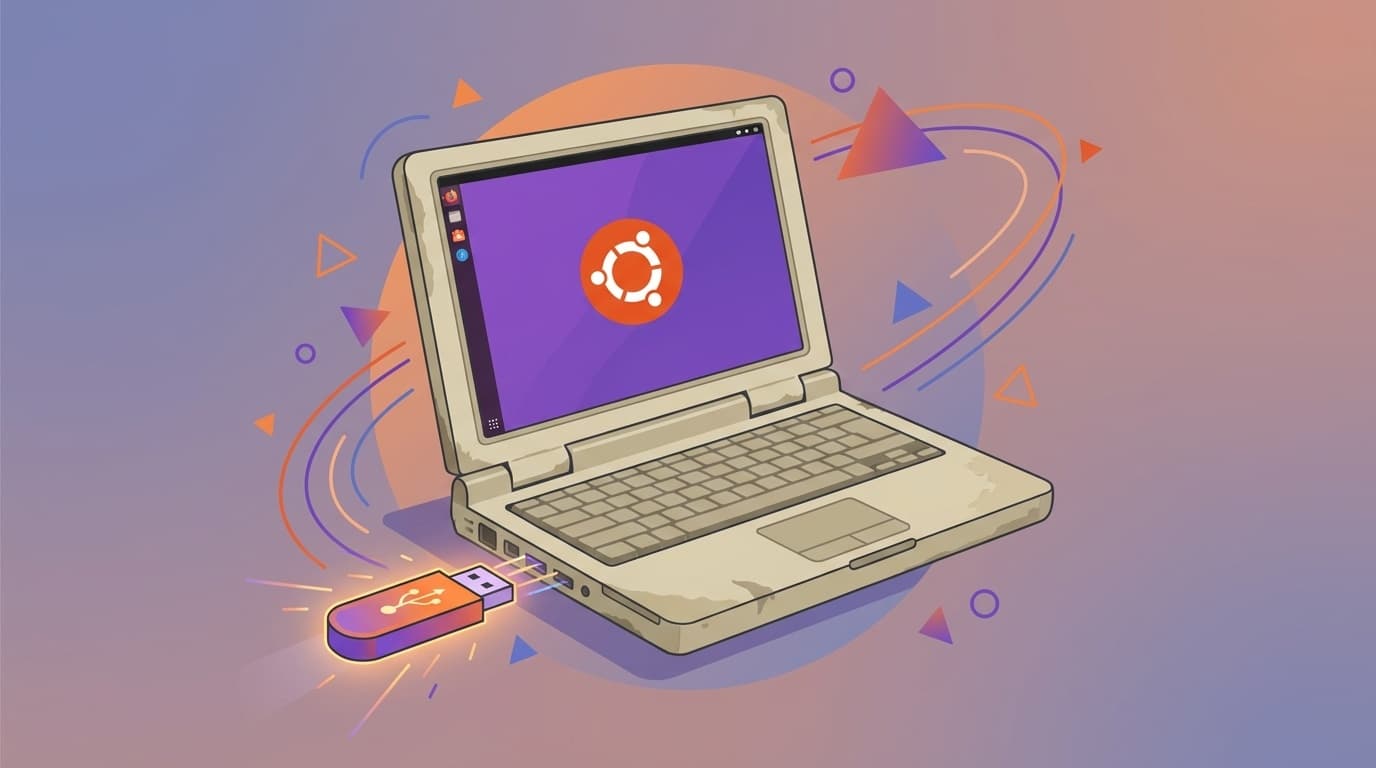
You may be thinking, "So I have no choice but to buy a new PC?" However, there is actually one more option. That is How to install the free OS "Ubuntu". As of February 2026, Ubuntu has a desktop environment that is easy to use even for beginners, and runs smoothly even on older PCs.
In this article, I will explain in a way that even computer beginners can understand the steps to install Ubuntu 24.04 LTS on an old PC that cannot be upgraded to Windows 11 and restore it to a ``PC that can still be used.''
Why can't you upgrade to Windows 11 in the first place? Rough explanation of TPM 2.0 problems
Windows 11 has stricter hardware requirements than traditional Windows. Among them, "TPM 2.0" is what many people stumble upon.
TPM (Trusted Platform Module) is a small chip for security inside your computer. This is a component for safely performing encryption and password management. Windows 11 requires TPM version 2.0.
Roughly speaking, PCs released before around 2017 often do not have this TPM 2.0. In other words, although it can still be used spec-wise, it will not be able to run Windows 11 just because it does not have this chip.
To check whether your PC is compatible, press Windows key + R key and type "tpm.msc" and press Enter. The TPM management screen opens and displays the version. If "2.0" is displayed, it is OK, otherwise it is not supported. If you want to check more easily, there is also Microsoft's official PC Health Check Tool.
Why is it dangerous to continue using Windows 10?
You may think, "I don't mind staying with Windows 10." However, continuing to use an OS after support has ended is quite risky.
The biggest risk is not receiving security updates. Microsoft no longer releases patches for new viruses and ransomware. In the past, after the end of support for Windows 7, a large-scale ransomware attack called WannaCry occurred, causing damage all over the world.
Also, the number of usable apps is decreasing. Major apps such as browsers (Chrome and Firefox), Zoom, and LINE will gradually discontinue support for older OSes. It's becoming unrealistic to continue using Windows 10, both in terms of security and applications.
Microsoft offers paid Extended Security Updates (ESU), but it costs $30 (approximately 4,500 yen) per year for individuals and is limited to a maximum of three years. It's not a fundamental solution.
What is Ubuntu? Reasons why it's okay even for beginners
Ubuntu is one of the free operating systems (OS). It is the most popular of the OS types called Linux, and has a wealth of information for beginners.
If you're thinking, "Linux is like typing commands on a black screen, right?", don't worry. Currently, Ubuntu looks almost the same as Windows or Mac. There is an icon on the desktop that can be operated by clicking with the mouse. File management is also possible with drag & drop.
The latest stable version as of February 2026 is Ubuntu 24.04 LTS (released in April 2024). LTS stands for "Long Term Support" and provides 5 years of guaranteed security updates until April 2029. Even after support for Windows 10 ends, you will continue to receive security updates.
What's more, Ubuntu works easily even on older PCs. The required specifications are as follows:
- CPU: 64-bit dual-core processor (mostly OK for PCs after 2010)
- Memory: 4GB or more recommended (works with at least 2GB)
- Storage: 25GB or more free space
Since the specs are much lower than those required by Windows 11, there is a high possibility that it will work without problems even on PCs that cannot be upgraded to Win11.
Step-by-step instructions for installing Ubuntu
From here, I will explain the specific steps. The work time is about 30 minutes to 1 hour, excluding backup.
STEP 1: Back up your data (super important!)
When you install Ubuntu, everything on your PC will be erased. Be sure to back up important data such as photos, documents, and browser bookmarks beforehand.
- Copy to USB memory or external HDD
- Save to the cloud such as Google Drive, OneDrive
- Synchronize your browser bookmarks with Google account
STEP 2: Download the Ubuntu ISO file
Download the "Ubuntu 24.04 LTS" ISO file (approximately 5.8GB) from Ubuntu official website. Just press the "Download" button.
STEP 3: Create USB installation media
Please prepare a USB memory of 8GB or more. Next, use the software ``Rufus'' (for Windows, free) to write the downloaded ISO file to the USB.
- Start Rufus and select the USB memory
- Specify the downloaded ISO file in "Boot type"
- Click "Start" (be careful as the contents of the USB will be deleted)
- Done in minutes
STEP 4: Boot from USB and install
- Insert the created USB memory into the PC
- Restart your PC and Map the F12 (or F2, Del) key repeatedly to open the boot menu (keys vary depending on the manufacturer)
- Select USB memory and start
- The Ubuntu installer will start up, so follow the instructions on the screen
- Select "Japanese" as the language, and set the keyboard to "Japanese"
- Select "Erase disk and install Ubuntu" (Windows environment will disappear)
- Set username and password and start installation
It will take about 15 to 20 minutes to complete. After rebooting, you should see the Ubuntu desktop.
Three things to do after installation
1. Japanese input settings
In Ubuntu 24.04 LTS, if you select Japanese and install it, Japanese input (Mozc) is included from the beginning. You can switch between "half-width/full-width" keys, so no special settings are required. If it does not work, please add "Japanese (Mozc)" in "Settings" → "Region and Language" → "Input Source".
2. Software update
Updates may be accumulated immediately after installation. Open "Software Update" from the app list at the bottom left of the screen to keep it up to date.
3. Install frequently used apps
Ubuntu comes with Firefox (browser) and LibreOffice (office software compatible with Word and Excel). If you want to install additional apps, you can search for and install them from ``Ubuntu Software'' (something like an app store). If you want to use Chrome, you can download and install the .deb file from Google Chrome official website.
Points that can be confusing due to differences with Windows
Ubuntu is very similar to Windows, but there are some differences. Knowing this in advance will reduce confusion.
- Software installation method: ".exe" files cannot be used. Install from Ubuntu Software or use a .deb file instead
- Can't use Microsoft Office: Use LibreOffice (free) instead. You can open and edit Word, Excel, and PowerPoint files, but the layout may be disrupted. If you really need Office, you can use the browser version Microsoft 365 Online (free)
- Games are limited: Many Windows games do not work. However, the number of Linux compatible games on Steam is increasing, and you can also play some Windows games with Proton (compatibility layer)
- Printers and scanners: Many manufacturers provide drivers for Linux, but older models may not be compatible. Check in advance on the manufacturer's website
FAQ
Can I install both Ubuntu and Windows?
Yes, you can. A method called "dual boot" allows you to choose which OS to use when booting. However, the settings are a little complicated, so for beginners we recommend the ``install only Ubuntu'' method.
Can I try in advance to see if Ubuntu works on my PC?
You can try it. If you select "Try Ubuntu" when booting from a USB memory, you can experience Ubuntu without installing it. Confirm that Wi-Fi, keyboard, and screen display work properly before proceeding with the actual installation.
Is antivirus software necessary for Ubuntu?
Linux is not easily targeted by viruses, so it is considered safe for general home use without antivirus software. However, you need to take basic precautions such as not visiting suspicious sites or opening suspicious files.
Can I use Zoom and LINE on Ubuntu?
Zoom has an official app for Linux. LINE does not have a Linux app, so you will need to use the browser version of LINE (Chrome extension) or use it on your smartphone.
If Ubuntu doesn't suit me, can I go back to Windows?
If you have a Windows license key, you can reinstall Windows 10 (or 11 if you have an 11-compatible PC) using Microsoft's official tools. However, your data will be deleted when you install Ubuntu, so a backup is essential.
References
- Windows 10 support has ended on October 14, 2025 — Microsoft Support
- Download Ubuntu Desktop — Canonical / Ubuntu official
- A thorough explanation of the new Ubuntu24.04 LTS installer — PC Watch, 2024
- How can I continue to use Windows 10 safely even after support ends? — JB Service Co., Ltd.
- Rufus — Easily create a bootable USB drive — Rufus official