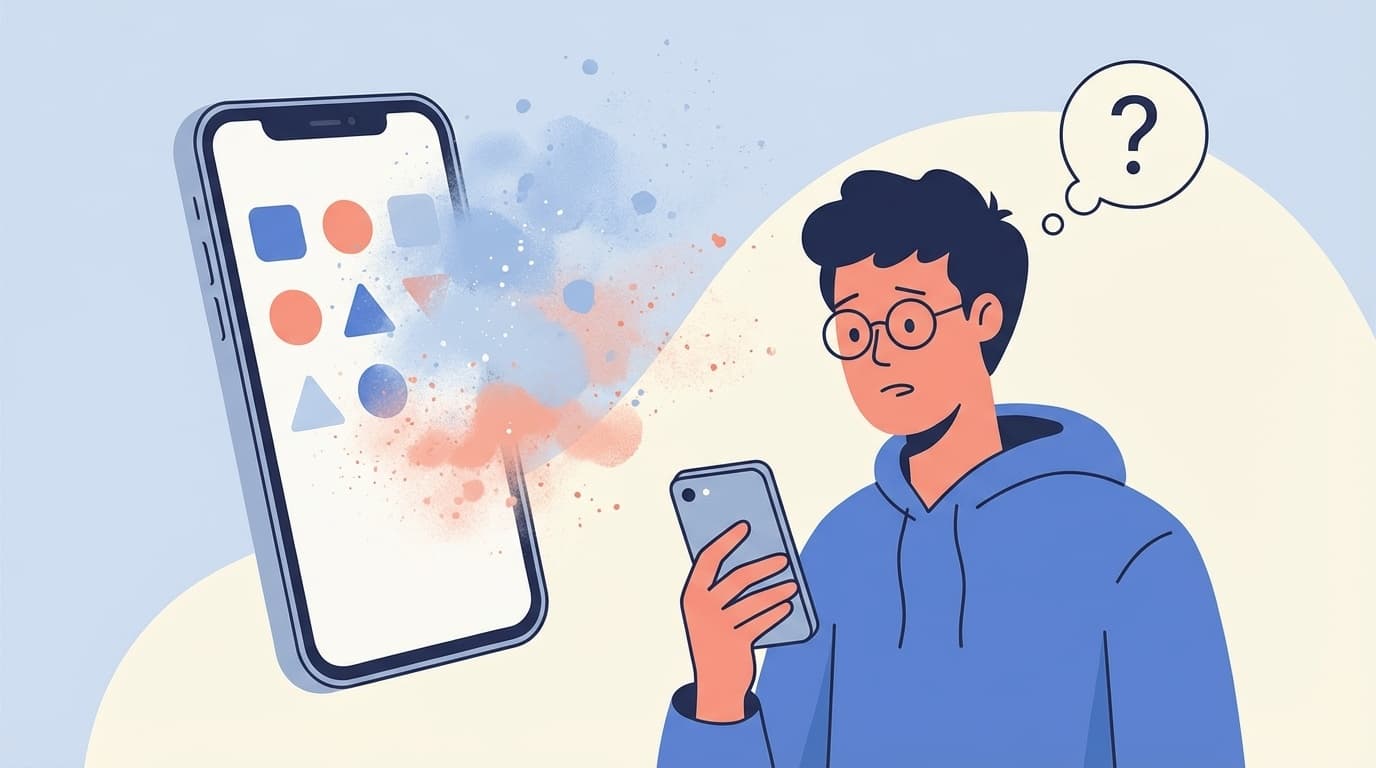
You bought a new MacBook Air or MacBook Pro, excitedly plugged in your iPhone with a cable, and then—all the songs in Music were gone. It sounds dramatic, but this happens more often than you'd think.
As of March 2026, problems where music disappears after syncing an iPhone in Finder on macOS Sequoia have been reported repeatedly in Apple's official communities. Songs imported from CDs, songs purchased from the iTunes Store, and songs added through Apple Music can all vanish in an instant because of one sync setting.
In this article, we'll explain why music can disappear when you sync with a new Mac, the five main causes, and how to restore your missing songs in plain English.
Why Can Songs Disappear Just by Connecting to a New Mac?
The short answer: your iPhone may have synced with the new Mac's empty Music library.
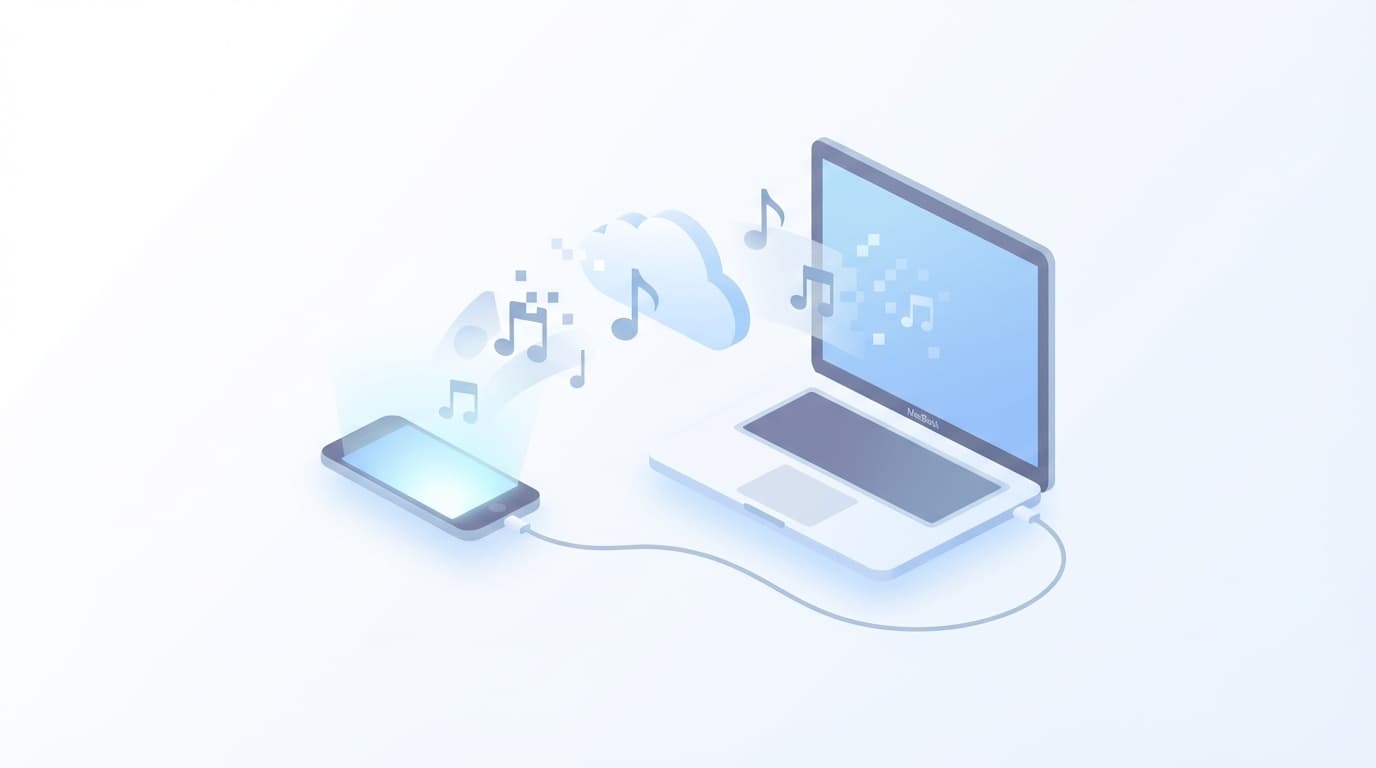
Since macOS Catalina in 2019, iTunes has been replaced, and iPhone syncing is handled through Finder. When you connect your iPhone in Finder, open the "Music" tab, check "Sync music onto [your] iPhone," and click the sync button, the contents of the Music library on your Mac overwrite what's on your iPhone.
In other words, a brand-new Mac usually has zero songs in its library. So that "zero songs" state gets synced to your iPhone, wiping the music from the device.
5 Reasons Your Music Disappears
Cause 1: Finder Sync Overwrote Your iPhone with an Empty Library
This is the most common pattern. If you enable music syncing for your iPhone in Finder on a new Mac, only the songs currently in the Mac's Music app are sent to the iPhone. If the Mac's library is empty, the iPhone's library becomes empty too.
Key point: Finder sync doesn't copy songs from your iPhone to your Mac. It sends songs from your Mac to your iPhone, basically one way. A lot of people understandably get this backward.
Cause 2: "Sync Library" Is Turned Off
According to Apple's official support page, if you subscribe to Apple Music, which starts at ¥1,080/month, or iTunes Match, which is ¥480/month, turning on "Sync Library" shares your music library across all your devices through the cloud.
But if this setting is off on your new Mac when you sync, your cloud library won't appear on the Mac. As a result, the songs on your iPhone may disappear too.
Cause 3: You're Signed In with a Different Apple ID
When setting up a new Mac, it's easy to accidentally sign in with a different Apple ID. Your iCloud Music Library is tied to your Apple ID, so if you're logged in with another account, your songs naturally won't show up.
Cause 4: You've Hit the 5-Computer Authorization Limit
To play songs purchased from the iTunes Store, the computer has to be authorized. As of March 2026, Apple officially allows authorization for up to five computers. If you didn't deauthorize an old Mac before getting rid of it, you may not be able to authorize the new Mac, which can prevent purchased songs from playing or syncing properly.
Cause 5: "Manually Manage Music and Videos" Is Enabled
If "Manually manage music, movies, and TV shows" is checked in your iPhone settings in Finder, automatic syncing is disabled. When you switch to a new Mac in this state, manual management can be cleared or behave unexpectedly, and an unintended sync may remove your songs.
5 Ways to Restore Missing Songs
Method 1: Re-download from iCloud Music Library (Apple Music / iTunes Match Users)
If you subscribe to Apple Music or iTunes Match, there's a good chance your songs are stored in the cloud. Try restoring them with these steps.
- On your iPhone, go to Settings → Music → Sync Library, turn it off, wait 10 seconds, then turn it back on
- On your Mac, open the Music app → Settings → General → Sync Library and turn it on
- Stay connected to Wi-Fi and wait a few minutes to a few hours, depending on how many songs you have
- In the Music app menu, run File → Library → Update Cloud Library
Method 2: Re-download from Your iTunes Store Purchase History
Songs purchased from the iTunes Store can be re-downloaded for free as many times as needed.
- Open the iTunes Store app on your iPhone
- Tap the account icon in the upper right, then go to Purchased → Music
- Tap Not on This iPhone
- Tap the cloud download icon next to any song you want to download
Method 3: Move Your Music Library from Your Old Mac or PC
For music files that aren't in the cloud, such as songs imported from CDs, the safest option is to copy the Music library directly from your old Mac.
- Copy the old Mac's Music folder, usually
~/Music/Music, to the new Mac using an external drive or AirDrop - On the new Mac, hold the Option key while launching the Music app
- Choose "Choose Library," then select the library file you copied
- Once the library loads, connect your iPhone and sync it
Method 4: Restore from an iPhone Backup
If you still have an iPhone backup from before the music disappeared, you may be able to restore from it.
- Connect your iPhone to your Mac with a cable
- Select your iPhone in Finder's sidebar, then open the General tab
- Click Restore Backup and choose a backup dated before the music disappeared
Warning: Restoring a backup rolls back the entire iPhone, so recent photos, app data, and other changes may be reverted too. If you only want to restore music, try Methods 1 through 3 first.
Method 5: For Next Time—3 Settings to Check Before Syncing
Once you've restored your music, set things up so the same problem doesn't happen again.
- Turn on "Sync Library" on all devices if you use Apple Music or iTunes Match
- Before checking "Sync music" in Finder, confirm that the Mac's Music library actually contains your songs
- Don't forget to deauthorize your old Mac by opening the Music app and going to Account → Authorizations → Deauthorize This Computer
What If You Don't Subscribe to Apple Music?
If you don't subscribe to Apple Music, which starts at ¥1,080/month, or iTunes Match, which is ¥480/month, songs imported from CDs aren't stored in the cloud. That means the only remaining copy may be on your old Mac or PC.
Here's what to do in that case.
- You still have your old Mac: Copy the library using the steps in Method 3
- You already got rid of the old Mac: If you have a Time Machine backup on an external drive, you may be able to copy only the Music folder from there
- You don't have a backup either: Unfortunately, you'll need to import the CDs again. Going forward, subscribing to iTunes Match for ¥480/month can help prevent this by storing your personal music collection in the cloud
FAQ
Can songs disappear just from connecting my iPhone in Finder?
Not just from connecting it. Syncing starts when you open the "Music" tab in Finder, check "Sync music," and click "Apply". That said, if automatic syncing was enabled on your previous Mac, syncing may start automatically on the new Mac too, so be careful.
If Apple Music songs disappear, am I wasting my monthly fee?
Apple Music songs are stored in the cloud, so you can re-download them by turning on "Sync Library." However, if you cancel Apple Music, downloaded Apple Music tracks will no longer be playable, according to Apple.
What happens if I'm switching from Windows to Mac?
You can also move a Windows iTunes music library to a Mac using an external drive or cloud storage. On Windows, the iTunes library is usually stored at C:\Users\ユーザー名\Music\iTunes. Copy that whole folder to your Mac, then load it using the steps in Method 3.
Can I transfer songs backward from iPhone to Mac?
Apple's standard tools don't support transferring music from an iPhone to a Mac; syncing is one way. Third-party transfer apps such as iMazing or AnyTrans can technically do it in some cases, but songs with DRM, or copyright protection, may not be transferable.
Should I back up my iPhone before syncing?
Absolutely. Before connecting your iPhone to a new Mac, run either an iCloud backup or a local Finder backup. That way, if your music disappears, you'll have a recovery option. To create an iCloud backup, go to Settings → your name → iCloud → iCloud Backup → Back Up Now.
References
- If songs are missing from your music library after you turn on Sync Library — Apple Support
- Connect your device to your Mac to sync Music content — Apple Support
- How to restore songs that disappeared during sync — Apple Community