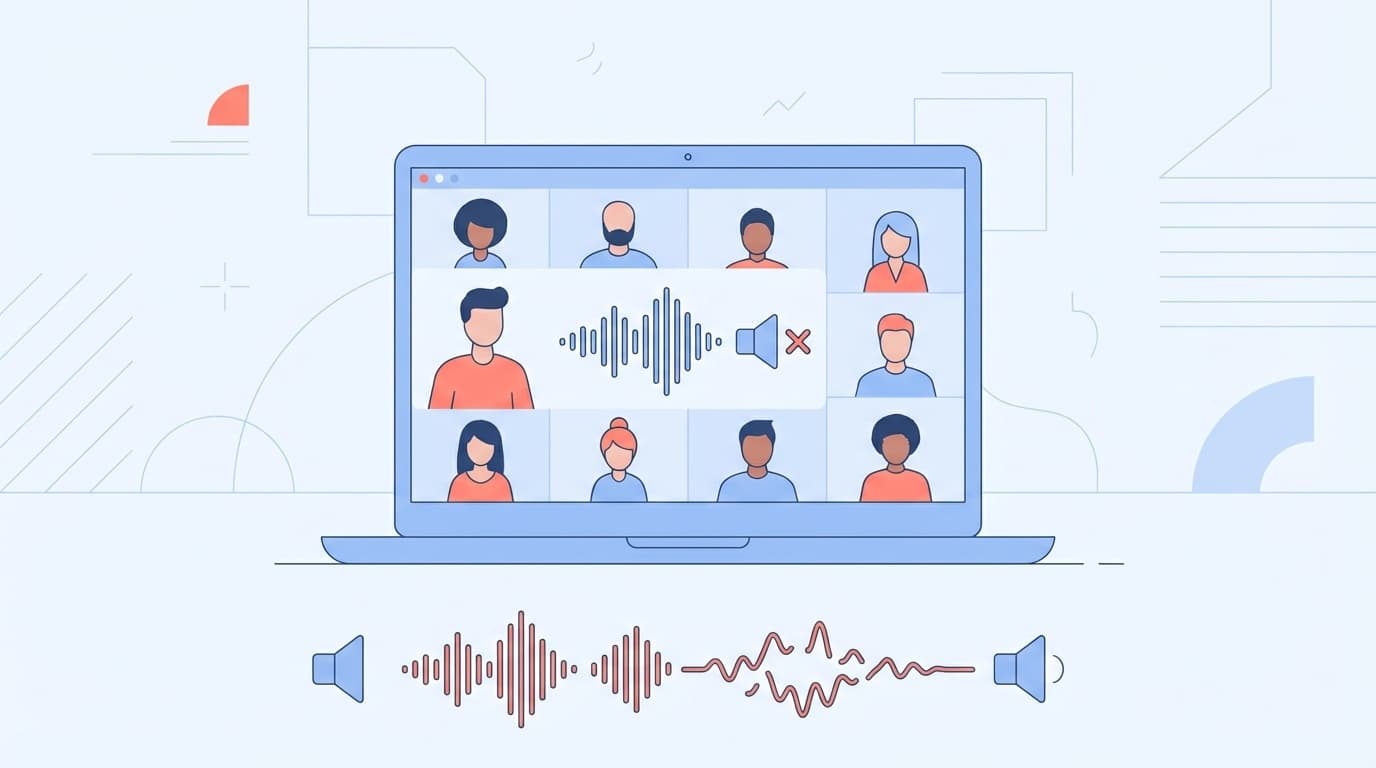
Even though the Zoom meeting has started, people are asking, "Can you hear me?" or "I can't hear you." This problem is really frustrating, isn't it? It's easy to panic, especially right before an important meeting or interview.
But don't worry. In most cases, Zoom microphone problems can be resolved simply by adjusting the settings. In this article, we will explain in an easy-to-understand way the seven reasons why the latest version of Zoom is compatible as of March 2026, and how to test it yourself before the meeting.
Check first! 7 reasons why the microphone doesn't work on Zoom
There are 7 main reasons why the microphone cannot be used on Zoom. If you check them in order from the top, you will usually be able to solve the problem halfway through.
Cause 1: Muted
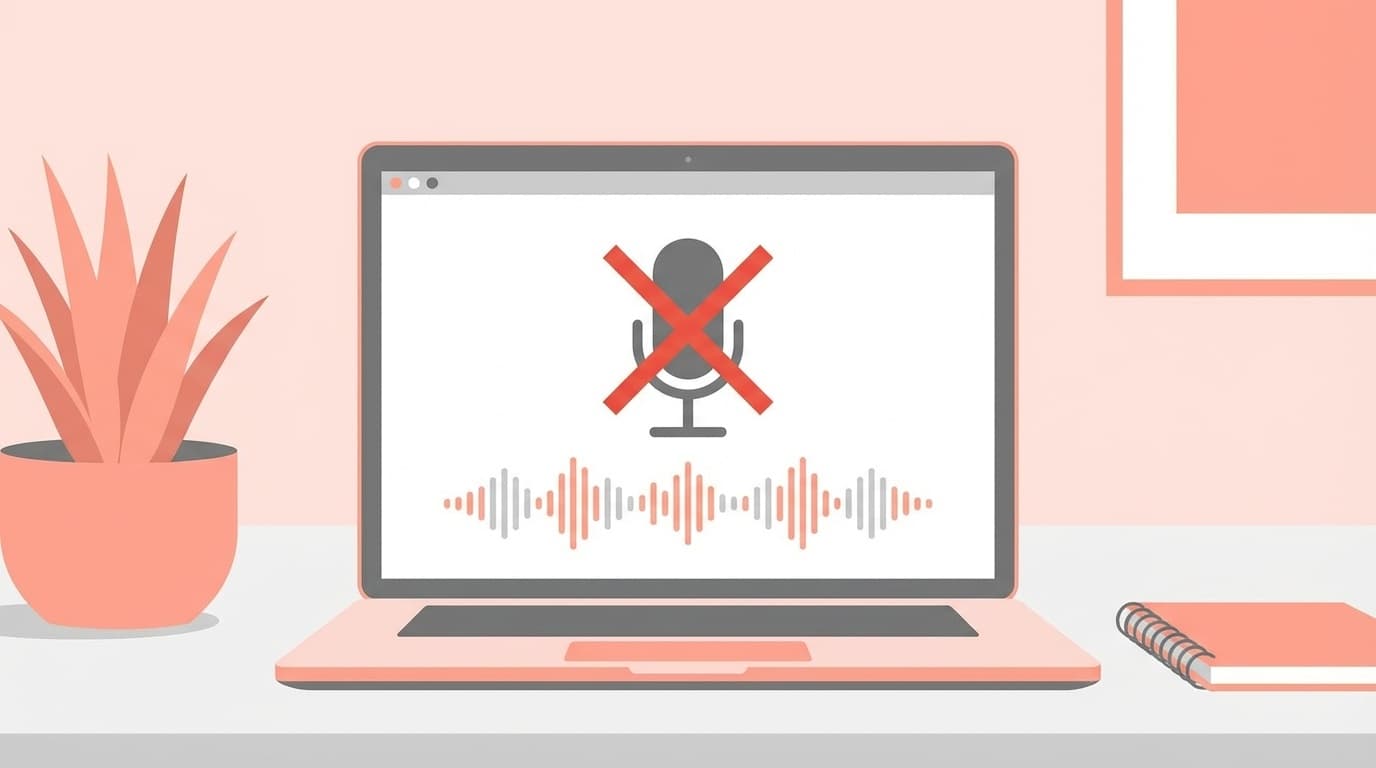
This is the most common cause. If the microphone icon at the bottom left of the Zoom screen has a red diagonal line, it is muted. You can remove it with just a click. If you are muted by the host, you will need to press "Request to unmute" yourself.
Cause 2: Not “Joining Audio”
If the bottom left of the Zoom screen shows a headphone icon instead of a microphone icon, the audio connection is not established in the first place. Click the "Join Audio" button and select "Join Computer Audio."
Cause 3: Incorrect microphone device selection
This is a case where Zoom selects the built-in microphone even though you are using an external microphone or headset (or vice versa). Click the "^" mark next to the microphone icon to display a list of available microphones. Please reselect the correct microphone.
Cause 4: Zoom is not allowed by OS microphone permission
Microphone access to Zoom may be blocked by the privacy settings of your Windows, macOS, or smartphone. This will be explained in detail in a later section.
Cause 5: Another app is occupying the microphone
If other calling/recording apps, such as Teams, Discord, or OBS Studio, are running at the same time, the microphone may be taken. Close all audio apps other than Zoom in advance.
Cause 6: Physical problem with the microphone
If you have a wired microphone, check that the cable is firmly inserted, and if you have a Bluetooth headset, check that it is paired and charged. Surprisingly, there are cases where the earphone microphone is turned off.
Cause 7: The version of the Zoom app is outdated
Zoom is updated frequently. If you use an older version, there may be problems with microphone recognition. Install the latest version from Zoom official download page.
[Windows 11] How to check microphone permissions
Windows 11 has a mechanism to manage microphone usage permission for each app. If this is OFF, the microphone cannot be used no matter how much you change the settings on the Zoom side.
Confirmation steps:
- Open "Start" → "Settings" (Shortcut: Win+I)
- Select "Privacy and Security" from the left menu
- Click "Microphone"
- Make sure Microphone Access is on
- Make sure "Allow desktop apps to access your microphone" is on
Since Zoom is a desktop app, the fifth setting is especially important. Detailed instructions are also available on Microsoft's official support page.
Also, check if the microphone you want to use is set as the default device in the Windows 11 Sound settings (Settings → System → Sound → Input).
Beware of "Enhanced Audio" in Windows 11
In Windows 11 starting from 2025, there is an option called "Enhance audio (enhanced audio)" in "Sound" → "Input" → Advanced microphone settings. There have been multiple reports that if this switch is turned on, the microphone is not recognized by Zoom or the sound is interrupted. If the problem persists, try turning this off.
[Mac] How to check microphone permissions
Similar to Windows, macOS requires microphone access permission for each app.
Confirmation steps:
- Apple menu at the top left of the screen → Open "System Settings"
- Select "Privacy and Security" from the left menu
- Click "Microphone"
- Make sure "zoom.us" is listed and toggled on
If zoom.us is not listed, a permission dialog will be displayed the first time you try to use the microphone on Zoom. Please select "Allow". If the permission dialog does not appear, it may appear if you uninstall and reinstall Zoom.
[iPhone/Android] What to do when the microphone doesn't work on your smartphone
When participating in a Zoom meeting on a smartphone, the reason why the microphone does not work is almost the same as on the PC version, but the location to check is different.
For iPhone
- Open the "Settings" app
- Scroll down and tap "Zoom"
- Make sure the 'Microphone' toggle is on
For Android
- Open "Settings" → "Apps" → "Zoom"
- Tap "Permissions"
- Check if "Microphone" is set to "Allow"
A common pattern in the smartphone version is not noticing that Bluetooth earphones are connected. If the microphone of your Bluetooth earphone is placed far from your mouth, your voice will not be picked up. Take off your earphones and try using your smartphone's microphone.
Zoom official mobile audio troubleshooting may also be helpful (Zoom official: Mobile speaker/mic troubleshooting).
You should do this before the meeting! How to test Zoom's microphone
Pre-test is the best way to avoid panicking because the microphone doesn't work during a meeting. Zoom has a useful testing feature.
Method 1: Test on the Zoom settings screen
- Open the Zoom app and click the gear icon (settings) in the top right corner
- Open the Audio tab
- Press the "Test" button next to "Speaker" → OK if you hear sound
- Press the "Test" button next to "Microphone" → When you speak, it will be recorded and played back
If you can hear your voice in the played audio, the microphone is working properly.
Method 2: Use a test meeting
Zoom has an official test meeting. By accessing https://zoom.us/test in your browser, you can join a virtual meeting with just one person and test your camera, microphone, and speakers in the same environment as in a real meeting. It's safe to do this 5 minutes before an important meeting.
Method 3: Test during the meeting
Even if you are already in the meeting, you can test it on the spot by clicking "^" next to the microphone icon → "Test speaker & microphone".
5 last resorts if the problem still persists
If you have tried all of the above and the problem still persists, try the following in order:
- Restart the Zoom app — completely close and reopen it
- Restart your computer/smartphone — Effective if the microphone is frozen at the OS level
- Reinstall the Zoom app — for cases caused by configuration file corruption
- Try a different microphone device — Isolate with different hardware, such as an earphone microphone or a USB microphone
- Join using the browser version of Zoom — If you are having problems with the app, you may be able to join using the browser. Open the invitation link in your browser and select "Join from browser"
Zoom's official desktop troubleshooting guide (Troubleshooting speaker or microphone issues) also provides more detailed instructions.
FAQ
Why can't my voice be heard even though I'm unmuted on Zoom?
Even if you are unmuted, Zoom may have selected a different microphone device, or Zoom may be blocked by your OS's microphone permissions. Please select the correct device from the "^" next to the microphone icon and also check the OS settings.
What should I do if my microphone suddenly stops working during a meeting?
First, check if the battery of your Bluetooth earphone is dead. Next, check to see if other apps (Teams, Discord, etc.) are stealing your microphone in the background. If that doesn't work, leaving the room and re-entering will often fix the problem.
Why can't my voice be heard in the actual meeting even though the microphone works in the Zoom test?
The host may mute the participant's microphone. Click "Request to unmute" at the bottom of the screen and ask the host for permission. Your company's security policies may also restrict Zoom audio, so check with your IT department.
What if the microphone cannot be used only in Zoom on Windows 11 (it can be used in other apps)?
Try turning off "Enhanced audio (enhanced audio)" in "Settings" → "System" → "Sound" → Advanced settings of the input device. It has been reported that this setting causes compatibility issues with Zoom.
When the microphone doesn't work on Zoom on my smartphone, why does it go away when I remove the earphones?
When Bluetooth earphones are connected, Zoom will try to use the earphone's microphone. If the earphone's microphone performance is poor or if it is placed far from your mouth, your voice may not be picked up. When you remove the earphones, your voice will be heard as it switches to the smartphone's microphone.
References
- Troubleshooting speaker or microphone issues in the desktop app — Zoom Official Support
- Troubleshooting speaker or microphone issues on your mobile device — Zoom Official Support
- Testing your audio settings for Zoom meetings — Zoom official support
- Turn on microphone app permissions in Windows — Microsoft official support