Have you ever been using your laptop and thought, “Why is the fan constantly buzzing?” or “I’m not even doing anything heavy, so why is it so loud?”
This is something you shouldn’t ignore. If the heat problem continues, it can shorten your laptop’s lifespan or make performance worse. As of March 2026, many Windows 11 users also report that fans seem to spin up more often because of increased background activity.
In this article, we’ll walk through six common reasons your laptop fan gets loud, plus practical quieting fixes you can try yourself with step-by-step instructions.
Why Does the Fan Spin in the First Place?
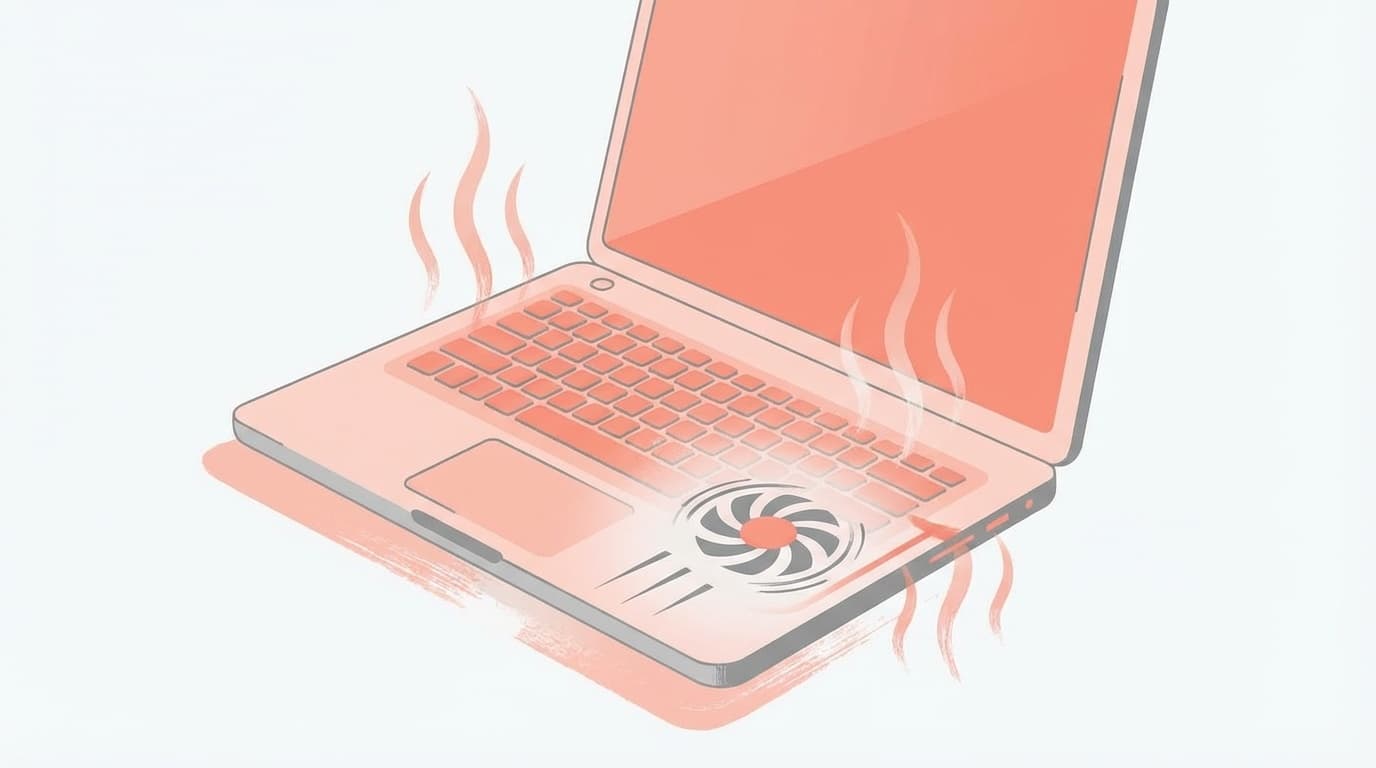
Your laptop’s CPU, which acts like its brain, and GPU, which handles graphics, generate heat while they’re working. The fan’s job is to push that heat out of the computer.
In other words, it’s completely normal for the fan to spin. The real problem is when it keeps running at full speed even though you’re not doing anything, or when it’s clearly gotten louder than it used to be.
Fan speed is tied to CPU temperature: the hotter the CPU gets, the faster the fan spins. If the temperature won’t come down, the fan keeps running.
6 Reasons Your Laptop Fan Gets Loud
Cause 1: Dust Has Built Up in the Vents
This is the most common cause. When dust collects in the intake and exhaust vents on the bottom or sides of your laptop, airflow gets worse and cooling efficiency drops sharply.
Dell’s official support also recommends cleaning the vents as one of the first steps when troubleshooting fan problems.
Cause 2: An App Is Using Too Much CPU in the Background
Even if you don’t think you’re doing anything, Windows Update, a virus scan, or cloud syncing through services like OneDrive or Google Drive may be running in the background. When those processes take over the CPU, the temperature rises and the fan speeds up.
Cause 3: Your Power Plan Is Set to Best Performance
If Windows 11 is set to “Best performance,” the CPU tries to run at full power more often. That can happen even on battery power, so the fan naturally gets louder.
Cause 4: The Room Is Hot or the Laptop Is on a Soft Surface
In summer or in a heated room, your laptop’s internal temperature rises more easily. Also, if you place it on a bed, cushion, or your lap, a soft surface can block the air vents, trapping heat and keeping the fan running.
Cause 5: Windows Update Just Ran and the System Is Temporarily Busy
As reported in the Microsoft official community, some users have seen their fans keep running after updating to Windows 11 version 24H2. Right after an update, Windows may rebuild indexes or optimize drivers, so the system can stay under higher load for several hours to about a day.
Cause 6: The Fan Itself Is Worn Out or Failing
If you hear rattling, scraping, grinding, or buzzing sounds, the fan bearing may be wearing out. In that case, software settings won’t fix it. The fan will likely need to be replaced.
6 Quieting Fixes to Try Now [Step by Step]
Fix 1: Clean Dust Out of the Vents
First, shut down your laptop and unplug it. Check the vents on the bottom and sides, then use a can of compressed air at an angle to blow dust out.
The key is to avoid spraying directly into the fan. That can make the fan spin too fast and potentially damage it. A basic can of compressed air from an electronics store is enough.
Fix 2: Check CPU Usage in Task Manager
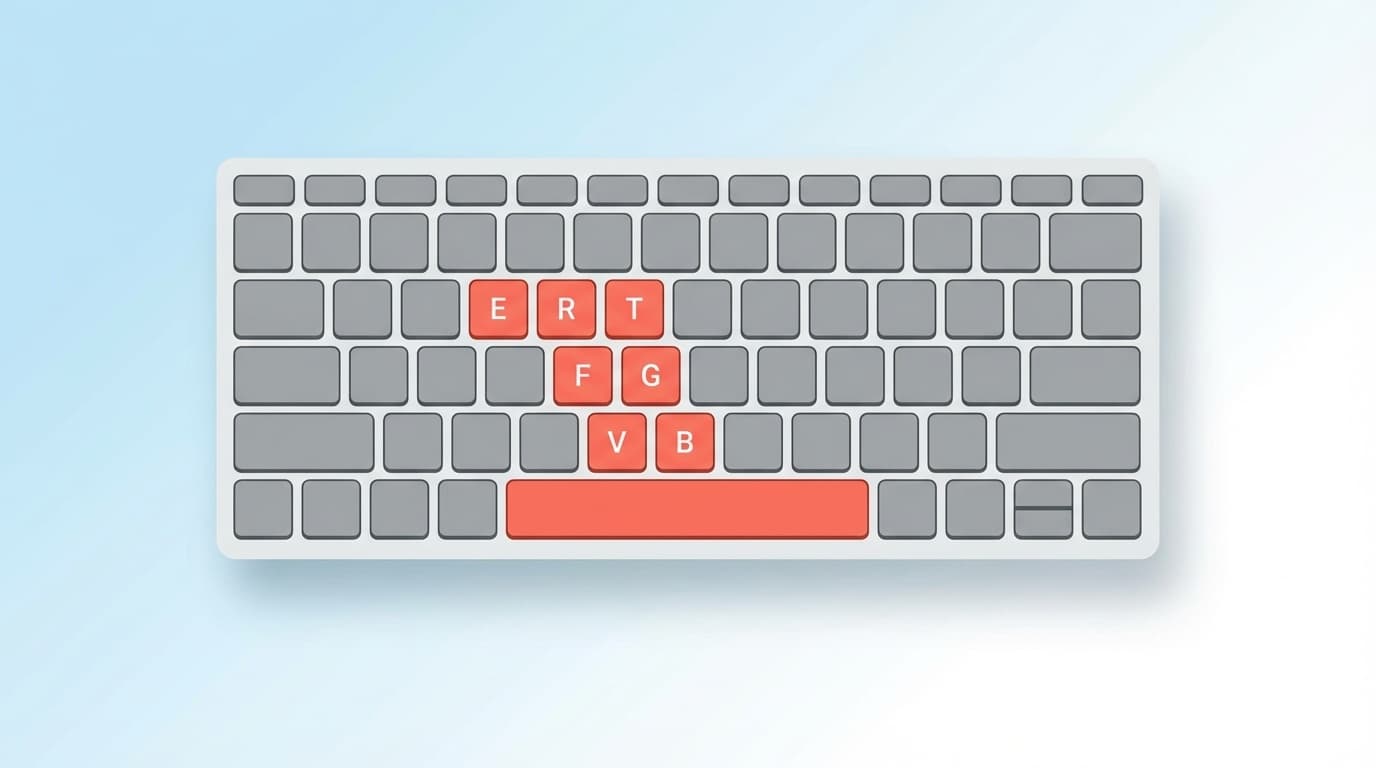
Press Ctrl + Shift + Esc on your keyboard to open Task Manager. On the “Processes” tab, click the “CPU” column to sort by highest usage, then look for apps using a lot of CPU.
If an unnecessary app is using more than 20% CPU, you can right-click it and choose “End task.” However, don’t end system processes such as “System” or “Windows Explorer.”
Fix 3: Change Power Mode to Balanced
You can change this from Windows 11 Settings.
- Open “Settings” → “System” → “Power & battery”
- Change “Power mode” to “Balanced” or “Best power efficiency”
This alone often reduces CPU activity and lowers fan speed. dynabook’s official support also explains how changing the power plan can help reduce fan noise.
Fix 4: Limit Maximum CPU Performance (Advanced)
If you want to go a little further, you can limit the CPU’s maximum performance to 90%.
- Open “Control Panel” → “Hardware and Sound” → “Power Options”
- Click “Change plan settings” for your current plan, then click “Change advanced power settings”
- Expand “Processor power management” → “Maximum processor state”
- Change both “On battery” and “Plugged in” to “90%,” then click “OK”
Your maximum CPU performance drops by about 10%, but for web browsing or Office work, you probably won’t notice much difference. Fan noise, however, can improve a lot.
Note: According to HP’s official support, changing “System cooling policy” to “Passive” on the same screen makes Windows reduce CPU speed first before ramping up the fan.
Fix 5: Reduce Startup Apps
If too many apps launch automatically when your laptop starts, they can keep using CPU and memory in the background.
- Open “Settings” → “Apps” → “Startup”
- Turn off the switch for apps you don’t need at startup
Pay special attention to apps marked “Impact: High.” Apps like Teams, OneDrive, and Adobe Creative Cloud can add a lot of startup load.
Fix 6: Use a Laptop Cooling Pad
If software settings only get you so far, physically cooling the laptop can also help. Laptop cooling pads usually cost around $15 to $30.
When choosing one, check these three things:
- Whether the fan position lines up with your laptop’s air intake
- Whether it offers angle adjustment, since raising the laptop can improve heat exhaust
- Whether it uses USB power, which is convenient because you won’t need a separate wall outlet
What to Check If the Fan Is Still Loud
If you’ve tried all of the fixes above and the fan still won’t quiet down, check the following:
- BIOS update: Check your manufacturer’s official website for the latest BIOS. Fan control logic may have been improved
- Driver updates: An outdated graphics driver in particular can put extra load on the GPU. ASUS’s official guide also recommends updating the BIOS and drivers
- Malware infection: Malware can keep using CPU in the background. Try running a full scan with Windows Defender
- Unusual noises: Rattling, scraping, or grinding sounds usually point to a physical fan failure. Contact the manufacturer or a repair shop
If your laptop is more than three years old, the lubricant inside the fan may also be wearing down. Taking a laptop apart yourself can be risky, so consider manufacturer repair.
FAQ
What happens if I ignore a loud laptop fan?
If the CPU stays hot for too long, your computer may slow itself down through “thermal throttling.” In the worst case, it may shut down suddenly or shorten the lifespan of its parts.
How loud is normal for a laptop fan?
A typical laptop fan is around 30 to 40 dB, roughly the quietness of a library. Once it goes over 50 dB, many people start to find it noisy, so it’s worth looking into fixes.
Should I switch to a fanless laptop?
If you mainly browse the web or use Office apps, a fanless ultraportable can be a good option. However, it’s not ideal for heavy work like video editing or gaming. Choose based on how you actually use your computer.
Which works better: a cooling pad or putting a book under the laptop?
Even placing a book under the laptop to create space beneath it can help with heat exhaust. A cooling pad with fans is usually more effective, though. It’s reasonable to try the book trick first, then consider a cooling pad if that doesn’t help.
My fan got loud after upgrading to Windows 11. Can I get it back to normal?
Right after an upgrade, Windows may run heavy background tasks for a while, so give it one or two days first. If it still doesn’t improve, reviewing the power settings in Fix 3 and Fix 4 can help. Rolling back to Windows 10 should be a last resort, so try the fixes in this article first.
References
- Fan is noisy and spins constantly (Windows 11, Windows 10) — HP Official Support
- How to Troubleshoot Fan Issues — Dell Official Support
- Troubleshooting - Overheating and Fan issues — ASUS Official Support
- Windows 11, version 24H2 - Fans running all the time after update — Microsoft Q&A
- How to Change Power Plan Settings — dynabook Official Support