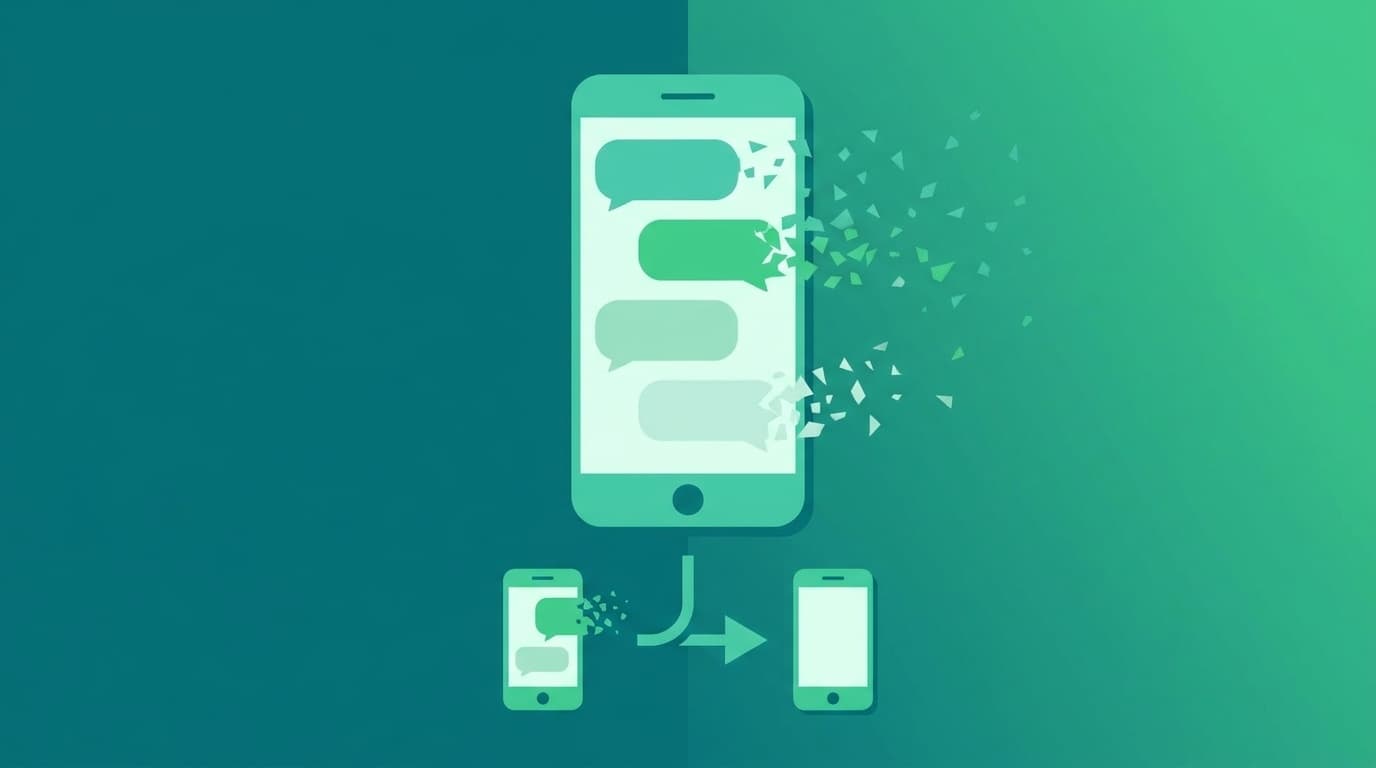
You switched to a new phone, opened LINE, and... all your chat history was gone. Unfortunately, this happens a lot.
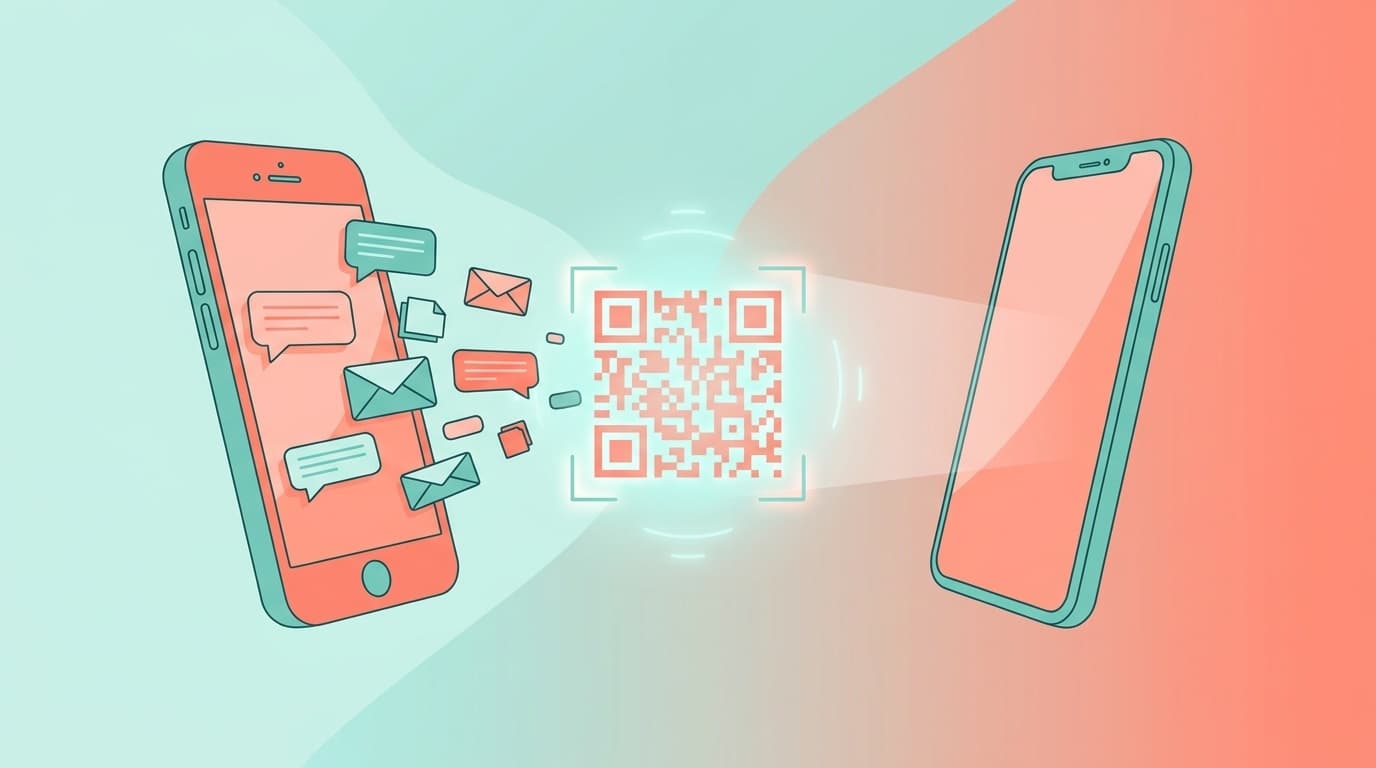
The “Easy Transfer QR Code” feature has made the process much simpler, but if you switch phones without understanding backup settings and OS-to-OS limits, important chats can still disappear completely.
Based on the latest information as of March 2026, this guide explains the 5 most common reasons LINE chat transfers fail, plus the correct way to back up and restore your chats.
5 reasons LINE chats “disappear” during a phone transfer
First, let's look at why chat history gets lost. These are the 5 most common causes.
Cause 1: You never made a backup
This is the most common pattern. LINE chat history isn't automatically saved to the cloud. On iPhone, you need to back it up to iCloud. On Android, you need to back it up to Google Drive. You can do this manually or turn on automatic backups.
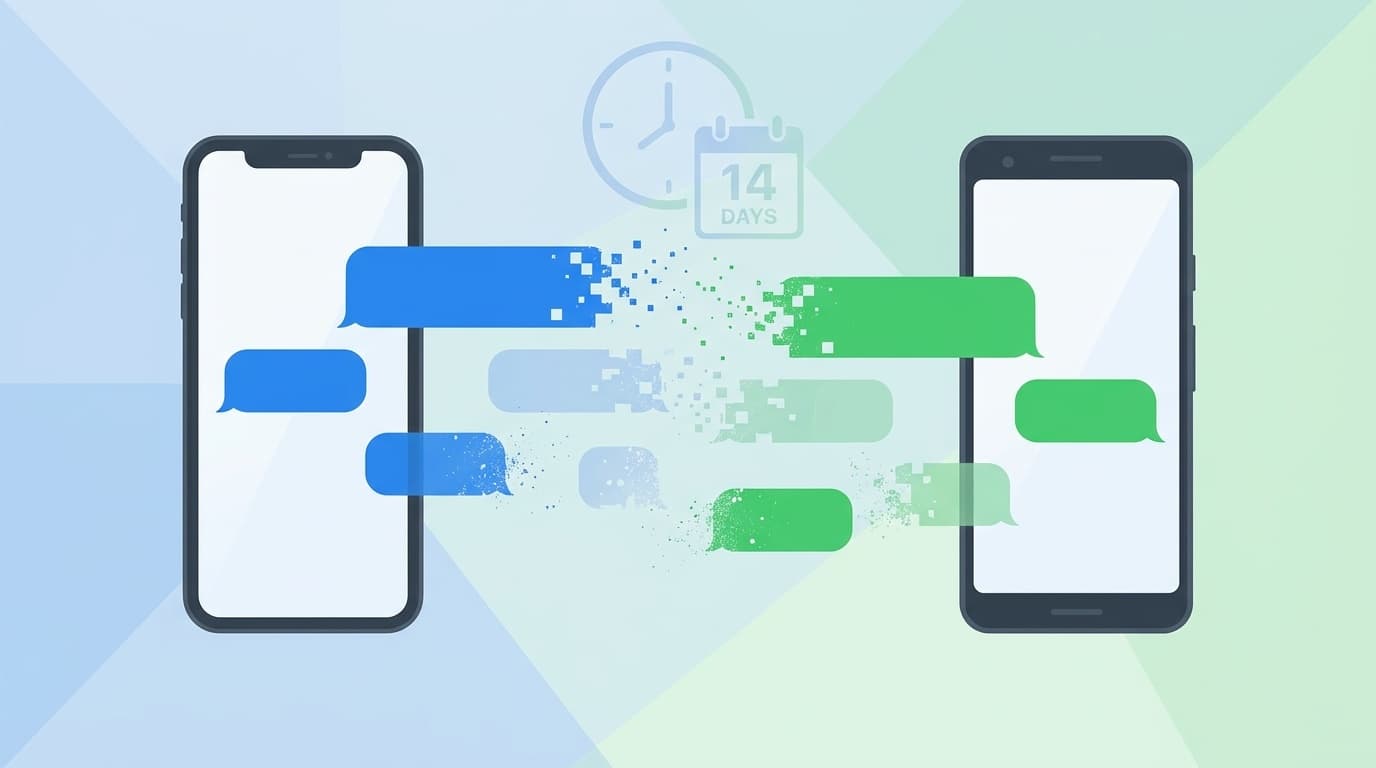
If you switch phones without a backup, even when moving between the same OS, the Easy Transfer QR Code can only transfer your most recent 14 days of chats. Anything older than that will be lost.
Cause 2: You switched from Android to iPhone, or vice versa
Switching between different operating systems comes with major limits for chat history. As of March 2026, only the most recent 14 days of chat history can be transferred between different OSes.
In other words, if you move from Android to iPhone, chats older than 14 days usually can't be restored, even if you made a backup. That's because iCloud backups can't be used on Android, and Google Drive backups can't be used on iPhone.
Cause 3: You didn't set up a backup PIN
If you haven't registered a backup PIN (a 6-digit number), available in LINE version 12.13.0 and later, restoring chat history during transfer may not go smoothly.
According to the LINE Help Center, if you've set up a PIN, you can restore your most recent 14 days of chats even if you forgot to make a backup. But if you have neither a PIN nor a backup, there are almost no recovery options left.
Cause 4: Your old phone is broken or no longer with you
The Easy Transfer QR Code feature assumes that you have both your old phone and new phone with you. If your old phone is broken or you've already traded it in, you won't be able to display the QR code, so you can't use this method.
In that case, you'll need to log in with the email address and password registered to LINE, but restoring chat history still requires a backup. If you never registered an email address or password, you may not even be able to log in to your account.
Cause 5: Your LINE app or OS version is too old
To use Easy Transfer QR Code, you need LINE version 12.10.0 or later. Your phone also needs to be running iOS 14 or later, or Android OS 7 or later.
If you're switching from an older phone and haven't updated LINE or your OS in a long time, QR code transfer may not be available, and you'll need to transfer manually. In that case, whether you have a backup becomes even more important.
3 things to do before switching phones
If you don't want to lose your chat history, preparation before the phone switch is everything. Make sure you do these 3 things first.
Step 1: Back up your chat history
You can make a manual backup from LINE settings or turn on automatic backups.
Steps for iPhone:
- Open LINE, then tap Home → the gear icon in the top right
- Tap “Back up chats”
- Tap “Back up now”
- Confirm that the backup was saved to iCloud
Steps for Android:
- Open LINE, then tap Home → the gear icon in the top right
- Tap “Back up and restore chat history”
- Tap “Back up to Google Drive”
- Select your Google account and run the backup
In short, iPhone backs up to iCloud, and Android backs up to Google Drive. Setting automatic backups to “daily” gives you much more protection if something goes wrong.
Step 2: Register a backup PIN
In LINE, go to Settings → Back up chats → Backup PIN, then register a 6-digit number. Once this is set up, you can restore your most recent 14 days of chats even without a backup.
Step 3: Check your registered email address and password
In LINE, go to Settings → Account and confirm that an email address and password are registered. This is your fallback if your old phone becomes unusable. Also make sure your registered phone number is up to date.
How to transfer LINE with Easy Transfer QR Code
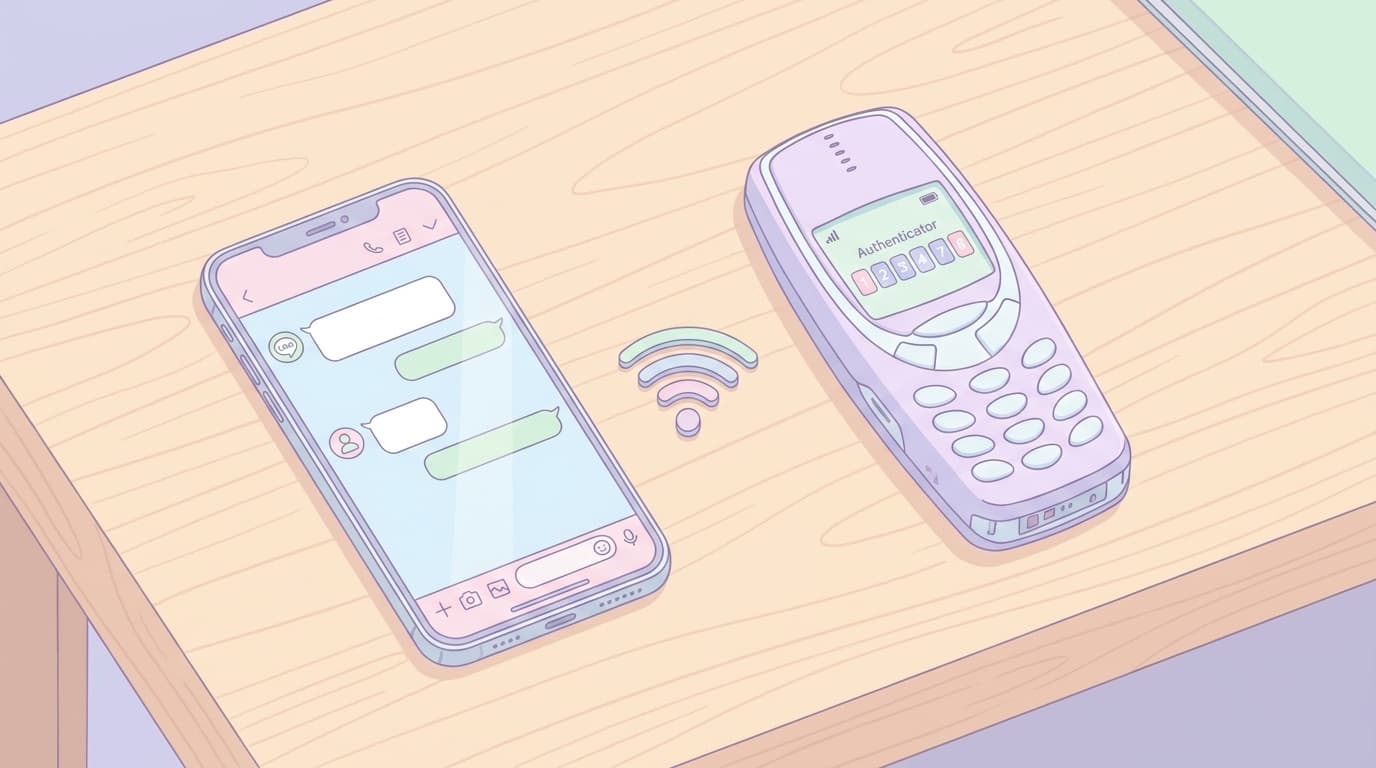
As of March 2026, the easiest way to transfer LINE is by using Easy Transfer QR Code. If you have both your old phone and new phone, use this method.
Here are the steps based on the official LINE transfer guide.
- Install and open LINE on your new phone
- Tap “Log in” → “Log in with QR code” → “Scan QR code”
- On your old phone, open LINE and tap Settings → Backup and transfer → Easy Transfer QR Code
- Scan the QR code shown on your old phone with your new phone's camera
- When your old phone asks, “Did you scan this QR code with your new device?”, tap “Yes”
- Complete identity verification using biometrics or your device passcode
- Choose how to restore your chat history and finish the transfer
The key point: identity verification in step 6 happens on your old phone. Many people assume it'll happen on the new phone, so watch out for that.
What you can still try after a failed transfer
If you've already switched phones and didn't make a backup, don't give up immediately. There are still a few things worth trying.
Method 1: If you still have your old phone
Connect your old phone to Wi-Fi, and LINE should still open even without a SIM card. From there, you may be able to make a backup, then reinstall LINE on the new phone and restore from that backup. However, once you log in to LINE on the new phone, LINE on the old phone will stop working, so make sure the backup is fully complete first.
Method 2: Use LYP Premium's Premium Backup
If you subscribe to LYP Premium (508 yen/month including tax, as of March 2026), you can use the Premium Backup feature. With this feature, you can transfer all chat history between different OSes without the 14-day limit. It can also back up photos and videos.
That said, this only works if you backed up your chats with Premium Backup beforehand. Subscribing after the chats are already gone won't bring them back.
Method 3: Save important chats to “Keep” or notes
As a preventive step for the future, save important messages to “Keep” or use the “Send chat history” feature to export them as a text file. That way, you'll have a separate copy outside your normal backup.
How can you keep all chats when switching from Android to iPhone?
The 14-day limit when transferring between different OSes catches a lot of people off guard. Here's a quick look at your options if you want to keep all your chat history.
| Method | What can be transferred | Cost |
|---|---|---|
| Standard transfer (QR code) | Most recent 14 days only | Free |
| LYP Premium Backup | All chat history, including photos and videos | 508 yen/month |
| Send chat history as text | Text only, saved for reading/reference | Free |
Bottom line: if you want to transfer all chats between different OSes, LYP Premium is the only official option. You can subscribe a month before switching phones, make the backup, complete the transfer, and then cancel after you're done.
FAQ
If my LINE chat history disappeared during transfer, can I restore it later?
If you made a backup beforehand, you can reinstall LINE on the new phone and restore from that backup. If you don't have a backup, there's no official way to recover deleted chat history.
Why doesn't Easy Transfer QR Code appear or work?
It isn't available on LINE versions earlier than 12.10.0, iOS versions earlier than 14, or Android versions earlier than 7. Update both LINE and your OS to the latest version, then try again.
What happens to LINE Coins and purchased stickers when switching from Android to iPhone?
Your LINE Coins balance won't transfer between different OSes, so use it up before switching. Purchased stickers and themes can be downloaded again as long as you're using the same LINE account.
What should I do if my old phone is broken and I can't use the QR code?
You can log in from your new phone using the email address and password registered to LINE. However, you'll still need a backup to restore chat history. If you didn't register an email address or password, contact LINE through the inquiry form.
Is automatic backup enough to keep me safe?
Usually, yes. But if your iCloud or Google Drive storage is full, backups may fail without you noticing. Before switching phones, always check the “last backup date” and make sure it's current.
References
- Transfer your LINE account — LINE User Guide
- How do I transfer my account with Easy Transfer QR Code? — LINE Help Center
- What is Premium Backup? — LINE Help Center
- If you're having trouble backing up or restoring chat history — LINE Help Center
- 3 things to do now so you don't lose important chats and data — LINE User Guide