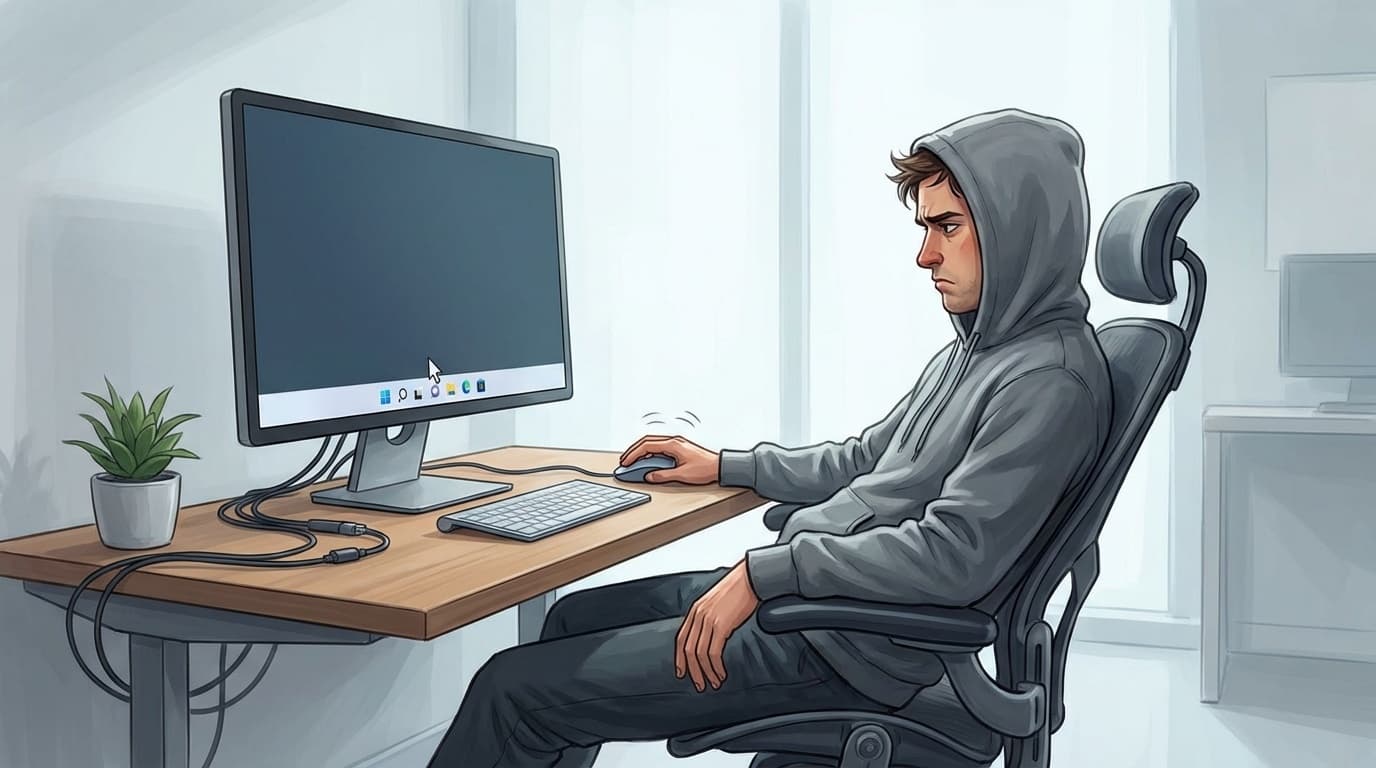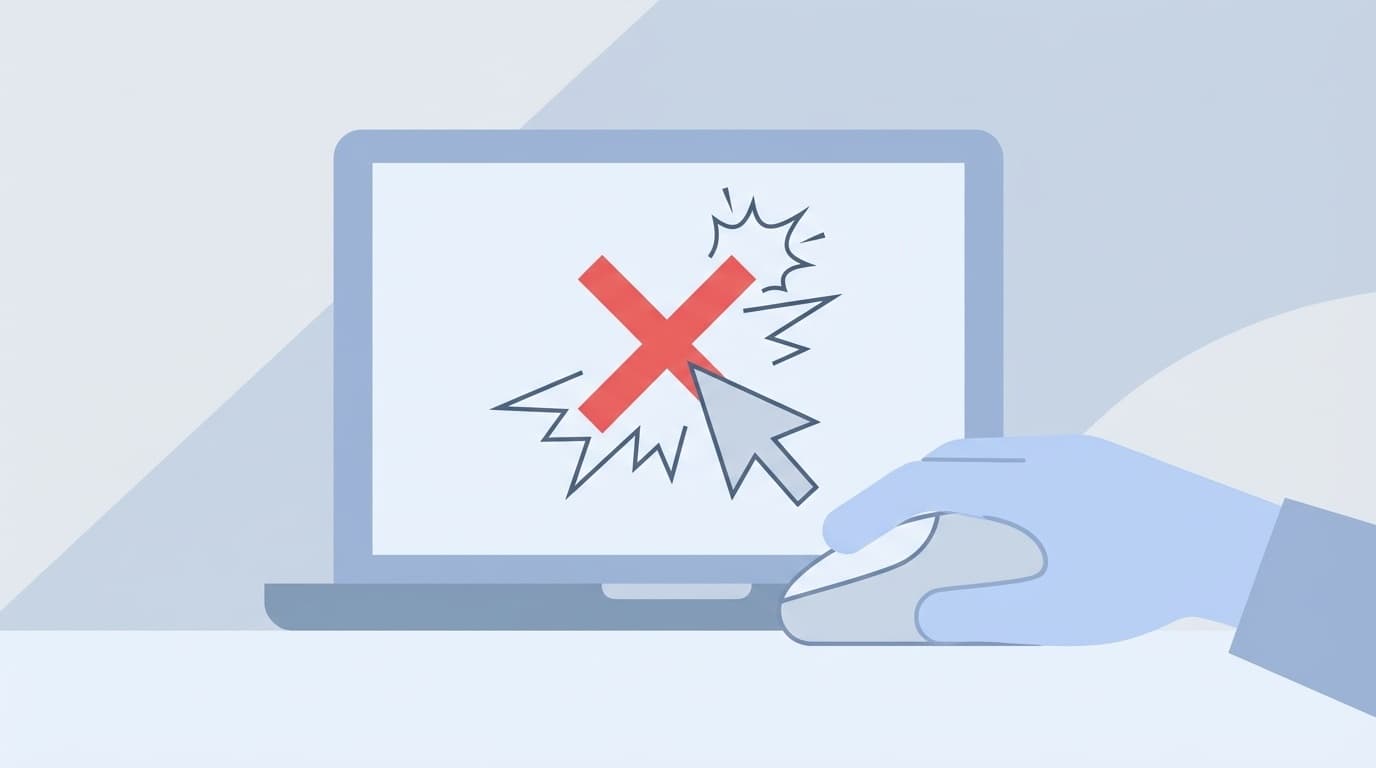
"The mouse cursor moves, but clicks do not respond..." Have you ever encountered any of these symptoms while using Windows 11?
If left-click or right-click suddenly stops working, you won't be able to close the app, and you'll panic because you won't be able to do anything. But don't worry. This condition has several common causes and can often be corrected on your own.
In this article, we will explain in an easy-to-understand manner the six reasons why the cursor moves but cannot be clicked in the Windows 11 environment as of March 2026, from emergency workarounds using only the keyboard to fundamental solutions.
First of all, this! Keyboard operation techniques when you can't click
You might think that if you can't use a mouse, you can't do anything, but Windows 11 can actually be operated quite a lot using just the keyboard. First of all, remember to use it as an emergency measure.
Open Task Manager:Press Ctrl + Shift + Esc at the same time. Once the Task Manager opens, you can select "Explorer" using the Tab key and arrow keys, then press Enter to restart it. This alone is often enough to fix it.
Restart your PC:Press Ctrl + Alt + Delete and a power icon will appear at the bottom right of the screen. You can move with the Tab key and select "Restart" with Enter. Or Windows key + X→U→R.
Open Settings:Windows Key + I to open the Settings app. Various troubleshooting operations can be performed from here.
Cause 1: Explorer freezes
Actually, this is the most common reason for not being able to click. Although the mouse itself is not broken, the Windows 11 "Explorer" process freezes and stops accepting click operations.
Explorer is a program that is responsible for displaying the desktop and taskbar. When this freezes, the cursor moves but nothing happens when you click.
Workaround:
- Open Task Manager with
Ctrl + Shift + Esc - Look for ``Explorer'' in the ``Processes'' tab (use
Tabandarrow keys) - Restart with
Alt + E(or select Application key → Restart)
The screen will go black for a moment, but it will return to normal in a few seconds. If this fixes the problem, it is caused by a temporary problem with Explorer.
Cause 2: Malfunction of the mouse driver
If clicking stops working after Windows Update, the mouse driver (software that moves the mouse) may be outdated or broken. Microsoft Q&A has also received many reports.
Workaround:
- Press
Windows Key + Xand select "Device Manager" (usearrow keysto select andEnter) - Select "Mouse and other pointing devices" with
arrow keysand expand withright arrow - Choose the device name of the mouse you are using
Enter - Select “Driver” tab → “Update Driver”
- Select "Search for drivers automatically"
If the update does not fix the problem, try "uninstalling the device" using the same procedure and restarting the PC. Windows will automatically reinstall the driver when you restart.
Cause 3: "Click lock" or "mouse key function" is enabled
What is surprisingly often overlooked is a pattern caused by Windows 11 settings. Click behavior may become strange if the following functions are turned on without your knowledge.
Click lock:A function that locks the mouse button in the "pressed" state when you press and hold it for a long time. This function is to make dragging operations easier, but when turned on, the click response changes.
Mouse key function:A function to operate the mouse cursor using the numeric keypad. If this is on, normal mouse clicks may not work.
Workaround (check click lock):
- Open settings with
Windows key + I - Open "Bluetooth and devices" → "Mouse"
- Click "Additional Mouse Settings" in "Related Settings"
- Make sure that "Turn on click lock" is unchecked in the "Buttons" tab
Workaround (check mouse key function):
- Open settings with
Windows key + I - Open “Accessibility” → “Mouse”
- Make sure the Mouse Keys switch is Off
Cause 4: Interference with mouse control software (Logitech Options, Razer Synapse, etc.)
Be careful if you are using mouse control software from manufacturers such as Logitech, Razer, SteelSeries, etc. Updates or settings changes to these software may interfere with click operations.
Workaround:
- Look for mouse control software in the notification area of the taskbar (
∧mark at the bottom right) - Right-click and select "Exit" or "Pause"
- Check if the click is restored
If you cannot use the mouse, try searching for the software in Windows Key + I → "Apps" → "Installed apps" and temporarily uninstalling it. Once fixed, reinstall the software and update to the latest version.
Cause 5: Poor USB port connection or wireless connection problem
If it is a wired mouse, the cause may be a poor connection at the USB port, and if it is a wireless mouse, the cause may be a poor connection with the receiver or unstable Bluetooth connection.
Workaround:
- Wired mouse:Plug it back into a different USB port. It is also helpful to try alternating between USB 2.0 and USB 3.0 ports
- Wireless mouse:Plug in and remove the receiver. Or plug it into another USB port
- Bluetooth Mouse:Unpair and reconnect.
Windows key + I→ "Bluetooth and devices" → "..." of the relevant device → "Delete device" → Re-pairing - Checking for dead batteries:For wireless mice, check the batteries and remaining battery power. If it is rechargeable, charge it and try again
If you are using a USB hub, try plugging it directly into the USB port on your PC. The mouse may become unstable due to insufficient power in the hub.
Cause 6: Corrupted system files
If the problem persists even after trying these steps, the Windows 11 system files may be corrupted. This symptom is likely to occur after a power outage or forced shutdown.
Workaround:
Windows Key + X→ Select “Terminal (Administrator)”- Type the following command and
Enter:
sfc /scannowIt will take approximately 10-15 minutes for the scan to complete. When you see "Corruptions found and repaired", restart your PC.
If that doesn't work, please run the following command as well:
DISM /Online /Cleanup-Image /RestoreHealthThis may take up to 20 minutes, but allows you to repair your system at a deeper level.
If the problem still persists, the mouse may be defective
If the problem persists even after trying all of the above, there may be a hardware failure in the mouse itself. In particular, the left-click switch is a consumable item, so it may become unresponsive after 2 to 3 years of use.
The confirmation method is simple. Try connecting a different mouse. If you can click normally with another mouse, the original mouse is definitely defective.
Even if you don't have a mouse at hand, you can use the 5 key on the numeric keypad instead of clicking by turning on Windows key + I → "Accessibility" → "Mouse" → "Mouse keys function" (as an emergency measure).
FAQ
Why does the left click not respond even though the mouse cursor moves?
Explorer may be frozen, the driver may be defective, or the ClickLock feature may be turned on. The first thing to try is to open Task Manager with Ctrl + Shift + Esc and restart Explorer.
What should I do if only right click does not work?
If only right-clicking does not work, the button assignments may have been changed in the settings of the mouse control software (Logitech Options, Razer Synapse, etc.). Try disabling the control software temporarily and checking.
How to restart the PC without being able to click?
Press Ctrl + Alt + Delete, use the Tab key to move to the power icon at the bottom right of the screen, and press Enter to select "Restart". Another method is the keyboard operation Windows key + X→U→R.
What if the click stops working after Windows Update?
There may be a driver compatibility issue. Uninstall the mouse driver from Device Manager and restart your PC. The latest driver will be reinstalled automatically. If the problem still persists, check Microsoft Support for the latest bug information.
How can I operate Windows 11 without a mouse?
If you enable the "mouse key function", you can click with 5 on the numeric keypad and move the cursor with 8/2/4/6. You can set it from Windows key + I → "Accessibility" → "Mouse". If your laptop does not have a numeric keypad, you can perform many operations using the Tab and Enter keys.
References
- Windows 11 mouse clicks periodically become unresponsive — Microsoft Q&A
- [Windows 11] The mouse pointer moves strangely or does not respond. — FMV Support (Fujitsu)
- What to do if the USB mouse does not work properly on Windows 11 — NEC LAVIE official support
- The mouse no longer works in Windows 11. 4 ways to revive it again — Lifehacker Japan