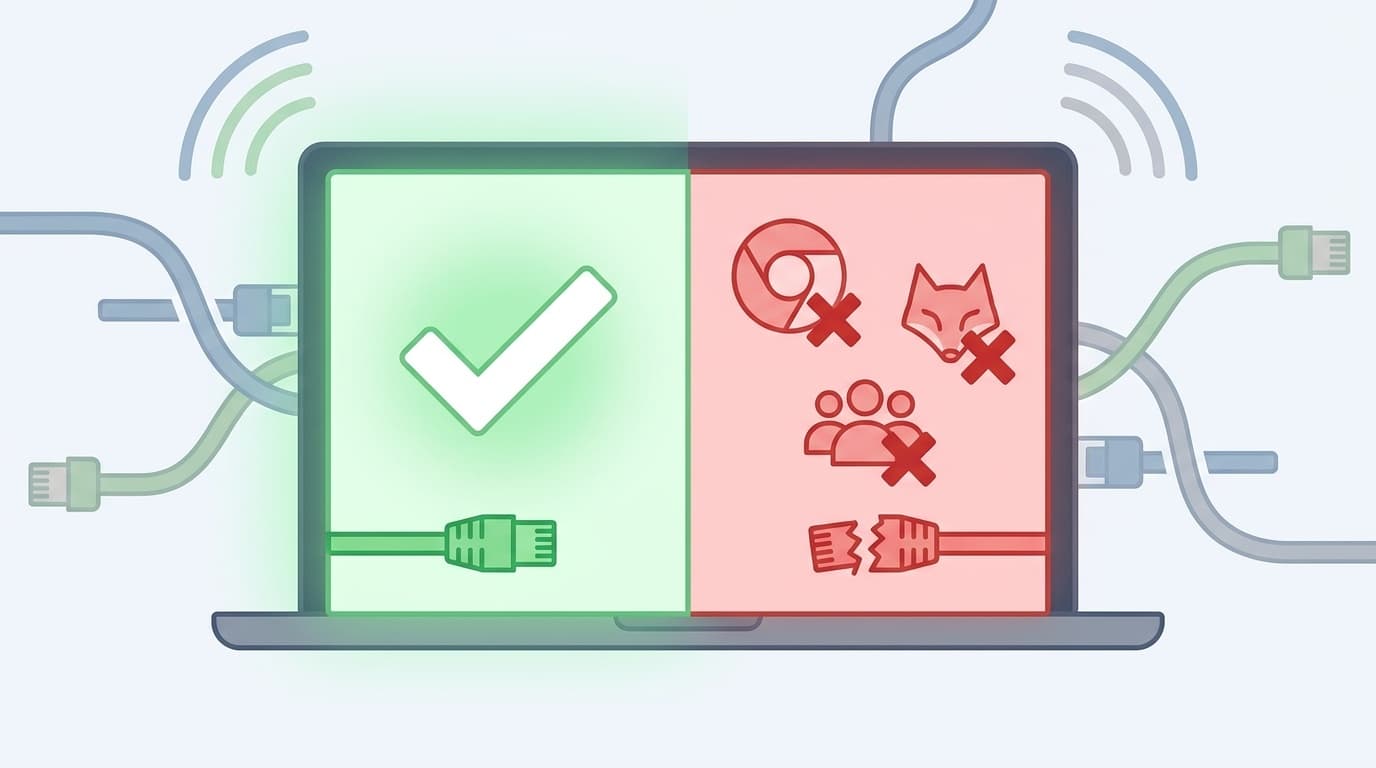
You see the blue arrows spinning on the OneDrive icon on your PC, and your files just sit there as “Sync pending.” No matter how long you wait, it won’t finish, and it’s stressful when important files aren’t being uploaded to the cloud.
In this article, based on information current as of March 2026, we’ll explain six common reasons OneDrive sync won’t finish or gets stuck on pending in Windows 11, along with simple fixes you can try yourself.
What Does “Sync Pending” Actually Mean?
The blue circular arrows that appear on OneDrive files or folders mean “this file hasn’t finished syncing with the cloud yet.” Normally, that icon changes to a green check mark within a few seconds or minutes. But when something goes wrong, it can stay blue forever and stop moving.
OneDrive has three main sync status icons:
- Green check mark: Sync is complete. The file exists both in the cloud and on your PC.
- Blue circular arrows: Sync is pending or currently in progress.
- Red X: Sync error. Something prevented the file from syncing.
6 Reasons OneDrive Sync Won’t Finish
Cause 1: The File Path Is Too Long (400-Character Limit)
OneDrive has a limit of 400 characters for the full file path, meaning the total length of the folder names plus the file name must fit within that limit. See Microsoft Support for details. If you have deeply nested folders or very long Japanese file names, OneDrive may hit this limit and stop syncing.
Cause 2: The File Is Too Large
The maximum upload size for a single OneDrive file is 250GB as of March 2026, according to Microsoft’s official guidance. Very large files, such as videos or backup archives, can take a long time to sync or may not upload at all.
Cause 3: Your OneDrive Storage Is Full
The free OneDrive plan includes 5GB of storage. If you subscribe to Microsoft 365, you can use up to 1TB, but once you hit your storage limit, new files won’t sync. To check your usage, click the OneDrive icon in the taskbar, then go to the gear icon → “Settings” → “Account.”
Cause 4: The File Name Contains Unsupported Characters
If a file name contains symbols such as * : " ? / \ | < >, OneDrive can’t sync it. In some cases, a name that Windows allows can still be rejected by the cloud side. A space or period at the end of a file name can also cause sync errors.
Cause 5: Another App Is Locking the File
If a file is open in Excel, Word, or another app, meaning it’s currently locked, OneDrive may not be able to sync it. Excel in particular creates temporary files like ~$ファイル名.xlsx, and those temporary files can sometimes clog the sync queue.
Cause 6: The OneDrive App Has a Bug or Is Out of Date
Sync may also fail if the OneDrive app itself has a bug or is running an old version. On Windows 11, OneDrive is usually updated through Windows Update, but you can also check for updates manually.
7 Fixes to Try Right Now, From Easiest to Hardest
Fix 1: Pause Syncing, Then Resume It
This is the easiest place to start. Click the OneDrive icon in the taskbar, then click the gear icon in the upper-right corner. Choose “Pause syncing” → “2 hours.” After that, follow the same steps and click “Resume syncing.”
This often resets the sync queue and gets stuck files moving again.
Fix 2: Move the Problem File Out of the Folder Once
If only one specific file is stuck on “Sync pending,” try moving that file outside your OneDrive folder, such as to your Desktop. Once sync starts working again, move the file back.
- Drag and drop the pending file to your Desktop.
- Wait for OneDrive sync to finish, so other files can sync first.
- Move the file back into your OneDrive folder.
Fix 3: Shorten File and Folder Names
If the file path length is the problem, try the following:
- Make the folder structure shallower by moving deeply nested folders higher up.
- Shorten file names, especially very long Japanese names.
- Check whether the file name contains any prohibited characters, such as
* : " ? / \ |.
As a quick check, you can paste the path into File Explorer’s address bar to get a rough idea of its length.
Fix 4: Check Available OneDrive Storage
Go to the OneDrive web app and check the storage usage shown in the lower-left corner. If your storage is full, delete files you don’t need or consider upgrading to Microsoft 365.
Fix 5: Reset OneDrive
If the fixes above don’t work, resetting the OneDrive app can help. Don’t worry: resetting OneDrive doesn’t delete your files.
- Press
Windows + Rto open the Run dialog. - Copy and paste the following, then click “OK”:
%localappdata%\Microsoft\OneDrive\onedrive.exe /reset - Wait a bit, and OneDrive should restart automatically.
- If it doesn’t restart, open “OneDrive” manually from the Start menu.
After a reset, OneDrive rechecks the sync status of all files, so it may take some time to finish.
Fix 6: Try Turning Off Files On-Demand
OneDrive’s Files On-Demand feature, which saves space by downloading files only when needed, can sometimes interfere with syncing.
- Click the OneDrive icon in the taskbar → gear icon → “Settings.”
- Open the “Sync and backup” tab → “Advanced settings.”
- In the “Files On-Demand” section, click “Download all files.”
Keep in mind that this will download all your OneDrive files to your PC, so make sure you have enough free disk space before you do it.
Fix 7: Reinstall the OneDrive App
If nothing else works, try reinstalling the OneDrive app.
- Go to “Settings” → “Apps” → “Installed apps,” then uninstall OneDrive.
- Download and install the latest version of OneDrive from the official Microsoft website.
- Sign in again with your Microsoft account.
Your cloud files will still be there after reinstalling, so reinstalling the app won’t delete your data.
What If It Still Won’t Sync?
If OneDrive still won’t finish syncing after you’ve tried everything above, one of these may be the cause:
- You’re using work or school OneDrive, also called OneDrive for Business: Your organization may have admin policies in place, so check with your IT department.
- Your security software is blocking OneDrive: Try adding your OneDrive folder to your antivirus software’s exclusion list.
- Windows system files are corrupted: Open Command Prompt as an administrator and run
sfc /scannow. This may repair the issue.
FAQ
Will resetting OneDrive delete my files?
No, it won’t. A reset only initializes the OneDrive app’s sync database. Your local files and cloud files stay where they are. However, OneDrive will start rechecking and resyncing afterward, so it may take a while to complete.
Is it okay to edit a file that’s stuck on Sync pending?
You can edit it, but there’s a chance of a conflict once sync resumes. If possible, it’s safer to wait until syncing finishes before editing. If a conflict happens, OneDrive will usually save a separate copy under a different name.
Can I stop syncing only certain OneDrive folders?
Yes. In OneDrive settings, go to “Account” → “Choose folders” and select which folders you want to sync. Turning off sync for large folders may help other files sync faster.
What should I do if the free 5GB is full?
Empty the recycle bin in the OneDrive web app, delete old files you no longer need, or subscribe to Microsoft 365 Personal, which gives you up to 1TB of storage for ¥1,490/month as of March 2026.
References
- OneDrive is stuck on “Sync pending” — Microsoft Support
- Restrictions and limitations in OneDrive and SharePoint — Microsoft Support
- OneDrive stuck on “Processing changes” — Microsoft Support