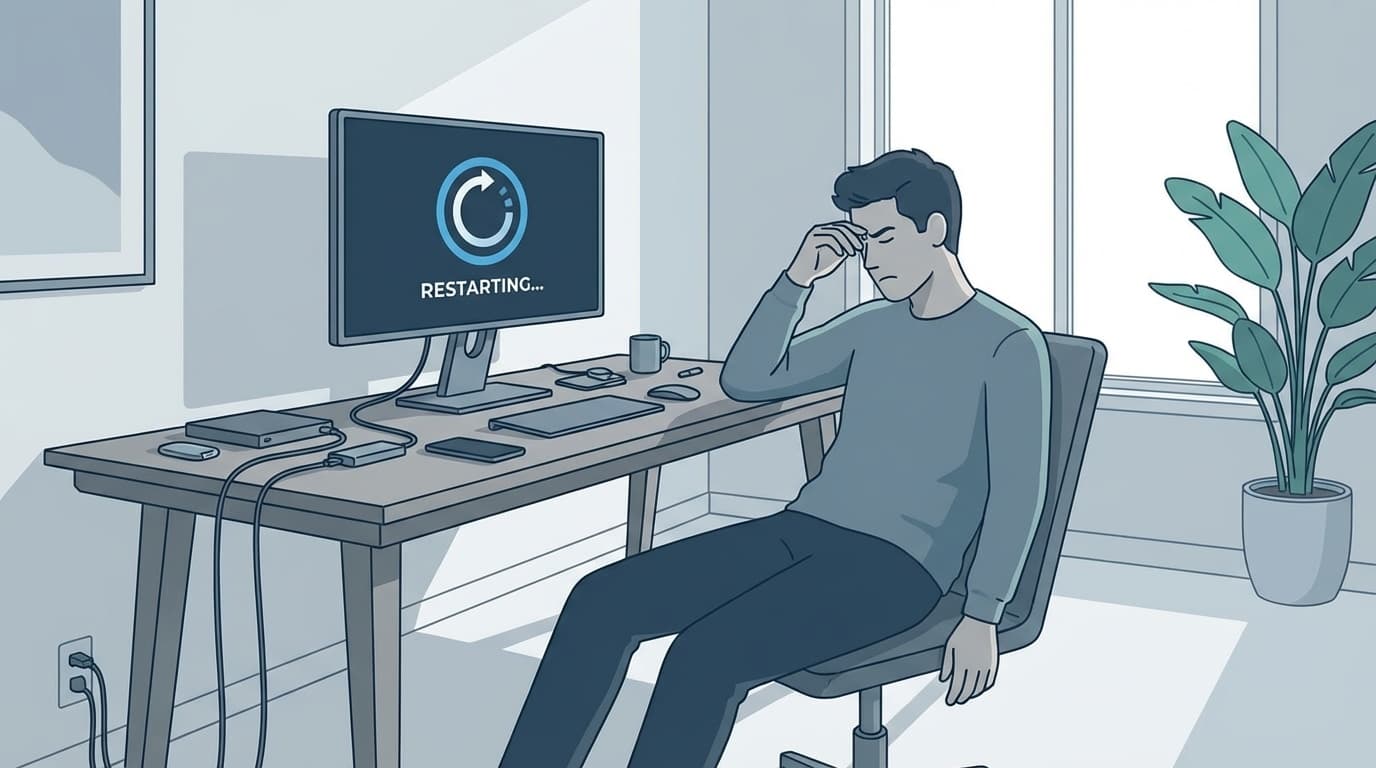
“I cleaned the dust out of my PC, so why is it running worse than before?” Sound familiar?
You meant to remove dust and improve cooling, but now your computer keeps freezing right after the cleanup. It’s more common than you might think. You’ll even see people on social media saying things like, “My PC froze four times in two days after I cleaned it,” or “I cleaned it for the first time in a year, and last time this didn’t happen...”
Based on information current as of March 2026, this guide explains the five main reasons a computer can start freezing or acting unstable after internal cleaning, plus practical fixes you can try yourself.
Why would a PC act up after cleaning?
Cleaning the inside of your computer is normally good maintenance. When dust builds up, fans can struggle to spin properly, heat gets trapped, and the system may overheat.
But if the cleaning is done the wrong way, it can trigger a different problem. In most cases, the issue comes from a small accident during the cleaning process, such as:
- A cable or component shifted when you touched nearby parts
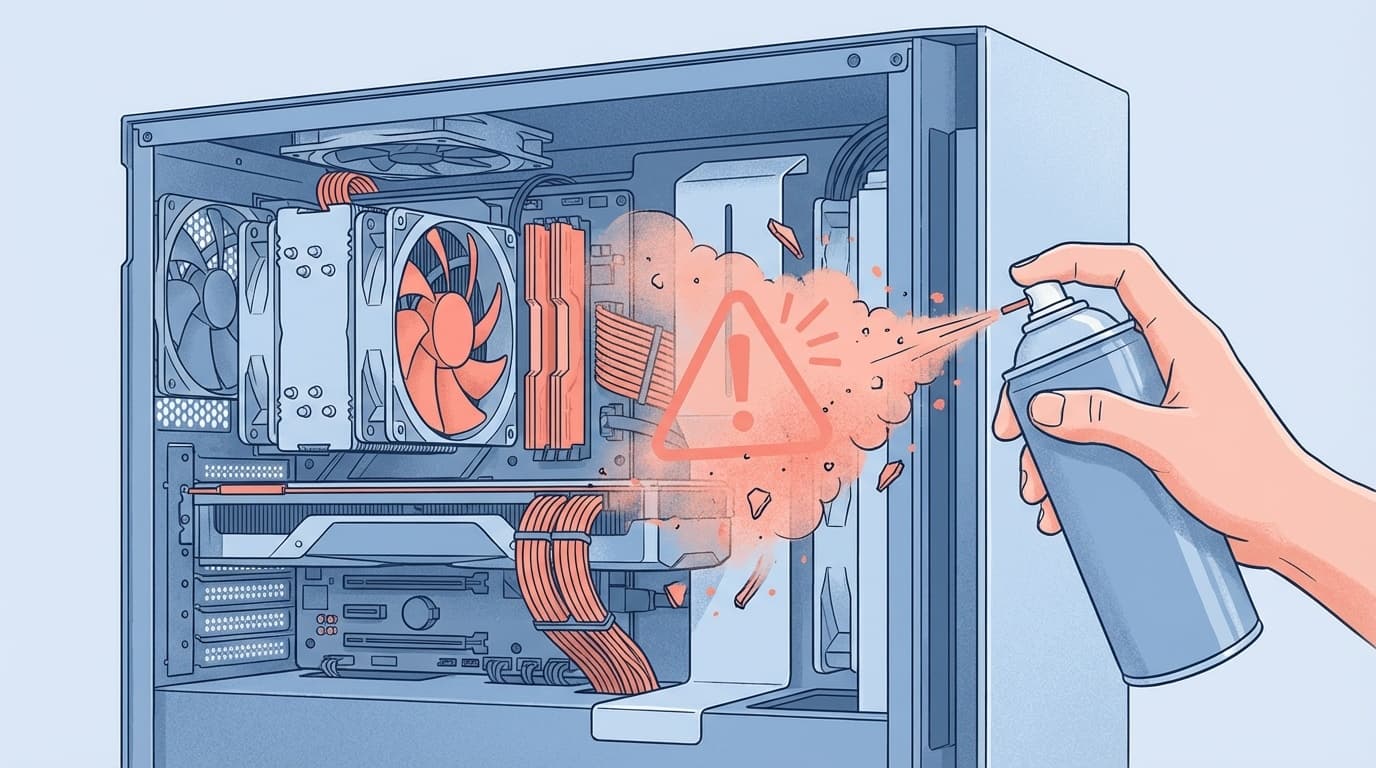
- Dust blown by compressed air got pushed into another slot or connector
- Static electricity damaged a component
In other words, cleaning itself isn’t the problem. Something that happened during cleaning usually is. Let’s walk through the likely causes.
Cause 1: The RAM isn’t seated properly
This is the most common cause of freezing after cleaning a PC.
When you clean inside a computer, you may blow compressed air near the memory slots or wipe around nearby parts. While doing that, it’s easy to bump the RAM slightly and leave it just a little loose.
Even if a memory module is only slightly lifted, the computer may not run correctly. That can lead to frequent freezes or blue screen errors.
How to fix it
- Shut down the computer and unplug the power cable.
- Open the case and check the clips, or latches, on both ends of the RAM slot.
- Remove the RAM once, then lightly blow compressed air across the metal contacts in the slot.
- Reinsert the RAM. Press it in until you hear a click and both latches lock firmly into place.
- If you have multiple RAM sticks, test booting with one stick at a time. This can help you narrow down whether one module is causing the issue.
The same idea applies to laptops. If your model lets you access the RAM by removing the bottom cover, reseating the memory is worth trying.
Cause 2: A cable or connector is loose
Inside a desktop PC, there are a lot of cables: SATA cables connecting storage drives to the motherboard, power cables, fan connectors, and more.
During cleaning, your hand may brush against one of these cables and leave a connector half-plugged in. SATA cables in particular can come loose with very little force.
If a storage cable is loose, the system may freeze when reading or writing data. If a power cable is loose, the computer may suddenly shut off.
How to fix it
- Turn off the computer and open the case.
- Unplug and reconnect all of these cables and connectors:
- SATA data cables, on both the storage drive and motherboard ends
- Power supply cables, including the 24-pin motherboard cable, CPU power cable, and GPU power cables
- Fan connectors, including the CPU fan and case fans
- Make sure every connector is pushed in all the way.
Cause 3: Compressed air pushed dust into a slot
Compressed air is useful, but if you use it carelessly, it can backfire.
A strong blast can send dust flying into RAM slots or PCI Express slots, where graphics cards and other expansion cards plug in. If dust gets trapped around the contacts, it can cause a poor connection and lead to freezing.
How to fix it
- Remove the graphics card, or GPU.
- Blow compressed air into the slot using short, light bursts.
- Gently wipe the graphics card’s metal contacts with a cotton swab lightly dampened with anhydrous ethanol.
- Reinstall the card and make sure it’s firmly secured.
Next time you clean, try covering open slots with your hand while using compressed air. That helps keep dust from being blown inside them.
Cause 4: Static electricity damaged a component
This is especially important in winter or in dry rooms. Static electricity can damage PC components.
The static charge built up in your body can reach thousands or even tens of thousands of volts. It usually won’t shock you badly, but it can be serious for delicate electronics. If static discharges the moment you touch a motherboard or RAM contact, it can damage circuitry in a way you can’t see.
Static-related damage doesn’t always show up immediately. The PC may seem fine right after cleaning, then start freezing a few days later.
What to do, and how to prevent it
- Before touching internal parts, touch a metal doorknob or faucet to discharge static from your body.
- Wear an anti-static wrist strap while you work.
- Keep the room’s humidity around 40% to 60%. Static builds up more easily when the air is too dry.
- Nylon and polyester clothing can build up static, so work in cotton clothing if possible.
If a component has already been damaged by static, unfortunately, it’s hard to repair at home. You’ll usually need to contact a PC repair shop or replace the affected part.
Cause 5: The CPU thermal paste is old, or a fan isn’t spinning properly
If you removed the CPU cooler while cleaning, the thermal paste between the CPU and cooler may no longer be working well.
Thermal paste helps transfer heat from the CPU to the cooler. Once you remove the cooler, old paste can trap air and lose a lot of its thermal conductivity. The CPU can then run too hot and freeze from overheating.
Another possibility is that a fan cable was left unplugged, or the fan blades were spun too hard during cleaning and the bearing was damaged. If the fan can’t spin normally, cooling performance drops.
How to fix it
- If you removed the CPU cooler, clean off the old paste with anhydrous ethanol and apply fresh thermal paste.
- A common method is to place a rice-grain-sized dot, about 5 mm, in the center of the CPU and let the cooler’s pressure spread it.
- To check whether fans are spinning, enter the BIOS screen during startup, usually with the Delete key or F2, and look for “Hardware Monitor.”
- CPU temperatures are usually normal at 40°C to 50°C when idle and under 80°C under load. If it’s constantly over 80°C, there’s likely a cooling problem.
CPU thermal paste usually costs around ¥1,000 in Japan. If you search Amazon for “CPU thermal paste”, you’ll also find beginner-friendly kits that include a spreader.
Final checklist if your PC still freezes after cleaning
If the fixes above don’t help, check the following:
- See if Windows can boot in Safe Mode — In Windows 11, force shut down the PC three times by holding the power button. The “Automatic Repair” screen should appear. Go to “Troubleshoot” → “Advanced options” → “Startup Settings” → “Restart” → “4) Enable Safe Mode.”
- Run Windows Memory Diagnostic — Search for “Windows Memory Diagnostic” in the Start menu and run it. After the restart, Windows will automatically check the RAM for errors.
- Check error logs in Event Viewer — Search for “Event Viewer” in the Start menu. Under “Windows Logs” → “System,” look for entries marked with a red “Error” icon. These may give you clues about what caused the freeze.
- Check hardware detection in BIOS/UEFI — Confirm that your storage drives and memory are being recognized correctly.
If none of this solves it, a component may have been physically damaged during cleaning, such as from static electricity or fan damage. At that point, it’s best to consult a PC repair service, such as PCホスピタル.
5 tips to avoid problems the next time you clean your PC
- Shut down the computer, unplug it, and wait at least 5 minutes — This gives internal electricity time to discharge.
- Wear an anti-static wrist strap — Make it a habit before touching internal components.
- Keep the compressed-air can upright and use short bursts — If you tilt the can, liquid can spray out and wet components. Spraying continuously also chills the can and lowers the pressure.
- Don’t use a vacuum cleaner inside the PC — Vacuum nozzles can generate static. Use compressed air to blow out dust, then vacuum up only the dust that falls outside the case.
- Take photos of cable and component positions with your phone before you start — This lowers the risk of forgetting where everything goes.
FAQ
How often should I clean my PC?
Every six months to a year is a good rule of thumb. If you have pets or keep a desktop PC on the floor, dust builds up more quickly, so every three to six months is better.
Do laptops need internal cleaning too?
Yes. That said, many laptops are hard to take apart. Lightly blowing compressed air from the outside into the exhaust vents can still help. If disassembly is required, check your warranty first, since opening the laptop may void it.
If I get a blue screen after cleaning, is RAM usually the cause?
Loose RAM is a common cause. Try reseating the memory first. If that doesn’t fix it, run Windows Memory Diagnostic to check whether the RAM itself is faulty.
Can I use a hair dryer instead of compressed air?
It’s not recommended. Hot air from a hair dryer can overheat components, and even the cool-air mode usually doesn’t have enough pressure to remove dust well. A PC-safe compressed-air duster is the safer choice.
What if my PC has been freezing more even though I haven’t cleaned it?
Then the cause may be unrelated to cleaning. Common possibilities include a Windows Update issue, aging storage, or not enough memory. You may also want to see our guides on fixing freezes after Windows Update and reducing high memory usage.
References
- Simple fixes when your PC freezes: causes and prevention tips — Lenovo official site
- What to do when your PC freezes: causes and fixes explained clearly — NEC LAVIE official site
- What to do when your PC freezes: checking causes and response steps — Dospara official site
- Serious problems after cleaning dust from PC case — Tom's Hardware Forum
- Reasons a PC won’t move, respond, or stop freezing, and how to fix it — PCホスピタル