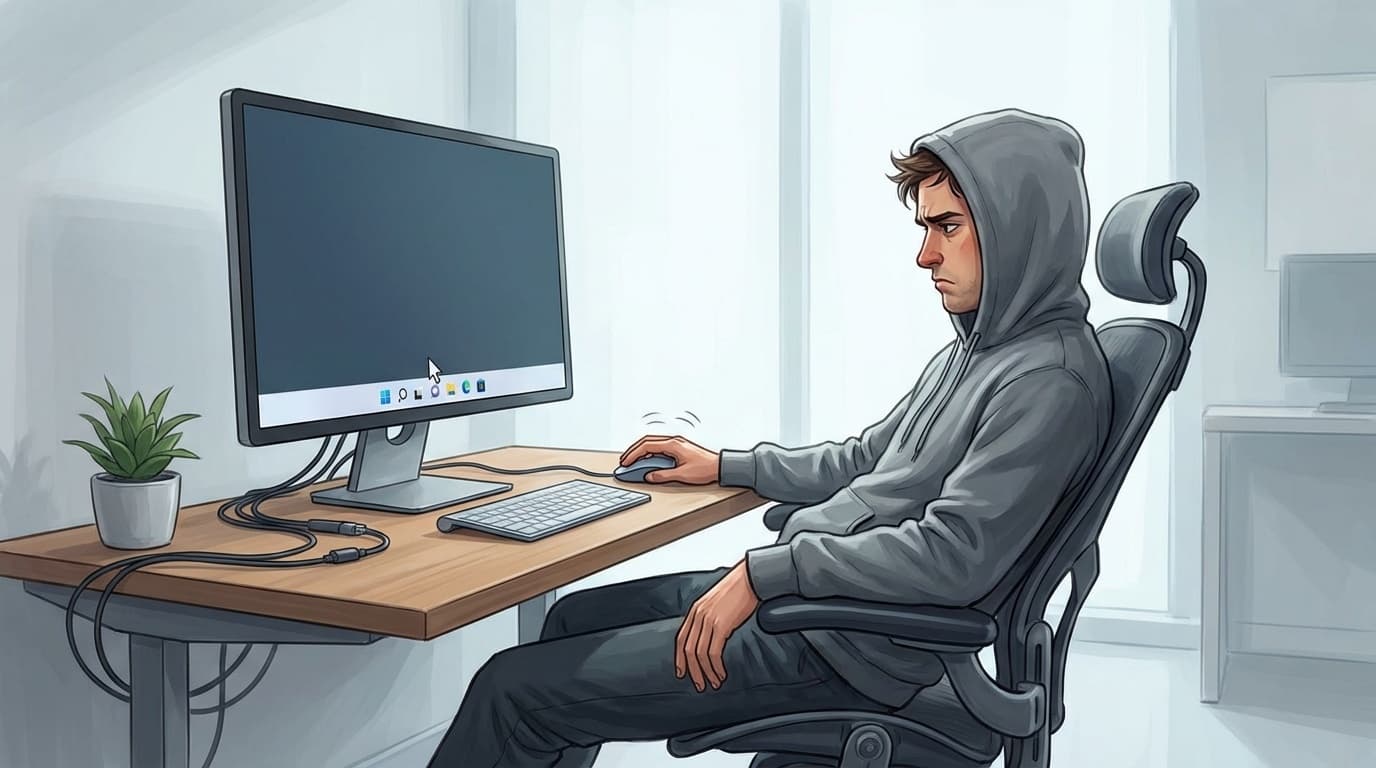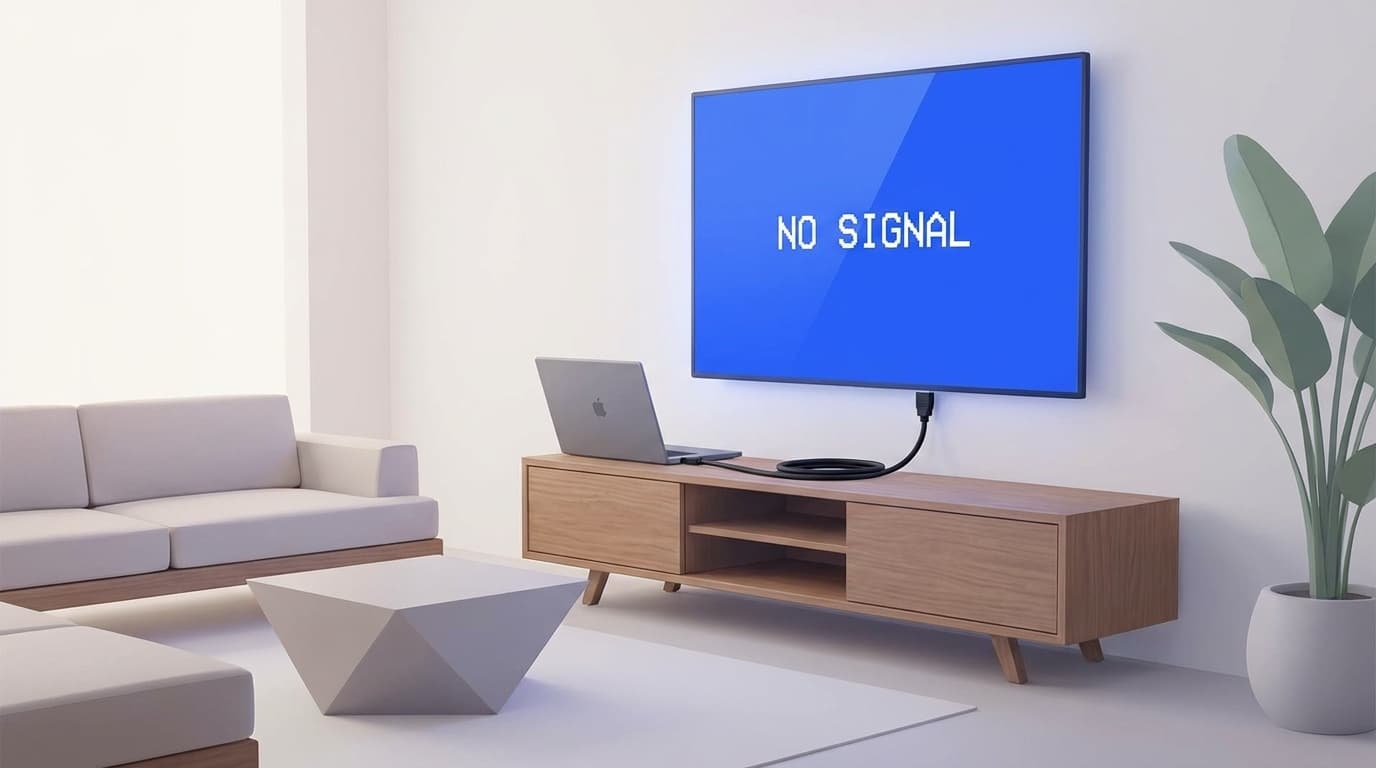
“I connected my PC to my TV with an HDMI cable, but the TV says ‘No signal’...” “It worked yesterday, and now it suddenly won’t show anything!” This kind of problem is more common than you might think.
Maybe you want to watch a movie on a bigger screen, or show a presentation on a TV. Either way, it’s frustrating when you bought the cable and still get nothing. The good news is that most HDMI display problems come down to a simple setting or connection issue, and you can usually fix them yourself.
In this guide, based on information current as of March 2026, we’ll walk through six common reasons your PC won’t show up on a TV over HDMI, plus what to do about each one, using Windows 11 as the example.
6 reasons your TV says “No Signal”
When HDMI video doesn’t appear, the cause usually falls into one of six buckets. Check them in order from the top.
Cause 1: The TV is set to the wrong input
Most TVs have more than one HDMI port. If your cable is plugged into HDMI 2 but the TV input is still set to HDMI 1, you’ll see “No signal”. This is actually one of the most common causes.
Cause 2: The HDMI cable is loose or damaged
If the cable isn’t pushed in all the way, or if the cable itself is damaged, the picture won’t appear. Cheap cables and long cables over 10 feet / 3 meters are especially likely to cause an unstable signal.
Cause 3: Windows is set to “PC screen only”
In Windows 11, you can switch display output modes with Windows key + P. If it’s set to “PC screen only,” nothing will appear on the TV.
Cause 4: The graphics driver is outdated or glitching
After a Windows Update, or if your graphics driver is outdated, HDMI output may stop working properly. Microsoft Q&A has multiple reports of HDMI output failing after Windows 11 updates.
Cause 5: The resolution or refresh rate isn’t supported by the TV
If your PC is set to a resolution or refresh rate your TV doesn’t support, the TV may show no picture. For example, this can happen if your PC is trying to output 4K at 120Hz, but your TV only supports 4K at 60Hz.
Cause 6: The HDMI cable is plugged into the wrong port on a desktop PC with a graphics card
If you’re using a desktop PC with a dedicated graphics card (GPU), plugging the HDMI cable into the motherboard’s HDMI port may not work. You need to plug it into the HDMI port on the GPU. This is a common mistake with custom-built and gaming PCs.
Fix 1: Check the TV input and HDMI cable
Start with the simplest checks first.
- Press the Input button on your TV remote, then choose the HDMI port number where the cable is connected, such as HDMI 1 or HDMI 2.
- Unplug both ends of the HDMI cable and firmly plug them back in.
- If your TV has multiple HDMI ports, try a different port.
- If possible, try another HDMI cable to rule out a broken cable.
Use a cable labeled “High Speed HDMI” or “Ultra High Speed HDMI”. If you want 4K output, you’ll need a cable that supports HDMI 2.0 or later.
Fix 2: Switch the Windows display output mode (Win+P)
Press Windows key + P on your keyboard to open the display projection menu.
- PC screen only: Shows only on your PC screen, not the TV.
- Duplicate: Shows the same screen on both your PC and TV.
- Extend: Uses the TV as a second display, expanding your desktop.
- Second screen only: Shows only on the TV.
If you want the picture on the TV, choose Duplicate or Extend. If the screen is black and you can’t see the menu, you can still use the arrow keys, usually the Down arrow, and press Enter to select an option.
Fix 3: Reset or update the graphics driver
If the driver is the problem, try one of these two methods.
Method A: Reset the graphics driver for a quick fix
Press Windows + Ctrl + Shift + B at the same time. The screen may flicker for a moment; that means the graphics driver has restarted. In some cases, that’s enough to bring the TV picture back.
Method B: Update the driver to the latest version
- Right-click the Start button and open Device Manager.
- Expand Display adapters.
- Right-click your graphics card name, then choose Update driver.
- Select “Search automatically for drivers.”
If you’re using an NVIDIA, AMD, or Intel graphics card, downloading the latest driver directly from the company’s official website is usually the most reliable option.
Fix 4: Try lowering the resolution
If your PC is using a resolution the TV doesn’t support, the screen may stay black.
- Right-click an empty area of the desktop and choose Display settings.
- In the Multiple displays section, press Detect.
- If the TV is detected, select it and set Display resolution to 1920 × 1080.
- First confirm that it works at Full HD / 1080p, then raise it to 4K if needed.
You can also try changing the TV’s HDMI setting to HDMI compatibility mode or Standard format. On many TVs, you’ll find this under Settings → External inputs → HDMI settings.
Fix 5: Check which HDMI port you’re using on a desktop PC
On a desktop PC, there may be two or more HDMI ports on the back.
- Upper HDMI port: Usually belongs to the motherboard, using the CPU’s built-in graphics.
- Lower HDMI port: Usually belongs to the dedicated graphics card / GPU.
If your PC has a dedicated graphics card, make sure the HDMI cable is connected to the lower GPU-side HDMI port. If it’s plugged into the motherboard, it may not output a video signal while the GPU is active.
This usually doesn’t apply to laptops, so if you’re using a laptop, focus on Fixes 2 through 4.
Still not working? Try a full power reset
If you’ve tried everything above and still get no picture, a full power cycle may bring the connection back.
- Turn off both the TV and the PC.
- Unplug both ends of the HDMI cable.
- Unplug the TV’s power cord from the wall and wait 1 minute.
- Plug the power cord back in and turn on the TV.
- Connect the HDMI cable.
- Turn on the PC.
The key is to fully power down the TV. Turning it off with the remote usually only puts it into standby, so you’ll need to unplug it from the outlet.
FAQ
Are there different kinds of HDMI cables? Which one should I buy?
Yes. HDMI cables come in four main categories: Standard, High Speed, Premium High Speed, and Ultra High Speed. As of March 2026, High Speed is fine for Full HD / 1080p, while 4K output is best with Premium High Speed, which supports HDMI 2.0-level use, or better.
Why do I get a picture on the TV, but no sound from the TV?
Windows may still be sending audio to your PC’s built-in speakers. Click the speaker icon in the bottom-right corner of the taskbar, then switch the output device to your TV or HDMI device name.
What if my laptop doesn’t have an HDMI port?
You can use a USB-C to HDMI adapter if your USB-C port supports Thunderbolt or DisplayPort Alt Mode. Before buying one, check your laptop’s specs to make sure its USB-C port supports video output.
Why does the picture look blurry on my 4K TV?
If your PC resolution is set to 1920 × 1080, or Full HD, the image is being stretched on the 4K TV, which can make it look blurry. In Display settings, change the resolution to 3840 × 2160, or 4K. On the TV side, enable a setting such as Enhanced format or HDMI Ultra HD Deep Color.
References
- Things to check when you can’t output to an external display or TV — VAIO Official Support
- 6 Best Fixes for Windows 11 Not Detecting HDMI TV/Monitor — Guiding Tech
- Using external monitors and troubleshooting connections — Microsoft Support
- Causes and fixes when a Windows PC doesn’t recognize HDMI — Data Recovery.com