“My computer suddenly died and won't start. I saved all my IDs and passwords in the browser, so now I don't know any of them…” More people run into this than you might think.
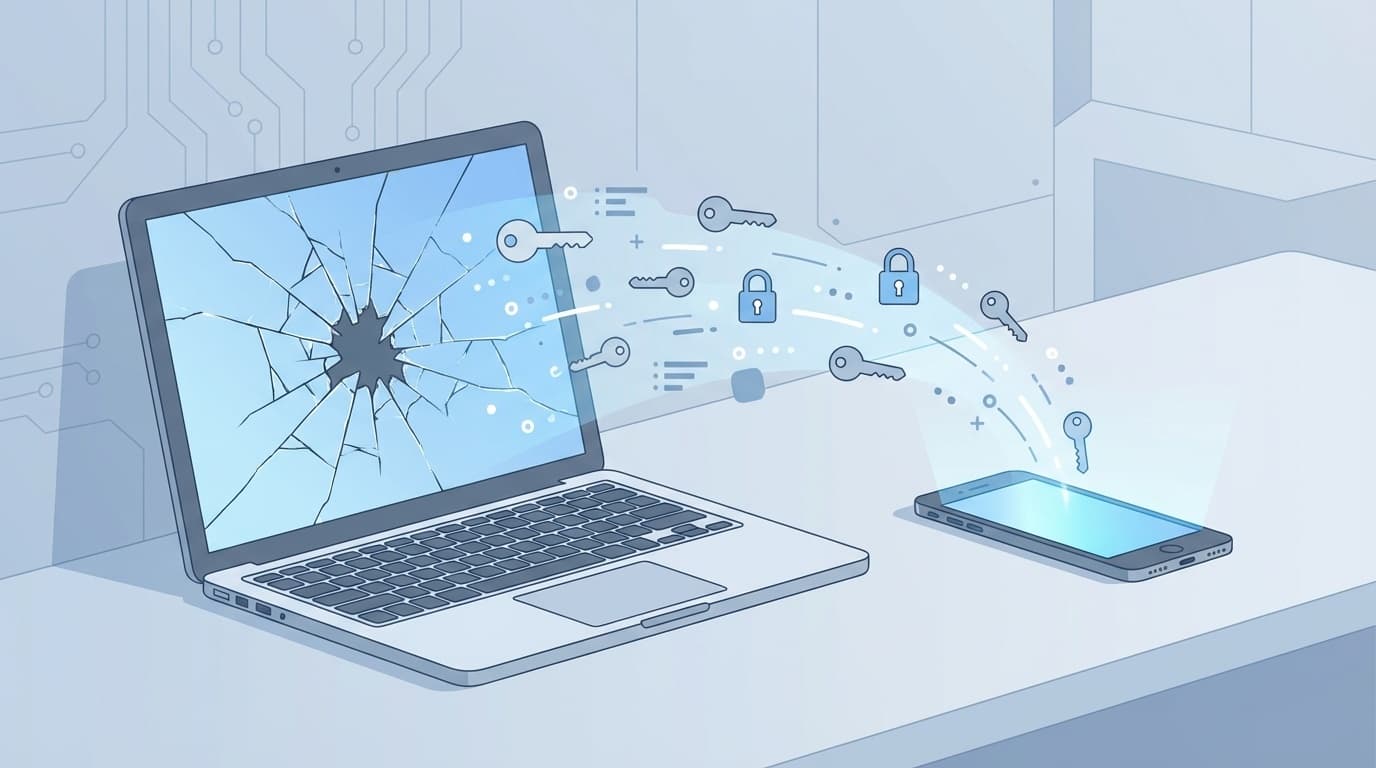
As of March 2026, plenty of people save passwords in their browser, but many assume that if the device breaks, that's the end of it. The good news: Chrome, Edge, and Safari all have ways to check your saved passwords from another device, as long as you're signed in with the same account.
This article explains how to recover saved passwords from another device when your computer or phone won't turn on, plus what you should set up now to avoid getting locked out later.
Where are browser-saved passwords stored?
It's easy to assume, “My passwords are inside my computer, right?” But that's not always the case.
Major browsers today support a feature called cloud sync. In simple terms, passwords saved in your browser may be stored not only on the computer itself, but also in your online account.
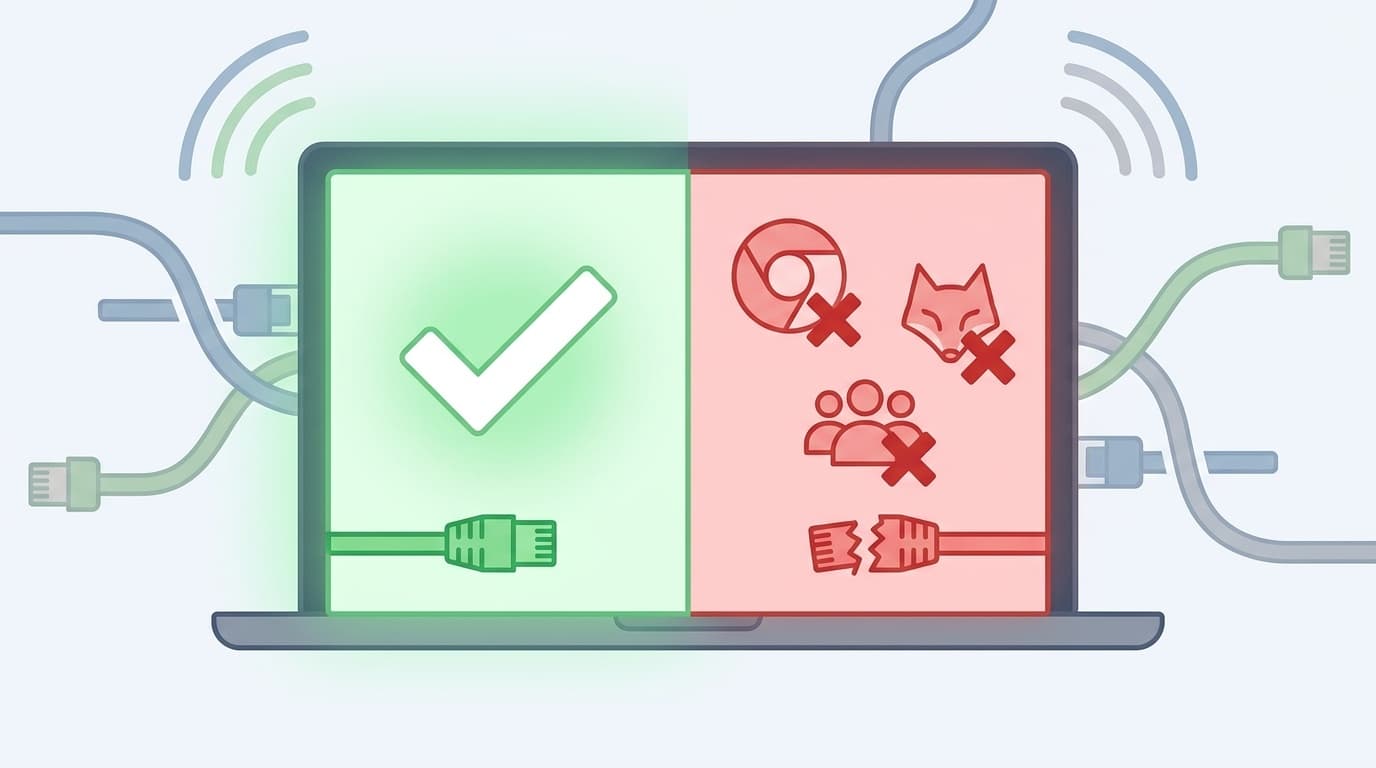
There is one important condition, though: you must have been signed in to the browser with your account, and sync must have been turned on. If sync was off, the passwords may exist only on that computer, which makes recovery extremely difficult if the device breaks.
| Browser | Account needed for sync | Where to check synced passwords |
|---|---|---|
| Google Chrome | Google Account | passwords.google.com |
| Microsoft Edge | Microsoft account | Edge Settings → Profiles → Passwords |
| Safari | Apple ID (iCloud Keychain) | Settings → Passwords (iPhone/Mac) |
| Firefox | Mozilla account | Firefox Settings → Passwords |
Chrome: How to check passwords from another device with your Google Account
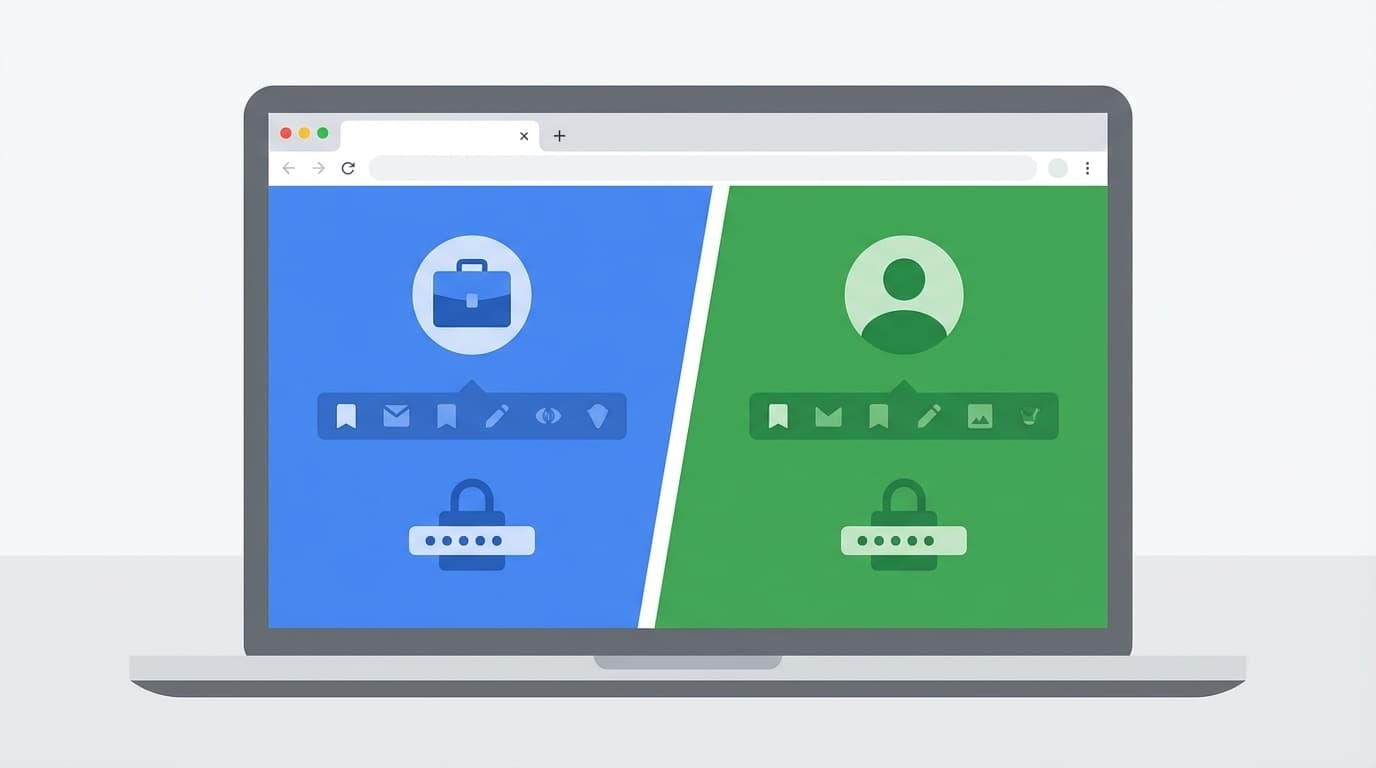
If you were using Google Chrome, you're in one of the easiest recovery situations. If you were signed in with your Google Account, your saved passwords may also be stored on Google's servers.
Steps for a phone or another computer
- On a phone or another computer, open a browser and go to passwords.google.com
- Sign in with the Google Account you used on the broken computer
- When the list of saved sites appears, tap or click the site you need
- After identity verification, such as your password or fingerprint, you'll be able to see the ID and password
The key point is that as long as you know your Google Account password, you can view passwords saved for all those sites. Put another way, your Google Account password is one password you really don't want to forget.
According to Google's official Help article, “Manage passwords in Chrome”, saved passwords can be used across all your devices when sync is turned on.
Edge: How to check passwords from another device with your Microsoft account
If you used Microsoft Edge on a Windows 11 PC, this may apply to you. Like Chrome, Edge lets you view saved passwords from another device if they were synced with your Microsoft account.
Steps
- Install Microsoft Edge on another computer or phone; the mobile app works too
- Sign in with the Microsoft account you used on the broken computer
- Open Edge Settings → “Profiles” → “Passwords”
- Click the “eye icon” next to the site you need, then verify your identity to display the password
The important thing is whether sync was enabled. According to Microsoft's official support page, the “Passwords” option in Edge sync settings needs to be turned on. Just signing in with a Microsoft account doesn't always mean password sync is enabled, so it's worth checking.
Safari: How to check passwords from another Apple device with iCloud Keychain
If you used Safari on a Mac or iPhone, iCloud Keychain handles password syncing. If iCloud Keychain was enabled for your Apple ID, you can check your passwords from another Apple device.
How to check from an iPhone
- Open the “Settings” app
- Tap “Passwords”
- Authenticate with Face ID or Touch ID
- Select the site you need from the list to view the ID and password
How to view iCloud Keychain passwords on a Windows PC
Even if you don't have an Apple device with you, you can install iCloud for Windows on a Windows PC to check passwords saved in iCloud Keychain; see Apple's official support page. However, you'll need two-factor authentication for your Apple ID, so if you have absolutely no device that can receive the verification code, you may be stuck.
If sync was off, recovering passwords is difficult
Everything above assumes sync was turned on. If you weren't syncing, your passwords may exist only in local storage on that computer.
In that situation, your options are limited, but there are still a few things you can try.
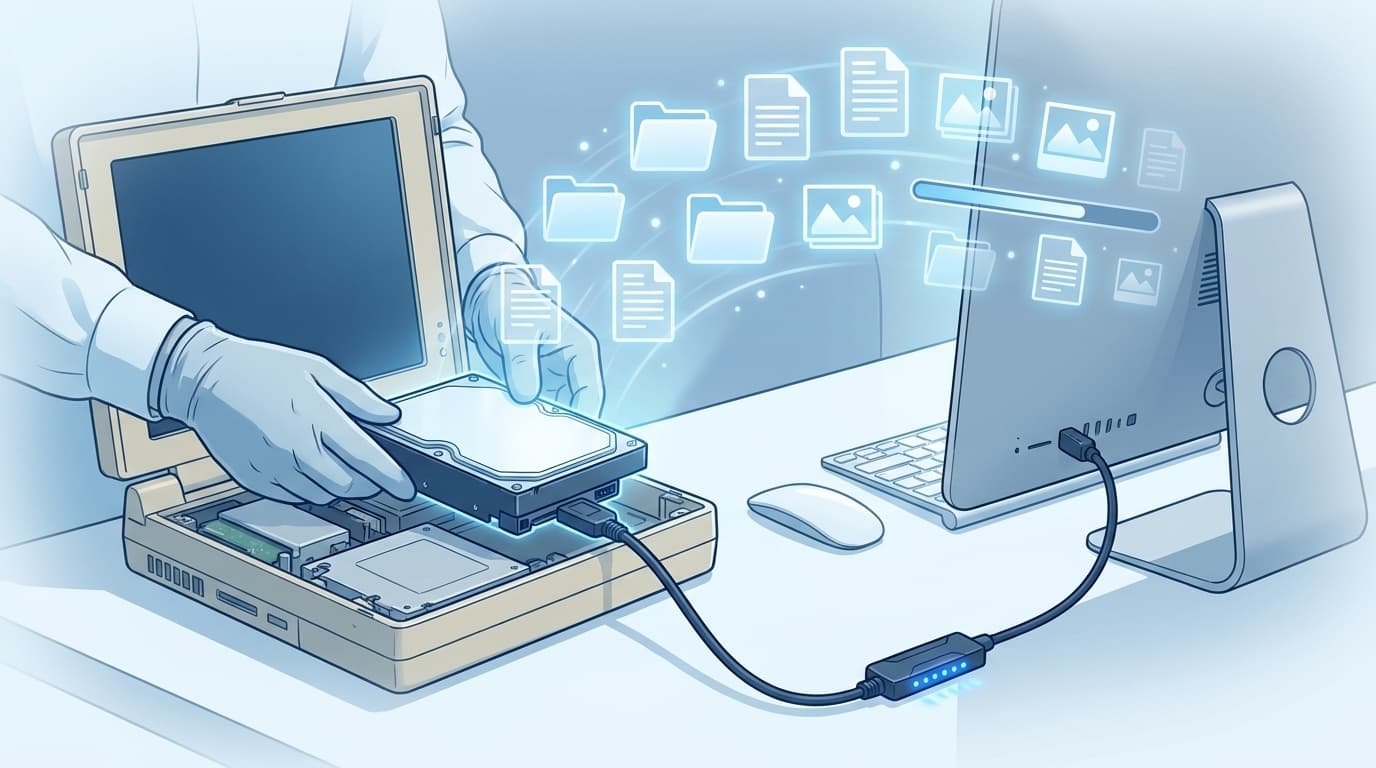
If the computer's storage drive (HDD/SSD) still works
- Remove the storage drive, connect it externally to another PC, and copy the password file from the browser profile folder; in Chrome, this is a SQLite file called
Login Data - However, the passwords are protected by an encryption key tied to the Windows user account, so decrypting them is extremely difficult unless you can sign in to the original Windows account
If the computer won't start at all
- Ask a repair or data recovery service for help; this can cost hundreds of dollars or more
- Use each service's “Forgot password?” option and reset your passwords one by one; it's tedious, but reliable
Bottom line: recovery is much harder if you weren't syncing. That's why the next section, what to set up now, matters so much.
Five things to do now so you're prepared
Computers and phones can fail at any time. To make sure you'd be okay even if a device died tomorrow, check these five things today.
1. Make sure browser sync is turned on
In Chrome, click the profile icon in the top right. If it says “Sync is on,” you're set. If it says “Turn on sync,” sync is off, so turn it on.
2. Keep your main account password somewhere separate
To recover browser passwords, you need the password for your Google, Microsoft, or Apple account. Treat this as your master key and store it somewhere that doesn't rely on a digital device, such as a paper note kept in a safe place at home.
3. Save your two-step verification recovery codes
If you use two-step verification on services like Google, you may not be able to receive authentication codes if your phone breaks. Print the backup codes or recovery codes issued by each service and keep them somewhere safe.
4. Consider using a password manager
Saving passwords in your browser is convenient, but a dedicated password manager is often safer and more reliable. As of March 2026, these are solid free or low-cost options:
- Bitwarden (the free plan supports unlimited passwords and device sync; it's open source and widely trusted)
- Proton Pass (the free plan includes unlimited passwords, 10 email aliases, and 1GB of encrypted storage)
- 1Password (paid, but highly secure thanks to its Secret Key system; plans start at roughly a few dollars per month)
With a password manager, you can access your passwords from any device, regardless of which browser you use.
5. Export important passwords regularly
In Chrome, you can export passwords as a CSV file from Settings → “Password Manager” → “Export passwords.” If you save that file to something like an encrypted USB drive, you'll have a recovery option even in a worst-case scenario. Just be careful: a CSV file is plain text and not encrypted, so it needs to be handled very carefully.
FAQ
What if I forgot my Google Account password too?
Use Google's account recovery page. You can verify your identity with a registered phone number or recovery email address, then reset your password. If you haven't set up any recovery information, getting the account back can be very difficult, so it's best to add it ahead of time.
Can I check whether browser sync was on after the device breaks?
You can't check the broken device directly, but you can sign in from another device and visit passwords.google.com if you used Chrome. If your passwords appear, they were synced. If nothing shows up, they probably weren't.
If my work computer breaks, can I recover passwords through my personal Google Account?
If you were signed in to Chrome on that work computer with your personal Google Account, then yes, the same method can work. However, some company IT departments disable browser password sync, so if that's the case, contact your IT team.
Can I view passwords saved in Firefox from another device too?
Yes. If you were signed in with a Mozilla account and sync was enabled, you can check saved passwords from Firefox on another device. Open Firefox Settings → “Passwords” to view the list.
References
- Manage passwords in Chrome — Google Chrome Help
- Sign in to sync Microsoft Edge across devices — Microsoft Support
- Set up iCloud Keychain — Apple Support
- Google Password Manager — Google
- Best Password Managers for 2026: 9 Options Compared — NotePM