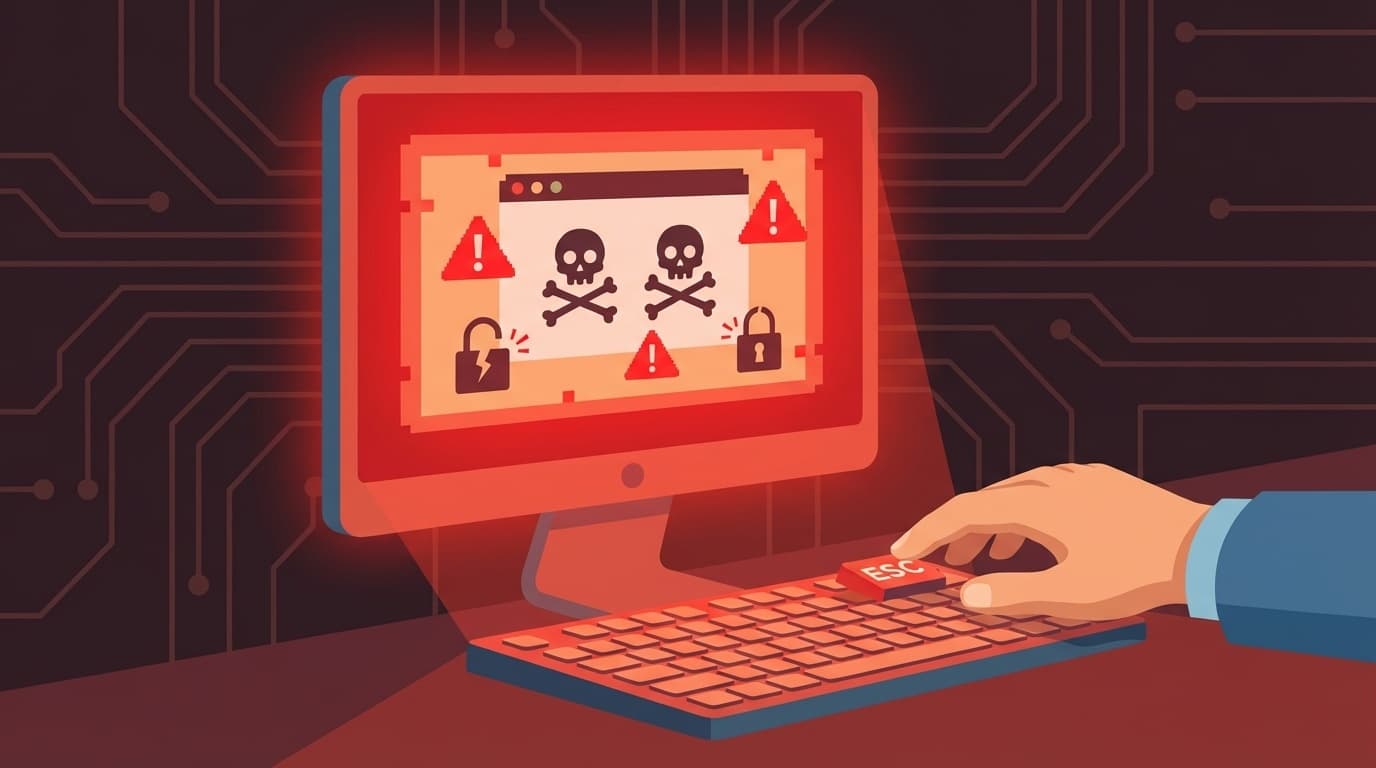
You’re browsing the web on your PC when suddenly a huge warning appears: “Your computer is infected with a virus” or “Windows is damaged.” You try to close it, but it won’t go away. Then an alarm starts blaring. Has that ever happened to you?
Here’s the short answer: it’s almost certainly fake. This is a common “tech support scam” that abuses your browser’s full-screen mode. The goal is to scare you into calling the phone number on the screen, then trick you out of money. IPA, Japan’s Information-technology Promotion Agency, received more than 3,000 reports about these scams in 2025 alone.
In this article, based on the latest information available as of March 2026, we’ll explain how to tell a fake warning from a real one, how to close it safely, and what to do if you already called the number.
What Is a Fake Security Alert or Tech Support Scam?
A tech support scam uses website ads or pop-ups to show a fake warning such as “Your computer is infected with a virus” and pushes you to call the phone number displayed on the screen.
If you call, someone pretending to be Microsoft support may tell you to install remote access software or buy prepaid cards from a convenience store as a “support fee.” In other words, your PC itself usually isn’t infected. The warning is just a fake screen shown in your browser.
Japan’s National Police Agency also warns about this tactic on its tech support scam prevention page.
How to Spot a Fake Warning: 5 Differences Between Real and Fake Alerts
You might worry, “What if this is a real virus warning?” But if you see any of the signs below, it’s almost certainly fake.
1. It shows a phone number
Legitimate Windows security alerts don’t display a phone number. If it says “Call now,” it’s fake.
2. It plays an alarm or voice announcement
A beeping alarm or a voice saying “Your computer is infected” is just audio being played by a website. Windows Defender doesn’t play voice announcements like that.
3. The screen goes full-screen and won’t close
Scammers abuse the browser’s full-screen mode, the same mode you can trigger with F11, to hide the taskbar and address bar so the page looks like a real Windows system screen.
4. It claims to be “Microsoft support”
Microsoft won’t suddenly show a browser warning and tell you to call a phone number. Microsoft’s official site has also warned users about this type of scam.
5. It threatens that your data will be deleted unless you act now
Scammers try to scare you so you can’t think clearly. Real security software doesn’t use threatening language like that.
How to Close a Fake Warning Screen: Try These 3 Methods in Order
If a fake warning appears, stay calm and don’t call the phone number on the screen. Use the steps below to close it.
Method 1: Hold down the Esc key, then close the browser
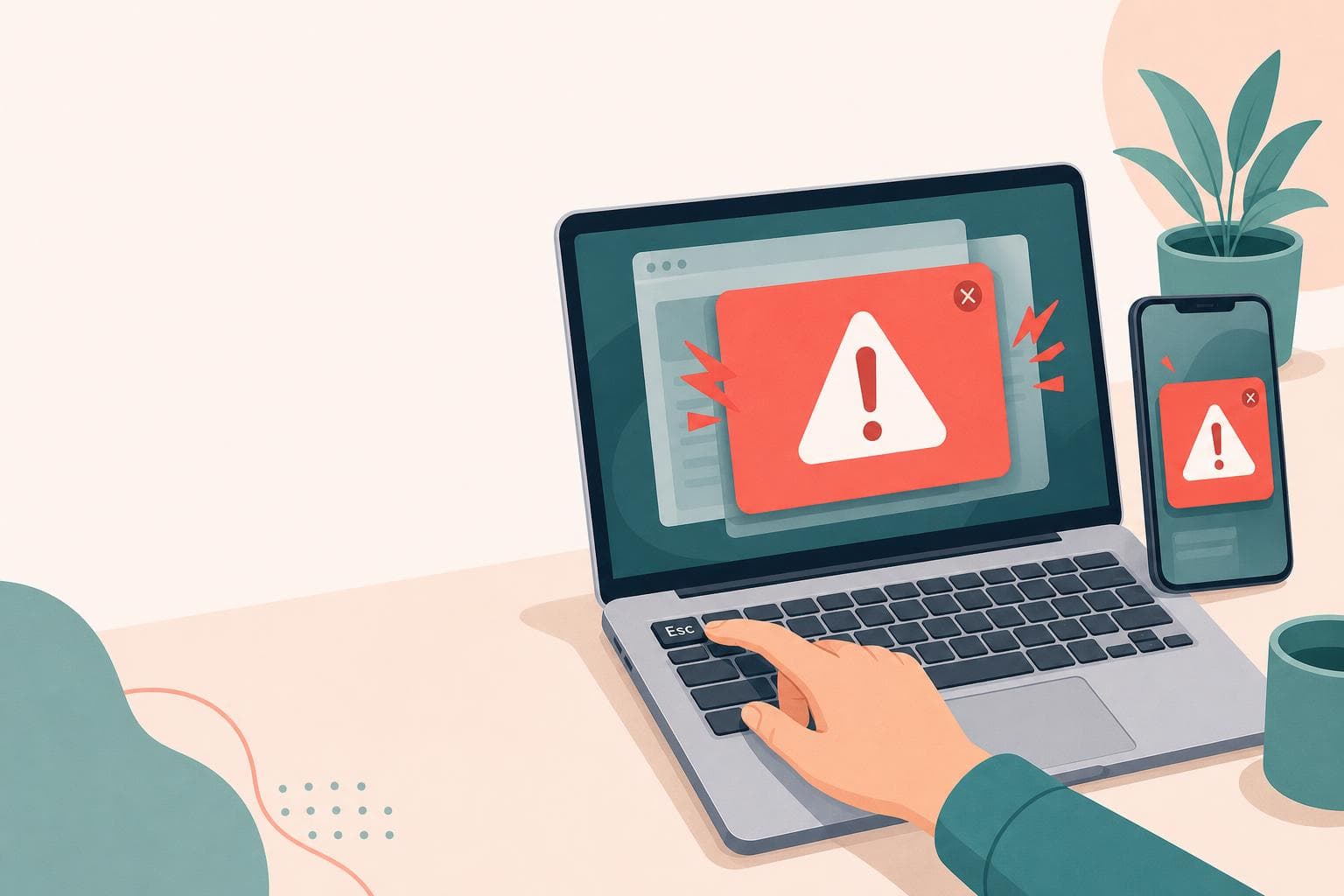
Press and hold the Esc key for 3 to 5 seconds. This should exit full-screen mode. Once the browser is no longer full-screen, close it with the “X” button in the upper-right corner.
Method 2: Force quit the browser with Task Manager
If Esc doesn’t work, press Ctrl + Shift + Esc at the same time to open Task Manager. Right-click your browser, such as Google Chrome or Microsoft Edge, and select “End task.”
Method 3: Create a virtual desktop and close it from there
If you can’t even open Task Manager, press Windows + Ctrl + D to create a new virtual desktop. From the new desktop, open Task Manager and end the browser process.
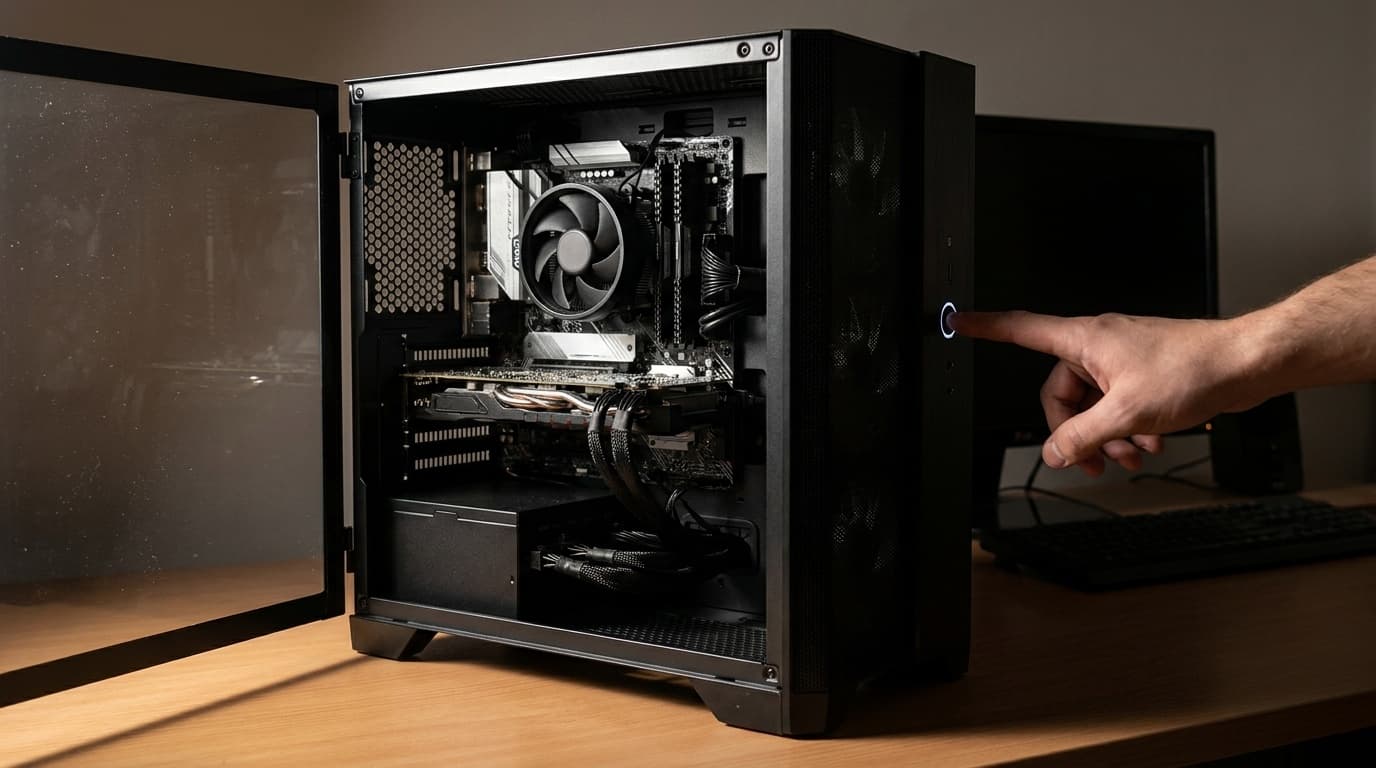
If none of these methods works, use the last resort: hold down your PC’s power button for 5 to 10 seconds to force it to shut down. After restarting, your PC should work normally.
IPA also offers a practice site where you can safely learn how to close fake warning screens. It’s worth trying with family members ahead of time.
What to Do If You Called or Let Someone Remotely Access Your PC
If you panicked and called the number, don’t beat yourself up. Stay calm and follow these steps.
Step 1: Disconnect from the internet immediately
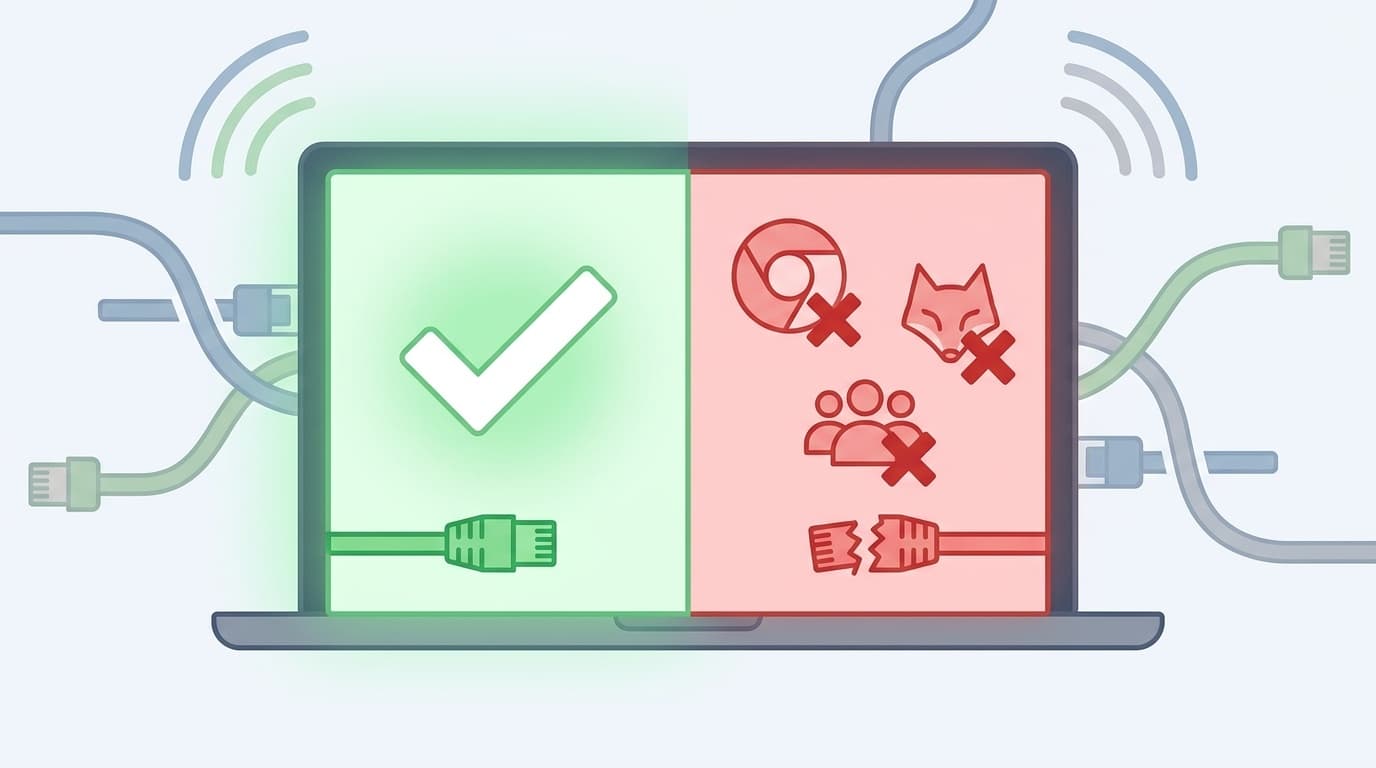
Turn off Wi-Fi or unplug the LAN cable. Your first priority is to cut off remote access.
Step 2: Uninstall any remote access software
Remove any software they told you to install, such as AnyDesk, TeamViewer, or ConnectWise. In Windows, go to “Settings” → “Apps” → “Installed apps” and uninstall it.
Step 3: Run a virus scan
Run a “Full scan” with Windows Defender. Go to “Windows Security” → “Virus & threat protection” → “Scan options” → “Full scan.”
Step 4: Change your passwords
They may have seen passwords saved in your browser during the remote session. Prioritize passwords for online banking, email, and social media.
Step 5: If you paid money
- If you paid by credit card → Contact your card issuer and ask about stopping or disputing the payment.
- If you bought a prepaid card at a store → If you haven’t given the card number to the scammer yet, you may still be able to prevent the loss. If you already gave them the number, contact the card issuer.
- In any case → Report it to your local police station or a cybercrime consultation desk. In Japan, you can also call the police consultation line at #9110.
3 Settings and Habits That Help Prevent It From Happening Again
Even after you close a fake warning, it may appear again if you visit the same site. Use the steps below to reduce the chances of seeing it again.
1. Review your browser notification settings
In Chrome, go to “Settings” → “Privacy and security” → “Site settings” → “Notifications,” then block notifications from sites you don’t recognize. If you click “Allow” on a suspicious site, fake alerts may start appearing as desktop notifications.
2. Install an ad blocker
Fake warnings often appear through malicious ads. Adding an ad-blocking browser extension, such as uBlock Origin, can greatly reduce your risk of running into them.
3. Keep Windows Defender up to date
Windows Defender, which comes built into Windows 11, offers strong protection as long as its definitions are current. Go to “Windows Security” → “Virus & threat protection” → “Protection updates” and check the last update date.
FAQ
Can I get a virus just from seeing a fake warning?
No. Simply seeing the warning screen doesn’t infect your PC. Fake warnings run on a website, so closing the browser is enough. If you don’t call the number or install software, there’s usually no damage.
What if pressing Esc doesn’t exit full-screen mode?
Hold the Esc key down for 3 to 5 seconds. A quick tap may not work. If that still doesn’t help, press Ctrl + Shift + Esc to open Task Manager, then force quit the browser with “End task.”
I called the number but didn’t pay. Am I okay?
If you didn’t install remote access software, you’re generally fine. To be safe, run a virus scan, such as a Windows Defender full scan, and check whether any suspicious apps were installed.
My older parent is likely to fall for tech support scams. How can we prevent that?
IPA provides a fake warning practice site where you can safely experience what these screens look like. Practicing together ahead of time helps family members recognize, “Oh, this is fake,” when it really happens.
Where can I report a tech support scam?
In Japan, contact IPA’s Information Security Anshin Consultation Desk at 03-5978-7509, open weekdays from 10:00 a.m. to noon and 1:30 p.m. to 5:00 p.m., or call the police consultation line at #9110. If you lost money, consider filing a report with your nearest police station.
References
- Fake Security Alert and Tech Support Scam Prevention Guide — IPA, Information-technology Promotion Agency, Japan
- Tech Support Scam Prevention — National Police Agency, Japan
- Beware of Scams Impersonating Microsoft Support — Microsoft News Center Japan
- Consultation Trends at the Information Security Anshin Consultation Desk: 2025 Q3 — IPA
- Practice Site for Closing Fake Security Warning Screens — IPA