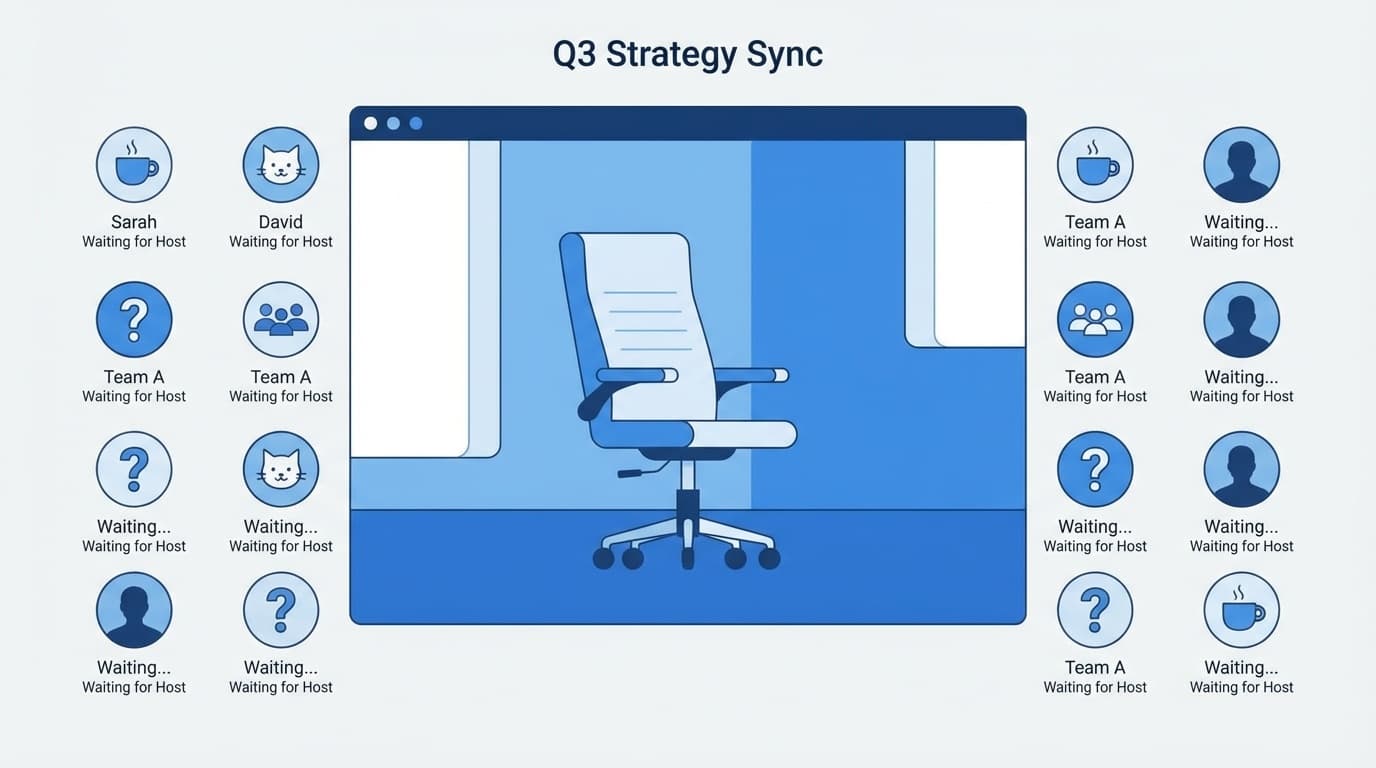
Have you ever had to wait for a long time when it's time for a meeting on Zoom and the message "Waiting for the host to start this meeting" appears?
If the organizer (host) is late or unable to come due to urgent business, all the participants will be left waiting without doing anything... Especially for online seminars and regular company meetings, even a delay of just a few minutes can result in significant loss. As of March 2026, Zoom has several features to prevent this problem, but please be aware that the features available in the free and paid plans are different.
In this article, we will explain in an easy-to-understand manner the three methods that can be used when the host is absent in a Zoom meeting (alternative host, host key, and permission to participate before the host), along with setting steps.
Why can't the meeting start unless the host comes?
The way Zoom works is that the meeting will not start until the person who created the meeting (the host) joins. When participants click the link, they get stuck at the "Waiting for the host to start this meeting" screen.
This is for security reasons and is designed to prevent strangers from entering the conference room without the host's knowledge. However, due to this specification, in situations such as ``the host overslept,'' ``the PC suddenly freezes,'' or ``the line goes down,'' all participants will stop.
There are three main ways to deal with this problem. Each method has different usage conditions, so choose the method that suits your environment.
[Countermeasure 1] Specify an alternative host in advance (paid plan only)
An alternate host is a "delegate" who can start a conference on your behalf when the host is unavailable. According to Zoom official help, the alternate host has almost the same privileges as the host, and can also start recording and create breakout rooms.
Steps to set up an alternative host
- Log in to Zoom Web Portal
- Click "Meetings" on the left menu
- Select "Schedule a Meeting" (or "Edit" to edit an existing meeting)
- Click "Display" under "Options" at the bottom of the screen to expand
- Enter the email address of the person you want to host in your place in the Alternate Host field
- Click “Save”
The specified person will receive a notification email from Zoom containing a link to start the meeting.
Conditions for setting an alternate host
This is the important point. The Alternate Host feature hastwo conditions.
- The host must be on a paid plan (Pro or higher) — The "Alternative host" input field will not be displayed for accounts with free plans
- The alternate host must also be a licensed user in the same Zoom account — this can be a colleague on your company's paid account, but not someone from another company or a user on a free plan
Roughly speaking, this is a function that can be used in cases where your company has a paid Zoom contract and you want to ask a colleague to do it for you. Since it cannot be used with a personal free account, consider the following method.
[Countermeasure 2] Share the host key and have someone become the host on your behalf
The host key is the 6-digit number (PIN) associated with your Zoom account. Anyone who knows this key can join a meeting without a host and then transfer host privileges to themselves. Detailed instructions are available at Zoom official host key explanation.
How to check the host key
- Log in to your Zoom web portal profile
- Find the "Host Key" item in the "Meetings" section
- Click on the eye icon and a 6-digit number will appear
- Share this key with someone you trust beforehand
Steps for a participant to become a host using a host key
- Join a meeting without a host ("Allow join before host" must be enabled)
- Click the "Participants" button at the bottom of the screen
- Click "Request Host" at the bottom of the participant panel
- Enter the shared host key (6 digits)
- You have been granted host privileges and can officially start the meeting
Notes on host keys
- Beware of security: Anyone with the host key can become the host, so only share it with people you trust
- If the original host joins later: The original host can regain host privileges by performing a "request for host." In that case, the person who was temporarily the host with the host key will revert to a regular participant
- Host key can be changed: If you are concerned about security, you can change the key from "Edit" on your profile screen in the web portal
[Solution 3] Enable "Allow join before host"
This setting allows participants to enter the conference room first even if the host is not present. This setting is sufficient if the host is only a few minutes late. Details can be found in Zoom's official Join Before Host explanation.
Setup procedure (from web portal)
- Log in to the Zoom web portal
- Click "Settings" on the left menu
- Open the Meetings tab
- Turn on the toggle 'Allow join before host'
If this setting is enabled, participants can enter the meeting room even if the host is not present. However, host-only features such as recording and breakout rooms cannot be used until the host joins.
In short, the situation is that you can enter the conference room, but the full functionality will only begin after the host arrives. This is useful for chatting while waiting for the host, or for sharing materials first.
Difference from Co-Host: Common Misconceptions
Although their names are similar, "co-host" and "alternate host" are completely different functions. A lot of people are confused about this, so I'll clarify it.
| Item | Alternative host | Co-host |
|---|---|---|
| Can I start a meeting? | Yes | No |
| When should I specify it? | When scheduling the meeting (in advance) | Specified by the host during the meeting |
| Can you take over when the host is absent? | Yes | No |
| Can I end the meeting? | Yes | No (only possible to leave) |
| Can it be used with the free plan? | No | No (paid plan only) |
In other words, co-hosts are "facilitators during the meeting" and cannot act as substitutes in the host's absence. If there is a possibility that the host will be late or absent, you will need to use an alternative host or host key.
Summary of measures you can take even with the free plan
As of March 2026, the alternate host/co-host feature is not available on Zoom's free plan (Basic). However, the following methods can be used even with the free plan.
| Countermeasures | Free plan | Paid plan |
|---|---|---|
| Specifying an alternative host | Cannot be used | Can be used |
| Host key sharing | Can be used | Can be used |
| Permission to join before host | Can be used | Can be used |
| Specifying co-host | Cannot be used | Can be used |
For free plans, the best combination is "Allow join before host" + "Share host key with trusted people". This way, participants can enter the room first, and even if the host is unable to come, the person with the host key can obtain host privileges and proceed with the meeting instead.
FAQ
How many alternative hosts can I specify?
You can specify multiple people. All you have to do is enter the email addresses separated by commas in the "Alternative Host" field on the schedule screen. However, everyone must be licensed users within the same Zoom account.
Is it safe to give out my host key to someone I don't know?
The host key is important information that allows you to obtain host privileges for your Zoom account. Share only with people you trust, and if you are unsure, change the key from the web portal's profile screen. We also recommend that you change the information immediately if the person you shared it with has left the company.
What happens to the alternate host's privileges if the host joins late?
When the original host performs a "reclaim host", host authority returns to the original host. If you are a temporary host with an alternate host or host key, you will be demoted to regular participant. It does not affect the progress of the meeting.
Are there similar features in Google Meet and Teams?
By default, Google Meet has a mechanism enabled that allows users within the organization to participate in a meeting without the need for a host. Microsoft Teams also allows participants to join a Teams meeting without the host being present. The reason why the problem of having to wait for the host to arrive, such as with Zoom, tends to occur is actually due to the specifications specific to Zoom.
References
- Designating an alternative host — Zoom Support, confirmed March 2026
- Using your host key — Zoom Support, confirmed March 2026
- Allowing participants to join before host — Zoom Support, confirmed March 2026
- Enabling and adding a co-host — Zoom Support, confirmed March 2026
- Management of Zoom meetings and related roles — University of Tokyo utelecon, confirmed March 2026