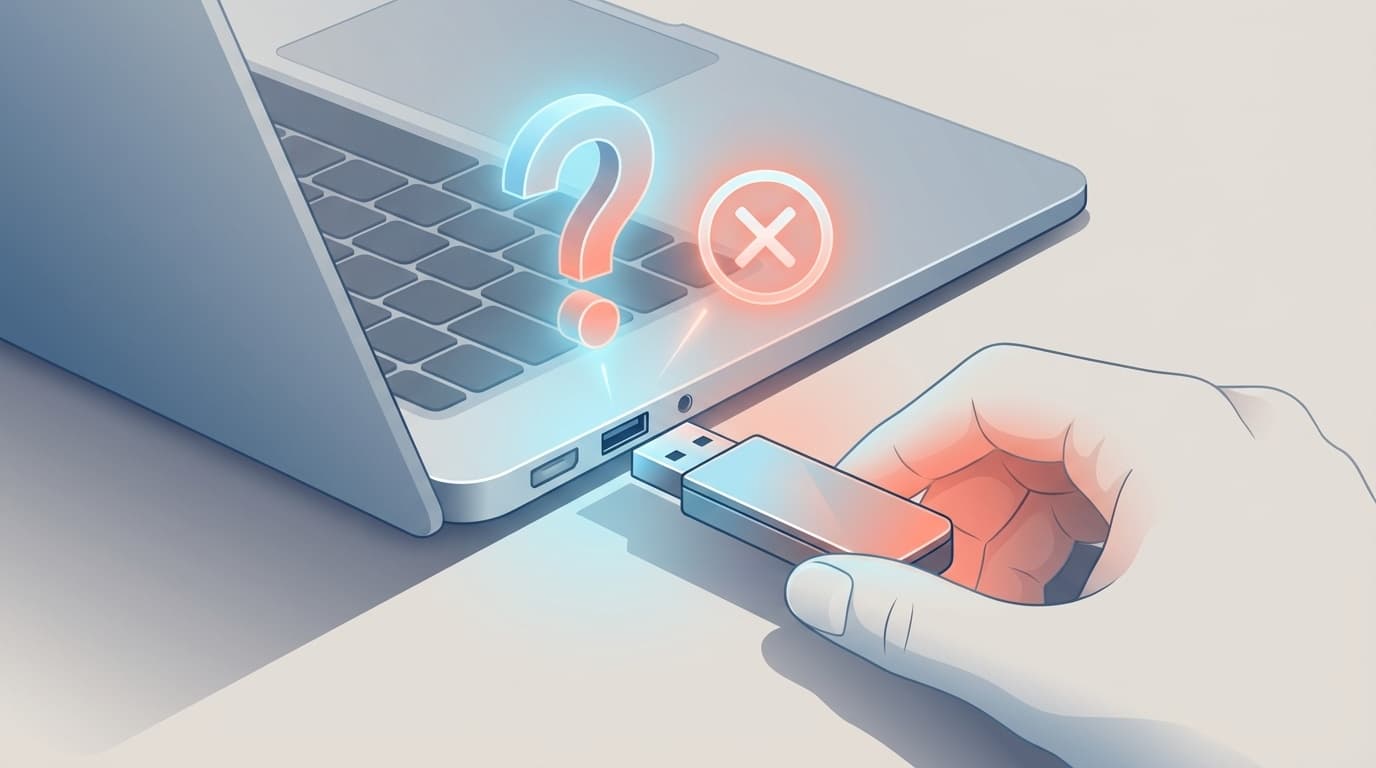
“I plugged in my USB flash drive, but it doesn't show up on my computer.” “It worked yesterday, and now it suddenly isn't recognized.” This is an incredibly common problem. And if that drive has important files on it, it's easy to panic.
But don't worry yet. In most cases, a USB flash drive that isn't recognized can be fixed without sending it in for repair. In this article, we'll walk through six fixes for both Windows 11 and Mac, based on current information as of March 2026. Even if you see “Do you want to format it?”, don't click it right away—read this first.
Check First: Look for Physical USB Drive Problems
Before changing your computer's settings, check whether the USB drive itself might be the problem. More often than you'd think, the issue is simply that the drive wasn't fully plugged in.
Things to check:
- Try another USB port: USB ports can physically fail. On a desktop PC, try a rear USB port, which often provides more stable power than the front ports
- Check the USB connector: Is there dust or grime on the metal connector? Gently clean it with a dry cotton swab or compressed air duster
- Try another computer: If the drive works on another PC, the problem is probably your computer. If it doesn't work on any computer, the USB drive itself may be failing
- Skip the USB hub: A USB hub or splitter can cause power issues. Plug the drive directly into your computer instead
These simple checks solve plenty of cases, so start here before moving on.
Cause 1: No Drive Letter Is Assigned (Windows)
When you plug in a USB flash drive, Windows automatically assigns it a drive letter, such as “D:” or “E:”. If that assignment fails, the drive won't appear in File Explorer.
In other words, your computer may actually recognize the USB drive, but it just isn't showing it in a place you can see.
How to fix it:
- Right-click the Start button → open “Disk Management”
- Check the lower list to see whether your USB drive appears as a removable disk
- If it appears, right-click it → select “Change Drive Letter and Paths”
- Click “Add” and assign an available drive letter, such as F:
- Reopen File Explorer and check whether the USB drive appears
Microsoft's official support also lists drive letter conflicts as a common reason USB devices don't show up.
Cause 2: USB Driver Problems (Windows & Mac)
Your computer uses driver software to communicate with USB devices. If that driver is outdated, corrupted, or behaving oddly, your USB flash drive may not be recognized correctly. If USB stopped working right after a Windows Update, a driver issue is often the reason.
How to fix it on Windows:
- Right-click the Start button → open “Device Manager”
- Expand “Universal Serial Bus controllers”
- Look for “⚠ Unknown device” or anything with a yellow “!” icon
- Right-click the affected item → select “Uninstall device”
- Restart your PC. Windows will automatically reinstall the driver
How to check on Mac:
- Open the Apple menu in the top-left corner → “About This Mac” → “System Report”
- Click “USB” in the left menu and check whether the USB flash drive appears in the list
- If it doesn't appear, try an SMC reset on an Intel Mac, or a restart on an Apple Silicon Mac
On Apple Silicon Macs, fully shut down the Mac, wait at least 10 seconds, then turn it back on.
Cause 3: USB Selective Suspend Is Cutting Power (Windows)
Windows 11 has a feature called USB selective suspend, which saves power by turning off USB devices that aren't actively being used. That's useful for battery life, but it can sometimes keep a USB flash drive from being recognized.
Put simply, your PC may have decided to turn off power to the USB device on its own.
How to fix it:
- Search the Start menu for “Edit power plan” and open it
- Click “Change advanced power settings”
- Expand “USB settings” → “USB selective suspend setting”
- Change it to “Disabled” and click “OK”
On a laptop, it's safest to set both “On battery” and “Plugged in” to “Disabled.” Sanwa Supply's official support page also recommends changing this setting.
Cause 4: The File System Is Corrupted or Unformatted
Sometimes, when you plug in a USB flash drive, you'll see a message like “You need to format the disk before you can use it.” This usually means the drive's file system—the structure that manages the data—may be damaged.
⚠️ If you click “Format” here, the data on the drive will be erased. If the drive contains important files, don't format it right away.
How to try repairing it without deleting data (Windows):
- Run Command Prompt as an administrator (search for “cmd” in the Start menu → right-click → Run as administrator)
- Enter the following command if the drive is E:
chkdsk E: /f - If errors are found, Windows will try to repair them automatically
On Mac:
- Open “Disk Utility” (Launchpad → Other → Disk Utility)
- Select the USB flash drive in the left sidebar
- Click “First Aid” and try repairing the drive
If that still doesn't work, use free data recovery software such as Recuva, often covered on sites like Mado no Mori, to copy your files somewhere else before formatting the drive.
Cause 5: Fast Startup Is Getting in the Way (Windows)
Fast Startup in Windows 11 helps your PC boot faster, but it can also carry over old USB connection information from the previous shutdown. As a result, a newly inserted USB flash drive may not be recognized.
How to fix it:
- Open Control Panel by searching for “Control Panel” in the Start menu
- Go to “Power Options” → click “Choose what the power buttons do” in the left menu
- Click “Change settings that are currently unavailable”
- Uncheck “Turn on fast startup”
- Click “Save changes” and restart your PC
Disabling Fast Startup may make boot time a few seconds slower, but it can reduce USB and Bluetooth device recognition problems. NEC LAVIE's official FAQ also recommends this fix.
Cause 6: External Disks Are Hidden in Finder Settings (Mac)
On a Mac, a USB flash drive may be connected but still not appear on the desktop or in Finder's sidebar. The reason may simply be that external disks are hidden in Finder settings.
How to fix it:
- With Finder open, click “Finder” in the menu bar → “Settings”
- On the “General” tab, make sure “External disks” is checked
- On the “Sidebar” tab, also check “External disks”
That's all it takes in some cases. macOS updates can occasionally reset settings, so it's worth checking after an OS update.
If Nothing Works: What Not to Do and Where to Get Help
If you've tried all six fixes above and the USB flash drive still isn't recognized, it may be physically damaged.
Things you shouldn't do:
- ❌ Don't repeatedly plug and unplug it. This can wear down the connector and make the problem worse
- ❌ Don't click “Yes” when asked whether to format the drive. That will erase the data
- ❌ Don't take the drive apart and try to repair it yourself. Static electricity can damage the chips inside
If the drive contains important data, the safest option is to contact a professional data recovery service. It can cost tens of thousands of yen or more, but that's still better than damaging the drive beyond recovery.
As a general rule, USB flash drives last about 3 to 5 years, or several thousand to tens of thousands of write cycles. If you've been using the same drive for years, it may be time to replace it.
FAQ
My computer asks, “Do you want to format it?” when I plug in my USB drive. Is it safe to format?
Formatting erases all data on the drive. If you need the files, try rescuing them first with the chkdsk command or data recovery software. If you don't need the data, formatting is fine.
Can I use a USB 2.0 flash drive in a USB 3.0 port?
Yes. USB standards are backward compatible, so a USB 2.0 flash drive should work in a USB 3.0 port. The speed will be limited to USB 2.0's maximum of about 480 Mbps, but compatibility shouldn't be an issue.
How much does USB flash drive data recovery cost?
If you use a professional data recovery service, minor logical damage may cost around ¥20,000 to ¥50,000, while physical damage can cost around ¥50,000 to ¥200,000. It's a good idea to start with a company that offers a free diagnosis.
What format should I use for a USB flash drive on Mac?
If you want to use the drive on both Mac and Windows, exFAT is usually best. APFS is ideal for Mac-only use, and NTFS is best for Windows-only use, but exFAT works for reading and writing on both.
References
- What to do when Windows 11 doesn't recognize a USB flash drive — NEC LAVIE Official FAQ
- What to do when Windows 11/10 doesn't recognize a USB device — Sanwa Supply Co., Ltd.
- USB flash drive not recognized by your computer? What to do — Buffalo Official Support
- Repair a storage device in Disk Utility — Apple Support