It seems like ChatGPT can now be used in Excel, but how do I install it? Is it possible to use it in Japan? I'm sure many people have questions like that.
On March 5, 2026, OpenAI released the beta version of the official add-in 'ChatGPT for Excel'. There have been third-party ChatGPT integration add-ins in the past, but this time it is an official add-in developed by OpenAI itself.
In this article, we have summarized information as of March 2026 about what ChatGPT for Excel can do, installation procedures, fees, and usage timing in Japan.
What is ChatGPT for Excel? Differences with third-party products
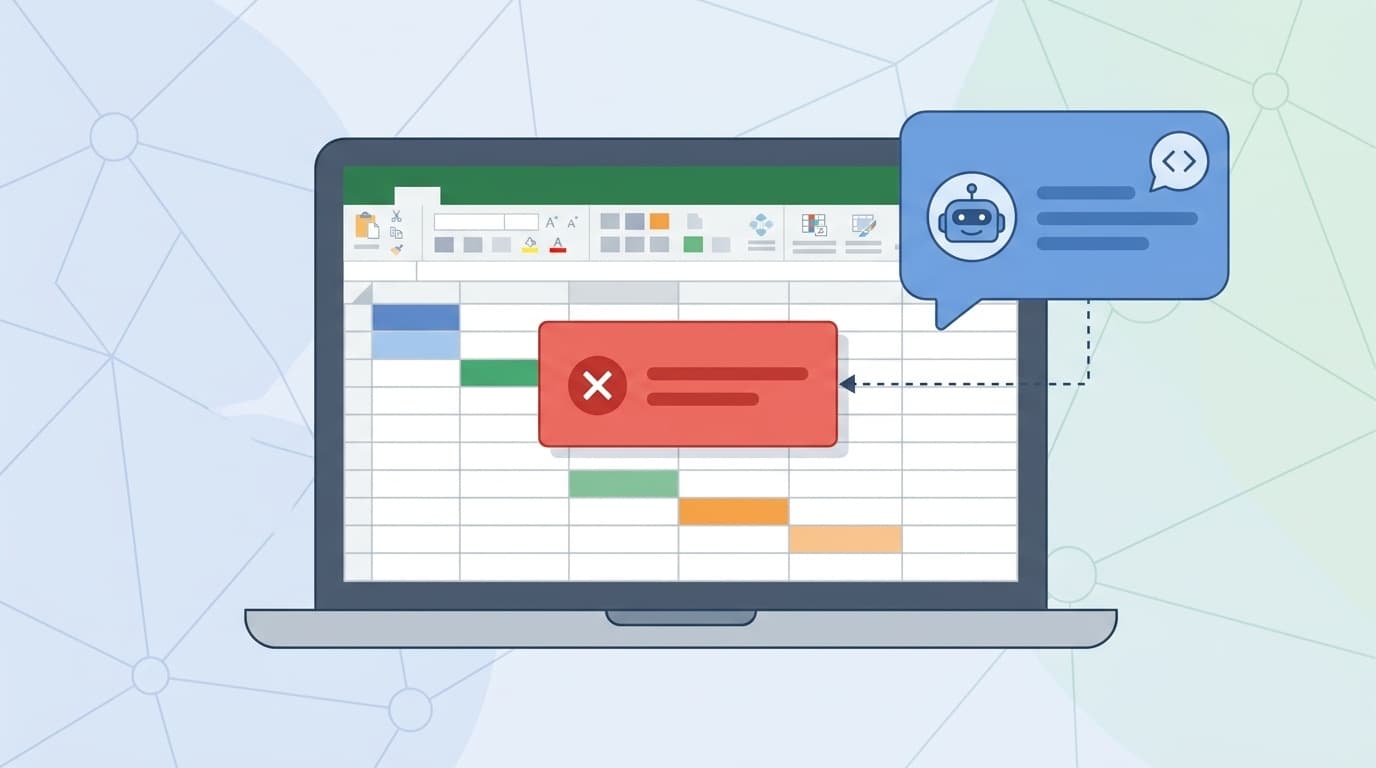
ChatGPT for Excel is an official Excel add-in announced by OpenAI on March 5, 2026. ChatGPT's chat screen will be displayed within the Excel workbook, and just by giving instructions in natural language (normal Japanese or English), the AI will create tables, generate formulas, correct errors, etc.
A third-party add-in (manufactured by Apps Do Wonders) named "ChatGPT for Excel" has been published on Microsoft AppSource, but this time it is OpenAI Official. In other words, the big difference is that the latest model of ChatGPT works as is.
The underlying AI models are the latest GPT-5.4 and GPT-5.4 Thinking. According to OpenAI's official announcement, it achieved 87.3% accuracy on the investment banking financial modeling benchmark.
5 things you can do with ChatGPT for Excel
For those who are wondering, "What can it do in the end?", we will summarize the main functions.
1. Create tables and graphs in natural language
It will automatically create an Excel table just by giving instructions in ordinary language, such as "Create a departmental summary table from last month's sales data." You don't have to remember functions, just say what you want to do.
2. Generating and modifying formulas
It will automatically generate an appropriate formula based on instructions such as ``Calculate the sum of this column'' or ``Use the VLOOKUP function to pull the value from another sheet.'' Even if you don't know how to write a function, you don't have to worry about it, as the AI will assemble complex nested functions if you tell it in words.
3. Tracking down the cause of the error and fixing it
If you are having trouble with "#N/A" or "#REF!", just ask ChatGPT, "Tell me the cause of this error." It will read the connections between multiple sheets and formulas, identify the cause, and suggest a fix.
4. Scenario analysis
You can perform scenario analysis based on existing data with instructions such as "Create a simulation for when sales increase by 10%." Useful for validating financial models and business plans.
5. Direct acquisition of financial data (MCP cooperation)
Through a mechanism called Model Context Protocol (MCP), you can get market data from Moody's, Dow Jones, and MSCI directly within Excel. No more manually copying and pasting stock prices and market reports.
Safety function: Do not rewrite data without permission
Some people may be worried, saying, ``What if the AI edits cells without permission and important data disappears?'' But it's okay.
ChatGPT for Excel includes the following safety features:
- Show confirmation screen before making changes: Before the AI edits a cell, it will show you which cells to change and ask for approval
- Undoing an edit (Undo): If you decide after making changes that you still want to undo, you can do so with one click.
- Displaying reference cells: Displays which cell the AI read and made the decision, so the basis of the AI's decision is transparent
In short, AI will not overwrite data without permission, so you can use it with confidence.
Supported plans, fees, and regions (as of March 2026)
The support status of the beta version as of March 2026 is as follows.
Compatible plan
- ChatGPT Plus ($20/month)
- ChatGPT Pro ($200/month)
- ChatGPT Business / Enterprise / Edu / Teachers
Not available with the free plan. In addition, in the Enterprise and Edu plans, the administrator controls access privileges, which are disabled by default.
Supported areas
Only available in the United States, Canada, and Australia (as of March 2026). Unfortunately,Japan is not yet supported. OpenAI says it will "expand its coverage in the coming months," but the specific launch date in Japan has not been determined.
Supported Excel version
- Excel 2016 or later (Windows)
- Excel 2016 or later (Mac)
- Excel on the web (browser version)
Installation instructions (if you are in a supported region)
Although it is not currently available in Japan, we will introduce the installation procedure for those who are in the United States, Canada, or Australia on business or studying abroad.
- Open Excel and click Insert tab
- Click Get Add-ins
- Type “ChatGPT for Excel” in the search box
- Select OpenAI official add-in and click Add
- Log in with your ChatGPT account
- You are ready when the chat panel appears on the right side of the Excel screen
*Please be sure to check that the publisher is ``OpenAI'' to avoid confusion with a third-party add-in with the same name.
Three things people in Japan can do now
If you're thinking, "If it can't be used in Japan, then there's no point...", wait a moment. Even in Japan, there are ways to improve work efficiency by combining Excel and ChatGPT.
1. Upload the Excel file to the web browser version of ChatGPT
Just drag and drop an Excel file onto ChatGPT's regular chat screen (chatgpt.com) to analyze data, create graphs, and receive function suggestions. This is convenient enough even without the add-in.
2. Use third-party add-ins
Apps Do Wonders' "ChatGPT for Excel" (different from OpenAI official) can be installed from Microsoft AppSource even in Japan. You can choose the Starter plan for $7.99 per month or the Pro plan for $5.99 per month + API pay-as-you-go. However, there is also a free trial (50 times) based on GPT-3.5.
3. Use Microsoft Copilot in Excel
Microsoft's Copilot (formerly Copilot for Microsoft 365) is also available in Japan. A Copilot license is required in addition to a Microsoft 365 subscription, but you can use the AI assistant within Excel. It's worth considering as an alternative to ChatGPT for Excel.
Beta version limitations and precautions
ChatGPT for Excel looks convenient, but the beta version as of March 2026 has some limitations.
- Large datasets may cut off the output
- Not compatible with pivot tables or macros (VBA)
- Complex formulas may require manual formatting after automatic generation
- Response speed is a little slow (because it is a beta version)
Since it is only a beta version, you should not expect it to do everything perfectly. Especially when using it for business, it is important to always check the output of AI with your own eyes.
FAQ
Can I use ChatGPT for Excel for free?
OpenAI official add-in requires a ChatGPT paid plan (Plus, Pro, Business, etc.). Not available on free plan. Additional charges for the add-in itself have not been announced as of March 2026.
When will it be available in Japan?
As of March 2026, Japan is not supported. OpenAI has announced that it will "expand its coverage in the coming months," but the specific launch date in Japan has not been determined.
How is it different from the third-party "ChatGPT for Excel"?
The third party (Apps Do Wonders) has a mechanism that calls GPT-3.5 and GPT-4 via API, and operates as an in-cell function. On the other hand, the official version of OpenAI is equipped with GPT-5.4, and the major difference is that you can directly edit cells after understanding the structure of the entire sheet.
Is there a Google Spreadsheet version?
OpenAI has announced that it is also developing "ChatGPT for Google Sheets". As of March 2026, it has not been released yet, but will be available soon.
Are you worried that the AI will overwrite your data without permission?
The official add-in has a built-in confirmation function and undo function. An approval screen is always displayed before the AI edits a cell, preventing unintentional changes.
References
- Introducing ChatGPT for Excel and new financial data integrations — OpenAI, March 5, 2026
- OpenAI announces "ChatGPT for Excel" - "Google Sheets" version coming soon — Window Forest, March 2026
- OpenAI announces "ChatGPT for Excel" that allows you to use AI directly within Excel — Business+IT, March 2026
- OpenAI releases beta version of "ChatGPT for Excel" that can be used within Excel — Ledge.ai, March 2026
- ChatGPT for Excel | Build and update spreadsheets with ChatGPT — OpenAI