When you're using your computer, the fan might suddenly ramp up with a loud “whoosh,” or it may keep spinning nonstop and never seem to calm down. It's easy to wonder, “Is something broken?”
I've been building and tinkering with PCs for more than 20 years, and I currently have seven computers in my workshop, which is really just a room at home. I've dealt with noisy fan problems plenty of times. Once, the GPU in one of my custom builds was hitting around 95°C under load, and thermal throttling was holding back benchmark scores. After I took it apart and replaced all the thermal paste and thermal pads, the idle temperature dropped by 15°C. In other words, when your fan is running full blast, it's often an SOS signal that something inside the PC is getting too hot.
In this article, based on information current as of April 2026, I'll walk you through six common reasons your computer fan gets loud and the steps you can take yourself to quiet it down. These tips apply to both laptops and desktop PCs, so try them in order.
Cause 1: Dust Buildup Is Blocking Heat Exhaust
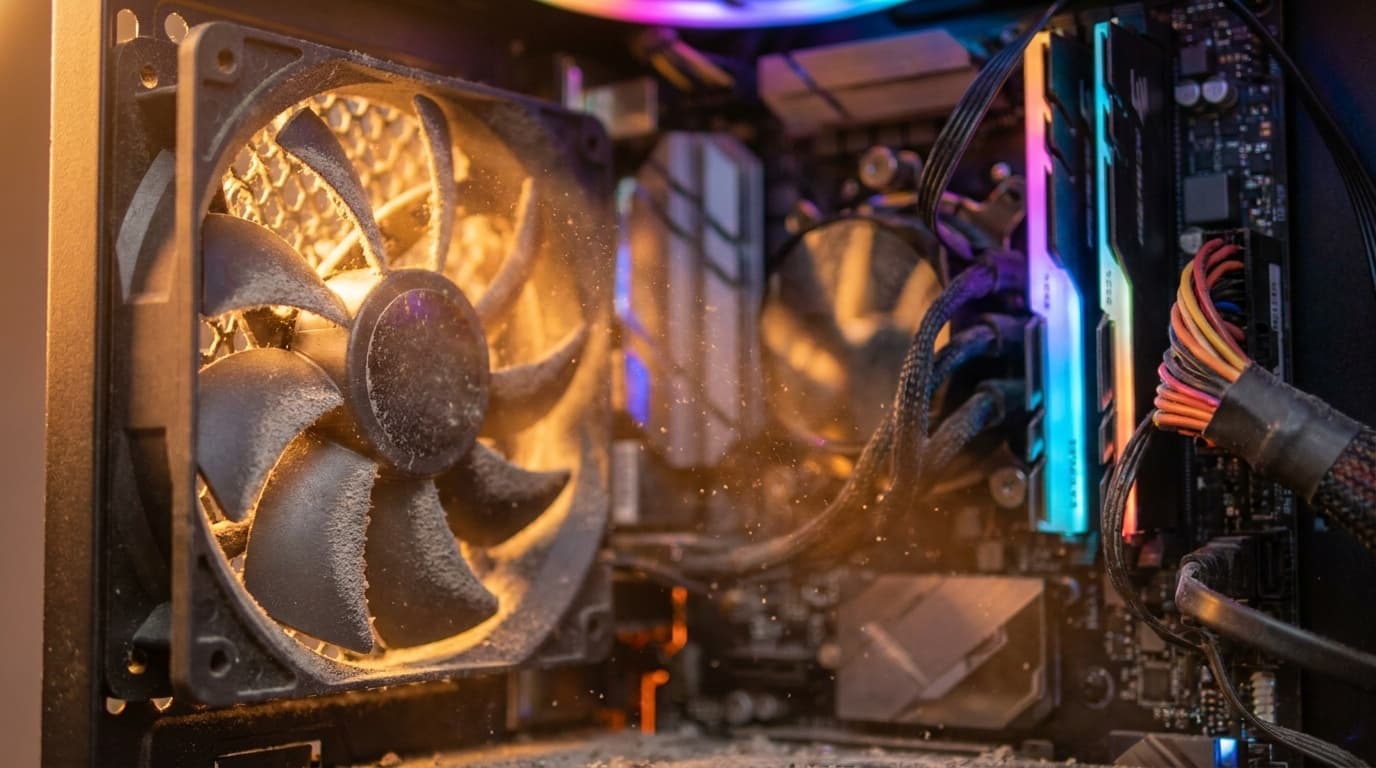
The most common reason a PC fan gets loud is dust clogging the vents, fans, or heatsink. When dust builds up, airflow gets worse and heat gets trapped inside the machine. Since your PC automatically increases fan speed as temperatures rise, that “it suddenly got loud” problem is very often just dust.
What to do:
- Shut down the PC, unplug it, and use canned air to blow dust out of the intake and exhaust vents
- For laptops, check that the bottom vents aren't blocked. Using a laptop on a bed, blanket, or couch traps heat easily
- For desktops, remove the side panel and clean dust from the fans and heatsinks
- A good cleaning interval is every 3 to 6 months. If you have pets, clean it more often
Cleaning really can fix it. That's not an exaggeration: roughly half of fan noise problems can be solved by clearing out dust.
Cause 2: Your CPU or GPU Is Under Heavy Load
Video editing, 3D games, dozens of browser tabs, Zoom running while Excel and Chrome are open at the same time... these kinds of workloads can spike CPU or GPU usage, which creates heat and sends the fans to full speed.
What to do:
- Find the culprit in Task Manager: Press
Ctrl + Shift + Escto open Task Manager, then click the “CPU” column to see which process is using the most CPU - Close apps and browser tabs you're not using
- Windows Update may be running in the background. Check the update status under
設定 → Windows Update - Your antivirus software may also be running a full scan in the background
If a program in Task Manager's “Processes” tab is constantly using 40% to 100% CPU, that's probably why your fan is roaring.
Cause 3: Your Power Plan Is Set to “Best Performance”
In Windows 11, your power mode can significantly change how the CPU behaves. If it's set to Best performance, the CPU may run aggressively even when you don't need that much power, which creates more heat.
What to do:
- Open
設定→システム→電源とバッテリー - Change “Power mode” to “Recommended” or “Best power efficiency”
- On laptops, you can set this separately for when the AC adapter is plugged in and when you're on battery
That alone can lower CPU clock speeds, reduce heat, and bring fan RPMs down noticeably. If you're not gaming or editing video, “Recommended” is usually plenty. Microsoft Support also recommends adjusting power settings when needed.
Cause 4: The Thermal Paste Has Dried Out
Between your CPU and its heatsink, there's thermal paste that helps transfer heat efficiently. Over time, usually after about 3 to 5 years, that paste can dry out and degrade. When heat no longer transfers well, CPU temperatures rise and the fan has to spin harder.
What to do:
- For desktop PCs: Remove the CPU cooler, wipe off the old paste with isopropyl alcohol and a lint-free cloth, then apply a rice-grain-sized amount of new thermal paste. A tube of paste usually costs around $10
- For laptops: Disassembly can be tricky, so if you're not confident, it's safer to ask the manufacturer or a repair shop
- If your PC is more than 5 years old, it's worth considering degraded thermal paste as a possible cause
When my custom build's GPU once hit 95°C, repasting brought the idle temperature back down to 42°C. Before taking anything apart, run a benchmark under the same conditions and record your temperatures. Without before-and-after numbers, you won't know whether the work actually helped.
Cause 5: The BIOS Fan Control Settings Are Wrong
Your computer's fan speed is controlled through the BIOS, also called UEFI. Some users have reported fans becoming very loud after a BIOS update, including cases discussed in the HP Support Community.
What to do:
- Restart your PC and press
F2orDelduring startup to enter the BIOS screen. The exact key depends on the manufacturer, so check the startup screen - Look for an item such as “Fan Control” or “Hardware Monitor”
- If the fan mode is set to “Full Speed,” change it to “Auto” or “Silent”
- Save the settings and restart
Honestly, even after 15 years, I still search online every time I need to adjust a BIOS fan curve. The menu location changes depending on the motherboard brand and generation, so the most reliable approach is to search for your motherboard model plus “fan control BIOS.” This fan curve setup guide is also useful.
Cause 6: The Fan Itself Is Failing or Worn Out
If you hear unusual noises like rattling, clicking, buzzing, or grinding, the fan bearing may be worn out. In that case, cleaning and settings changes won't fix the problem.
What to do:
- Judge by the type of noise:
- “Whoosh” → Air noise from high fan speed. Normal, but the system is under load
- “Rattle” or “clicking” → The fan may be wobbling, or something may be hitting the blades. Consider replacing the fan
- “Buzzing” or “grinding” → The bearing is likely worn out. It's time to replace the fan
- For desktop PCs: Case fans and CPU fans are usually easy to replace yourself. Check the size, commonly 120 mm, and the connector type, usually 3-pin or 4-pin PWM, then buy a matching fan. Many cost about $10 to $25
- For laptops: Replacing the internal fan requires disassembly. Manufacturer repair is the safer choice. If it's still under warranty, the replacement may be free
Quick Checklist to Try Right Now
When your fan is loud, work through this list from top to bottom.
- Check whether the vents are blocked. Are you using a laptop on a bed or blanket?
- Check CPU usage in Task Manager with
Ctrl + Shift + Esc - Change the power mode to “Recommended”
- Clean the intake and exhaust vents with canned air
- Review background apps and startup apps. Turn them off under
設定 → アプリ → スタートアップ - If none of that works, consider repasting or getting the PC repaired
FAQ
Is it normal for my computer fan to run all the time?
A quiet, low-speed fan sound is normal. CPUs and GPUs still produce a small amount of heat even when you're not doing much, so many fans keep spinning slowly by design. But if the fan runs at full speed even when the PC is idle, check for dust buildup, power settings, or degraded thermal paste.
Can I make my PC completely silent?
It's hard to make a typical PC completely silent, but you can reduce noise a lot with a fanless PC or a laptop cooling stand. On a desktop, some motherboards let you adjust the BIOS fan curve so the fans stop at low temperatures.
Do laptop cooling pads actually work?
Yes, they can help. A cooling pad can lower the temperature of the laptop's bottom panel by around 5 to 10°C, which may reduce the built-in fan speed. That said, it isn't a replacement for fixing the root cause, such as dust buildup or old thermal paste. Think of it as a supporting measure.
Is it safe to adjust fan speed with free software?
Free tools such as “SpeedFan” and “FanControl” can manually adjust fan speeds, but lowering the speed too much can push CPU temperatures into a dangerous range. Always monitor CPU temperature while making changes, and try to keep it under 80°C. If you're unsure, it's safer to leave the BIOS fan setting on “Auto.”
How much does fan replacement cost?
For desktop PCs, case fans and CPU fans often cost about $10 to $25 if you replace them yourself. For laptops, manufacturer repair is usually around $40 to $100 as of April 2026. If the machine is still under warranty, it may be covered for free, so contact the manufacturer first.
References
- Why Is My Computer Fan Loud? A Full Guide to the Causes and 11 Fixes — mouse LABO, March 2026
- Troubleshooting - Overheating and Fan issues — ASUS Support
- Windows Help and Learning — Microsoft Support
- Causes and Fixes When a Computer Fan Won't Stop or Gets Loud — Logitec Data Recovery Column
- Best CPU Fan Curve - Complete Setup Guide — Ofzen and Computing, March 2026