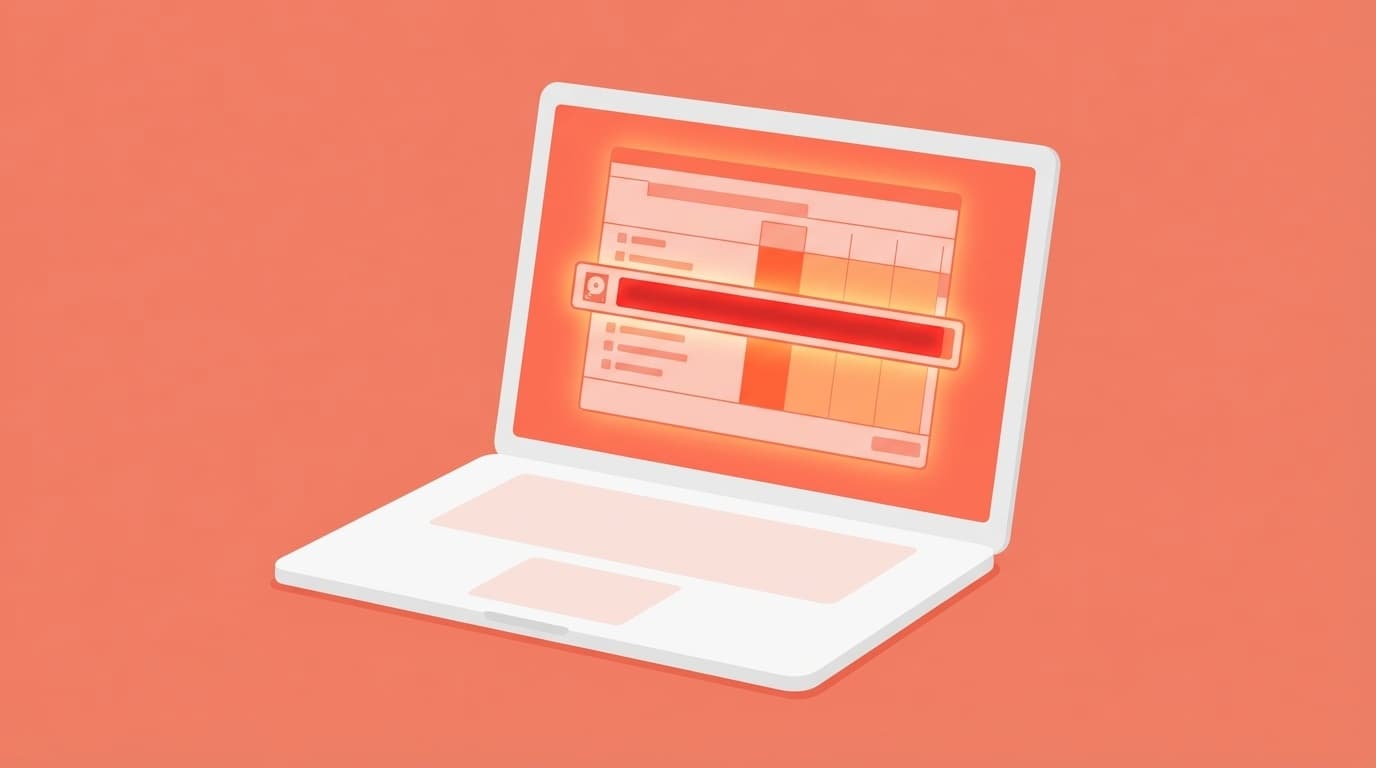
Your PC feels unusually slow... so you open Task Manager and see the Disk column glowing red and stuck at 100%. If you use Windows 11, you've probably run into this screen at least once.
When disk usage stays at 100%, apps can take dozens of seconds to open, clicks may not respond, and normal work becomes almost impossible. But don't panic. In many cases, the cause is an unnecessary background service running inside Windows. A few settings changes can often make a dramatic difference.
In this guide, based on information current as of March 2026, we'll walk through six common reasons disk usage hits 100% in Windows 11 and the fixes you can try right away.
First, Use Task Manager to Find the Culprit
Before trying fixes, your first priority is to check what's actually using the disk. Changing settings blindly can create other problems.
How to check:
- Press
Ctrl + Shift + Escon your keyboard to open Task Manager - On the Processes tab, click the Disk column to sort it from highest to lowest
- Write down the name of the process using the most disk activity
Common culprits include Service Host: SysMain, Windows Search, Microsoft Compatibility Telemetry, and Windows Update. Once you know what's causing the load, try the matching fix below.
Cause 1: SysMain, Formerly SuperFetch, Is Hammering the Disk
SysMain, previously called SuperFetch, is a helpful Windows feature that preloads your frequently used apps into memory so they can launch faster.
The downside is that disk usage can spike when it reads a large amount of data from storage. This can be especially rough on PCs with HDDs, or hard disk drives, because they're much slower than SSDs and are more likely to stay pinned at 100%.
Fix: Disable the SysMain service
- Press
Win + Rto open Run - Type
services.mscand click OK - Find SysMain in the list and double-click it
- Change Startup type to Disabled
- Click Stop under Service status, then click OK
Disk usage often drops sharply the moment you stop it. The tradeoff is that some apps may take slightly longer to open the first time. If that bothers you, setting it to Manual instead of Disabled is also an option.
Cause 2: Windows Search Indexing Keeps Running
Windows Search indexes files and email content ahead of time so searches feel faster. It's useful, but if you have a lot of files, indexing can take a long time and keep using the disk the whole time.
This is especially common when the PC is new or right after you've copied over a large batch of files.
Fix: Temporarily stop the Windows Search service
- Open
services.mscas described above - Find Windows Search and double-click it
- Click Stop to pause it for now
- Check whether disk usage goes down
If that improves things, you can set Startup type to Disabled so it stays off after the next restart. Just note that file searches in File Explorer and Outlook may become slower. If you search often, it may be better to leave it on Automatic (Delayed Start) and wait for indexing to finish.
Cause 3: Connected User Experiences and Telemetry Is Sending Data
The name is long and not very friendly, but in simple terms, it's a service that sends Windows usage and diagnostic data to Microsoft. It can sometimes use a lot of disk activity while collecting and sending that data.
In Task Manager, it often appears as Microsoft Compatibility Telemetry.
Fix: Disable the telemetry service
- Open
services.msc - Find Connected User Experiences and Telemetry and double-click it
- Change Startup type to Disabled, click Stop, then click OK
This only stops diagnostic data from being sent to Microsoft, so it won't affect normal PC use. If you're privacy-conscious, it's generally fine to turn it off.
Cause 4: Windows Update Is Failing and Retrying in the Background
Windows Update uses a lot of disk activity while downloading and installing updates. Normally, it finishes fairly quickly. But if an update keeps failing and retrying, disk usage can stay stuck at 100%.
Fix: Run Windows Update manually
- Open Settings → Windows Update
- Click Check for updates
- Install any pending updates
- Restart your PC after installation
If that doesn't fix it, try Microsoft's official troubleshooting tool, which can automatically detect and repair update problems. You can open it from Settings → System → Troubleshoot → Other troubleshooters → Windows Update → Run.
Cause 5: Too Many Temporary Files Have Piled Up
Windows creates lots of temporary files while it runs. When too many build up, free disk space shrinks and performance can drop. If available space gets extremely low, such as under 10% of the drive, disk usage is more likely to stay high.
Fix: Delete temporary files
- Open Settings → System → Storage
- Click Temporary files
- Select the items you want to remove, then click Remove files
For a quicker method, press Win + R, type %temp%, and press Enter. Then select everything in the folder with Ctrl + A and delete it. If Windows says a file is in use and can't be deleted, it's safe to skip it.
You can also turn on Storage Sense in Windows 11 to clean up temporary files automatically. Go to Settings → System → Storage → Storage Sense and switch it on.
Cause 6: Your HDD Is the Bottleneck, and an SSD Upgrade May Be the Real Fix
If none of the fixes above help, the real issue may be that your PC is still using an HDD, or hard disk drive.
Windows 11 is designed with SSDs, or solid-state drives, in mind. HDDs can be more than 10 times slower than SSDs at reading and writing data, so they often struggle to keep up with Windows 11's background tasks. The result is disk usage that stays high almost all the time.
Fix: Replace the HDD with an SSD
- A 2.5-inch SATA SSD, 500GB to 1TB, typically costs around 5,000 to 10,000 yen as of March 2026
- With cloning software, including some free tools, you can copy the contents of your current HDD directly to the SSD
- Many laptops allow storage replacement, and if your PC supports M.2 NVMe, it can be even faster
Upgrading to an SSD doesn't just help with the 100% disk usage problem. It can make the entire PC feel dramatically faster. It's not unusual for startup time to drop from five minutes to about 30 seconds. If your budget allows, this is the most effective fix.
Checklist If It's Still Not Fixed
If you've tried all six fixes and the problem still isn't improving, check these too.
- Virus or malware infection: Run a full scan with Windows Defender. Go to Windows Security → Virus & threat protection → Scan options → Full scan.
- Physical disk failure: Open Command Prompt as administrator and run
chkdsk C: /f /rto check the disk for errors. A restart will be required. - Third-party security software: Tools like Trend Micro or Norton may be constantly scanning and putting pressure on the disk. Temporarily disable them and see whether things improve.
- Virtual memory settings: If your PC has limited physical memory, such as 4GB to 8GB, disk usage can rise because Windows is writing to virtual memory, also called the page file. Consider adding more RAM.
FAQ
Does 100% disk usage mean my PC is broken?
Not necessarily. In many cases, Windows background services are the cause. However, if you hear unusual clicking or grinding sounds, your HDD may be physically failing, so back up your data as soon as possible.
Will disabling SysMain or Windows Search hurt my PC?
Disabling SysMain may make some apps a little slower to launch the first time, but many people won't notice much difference. Disabling Windows Search can make file searches slower, but it can also greatly reduce disk load. You can also set either service to Manual instead of Disabled so it only runs when needed.
Will switching to an SSD completely fix 100% disk usage?
In most cases, it improves the problem dramatically. SSDs can transfer data 10 to 50 times faster than HDDs, so the same background tasks may only use a few percent to around a dozen percent of disk activity. That said, even an SSD can show high usage if it's almost out of free space, so keep some room available.
Is it normal for disk usage to hit 100% right after startup?
Yes, that's normal for the first few minutes after booting. When Windows starts, security scans, service loading, Windows Update checks, and other tasks all run at once, so disk usage can temporarily spike. If it drops after about 5 to 10 minutes, you don't need to worry. If it lasts longer than that, try the fixes in this article.
References
- Tips to improve PC performance in Windows — Microsoft Support
- Improving Windows 11 performance — Microsoft Q&A
- Windows 11 100% disk usage — Microsoft Q&A