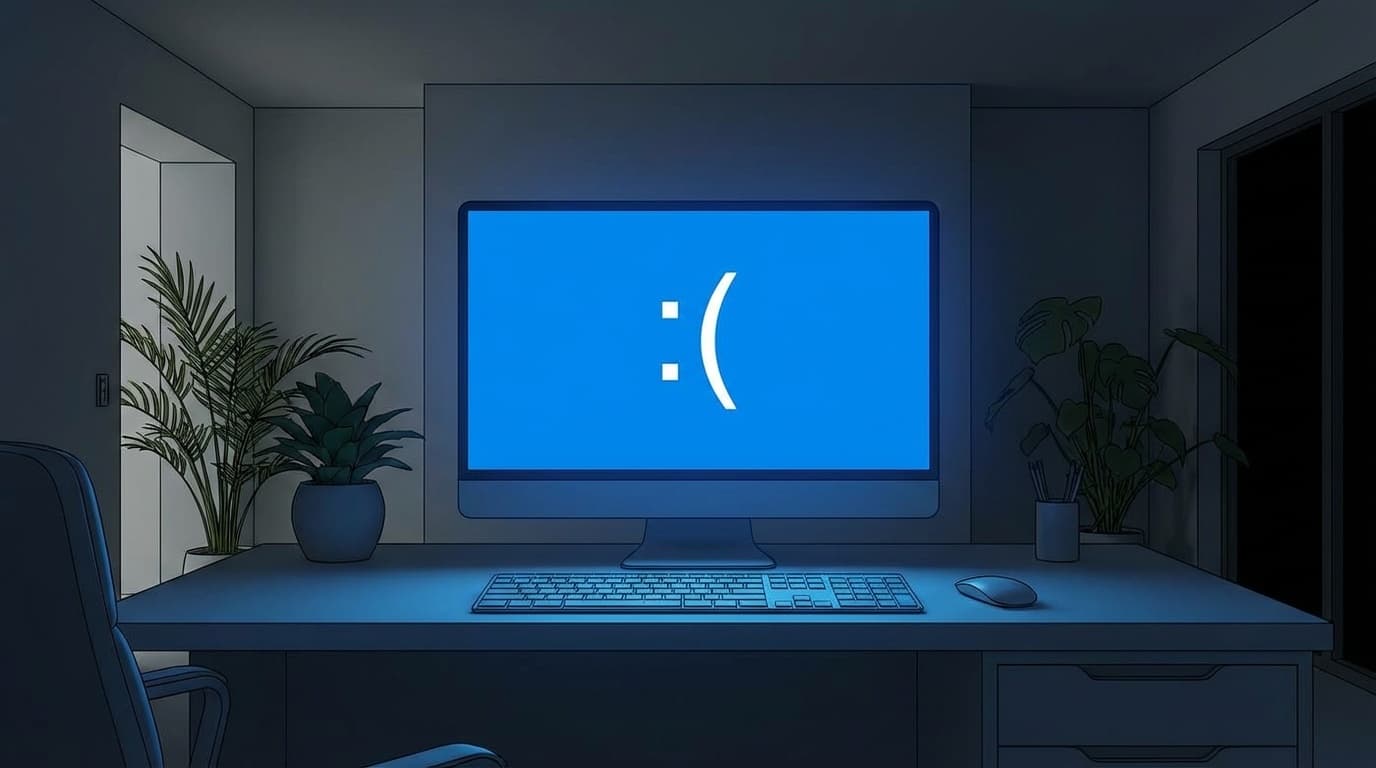
You're working on your PC when the screen suddenly turns bright blue and shows a sad " :( " face. That dreaded screen is the blue screen, also known as BSoD = Blue Screen of Death. It's still very much a thing in Windows 11, and even in 2026 there have been multiple reports of BSoD issues caused by Windows Update.
A lot of people panic and think, "Wait, is my PC broken!?" But in most cases, you can fix it yourself if you stay calm and narrow down the cause. In this article, we'll use the "stop code" shown on the screen to identify the likely problem, then walk through practical fixes step by step.
What Is a Blue Screen? How to Read the Information Shown
A blue screen is basically a safety mechanism that forces Windows to stop itself when it decides continuing to run could be dangerous. Along with the sad face, you'll usually see the following information on the screen.
- Stop code (example: CRITICAL_PROCESS_DIED) — a keyword that tells you the type of error
- What failed (example: ntoskrnl.exe) — the name of the file involved
- QR code — scan it with your phone to open Microsoft's support page
In other words, the stop code can help you narrow down what's going wrong. The golden rule is to take a photo of the screen with your phone.
6 Common Stop Codes and What Causes Them
Here are six stop codes that are commonly reported on Windows 11. This information is current as of March 2026.
1. CRITICAL_PROCESS_DIED
This appears when a process that Windows relies on at its core has stopped. The most common causes are right after Windows Update or corrupted system files. This error was also reported on some systems with the January 2026 update "KB5074109."
2. IRQL_NOT_LESS_OR_EQUAL
This happens when a driver, which is software that controls hardware, tries to access a restricted area of memory. It's often caused by outdated graphics drivers or incompatible drivers for connected devices.
3. KERNEL_SECURITY_CHECK_FAILURE
This error means a security check in the kernel, the core part of the OS, failed. Microsoft officially reported a February 2026 update issue where this error occurred on certain GPU configurations in connection with dxgmms2.sys. It was fixed in Build 26200.7840 and later.
4. MEMORY_MANAGEMENT
As the name suggests, this points to a problem with memory, or RAM. It can be caused by physically faulty memory, or by poor contact after adding or reseating RAM.
5. VIDEO_TDR_FAILURE
This appears when the graphics card, or GPU, freezes and Windows tries but fails to recover it. It's common while gaming or editing video, and in most cases the cause is a graphics driver problem.
6. DRIVER_POWER_STATE_FAILURE
This often happens when your PC is waking from sleep or hibernation. The cause is usually a device driver that isn't handling power-state changes correctly.
5 Fixes to Try Right Away
If you get a blue screen, try the following steps in order. They're listed from easiest to more involved.
Step 1: Unplug All Peripheral Devices and Restart
Remove everything you connected after buying the PC, such as USB flash drives, external hard drives, printers, and SD cards, then turn the PC back on. This fixes the problem more often than you'd think.
Step 2: Check Windows Update
Go to "Settings" → "Windows Update" → "Check for updates" and see if a new fix is available. Microsoft releases patches for known BSoD bugs, so updating should be your first priority.
On the other hand, if the BSoD started right after an update, you can remove the problematic update from "Update history" → "Uninstall updates."
Step 3: Update or Roll Back Drivers
Open "Device Manager." If you see any device with a "!" mark, right-click it and choose "Update driver." For graphics drivers, it's safest to download the latest version directly from NVIDIA, AMD, or Intel's official site.
If blue screens started after updating a driver, you can also roll it back from Device Manager by choosing "Roll Back Driver."
Step 4: Repair System Files with SFC and DISM
Run "Command Prompt" as administrator, then run the following two commands in order.
sfc /scannow
This checks Windows system files for corruption and automatically repairs them when possible. If it can't fix everything, run the next command.
DISM /Online /Cleanup-Image /RestoreHealth
DISM uses the Windows Update image to perform a deeper repair. It may take 10 to 20 minutes to finish.
Step 5: Run Windows Memory Diagnostic
Press the Windows key, search for "Windows Memory Diagnostic," and choose "Restart now and check for problems." After the restart, Windows will automatically test your memory and notify you of the results.
If errors are detected, try reseating the memory, which means removing it and putting it back in. If that doesn't help, the RAM may need to be replaced.
Extra Things to Check If Blue Screens Keep Happening
If the steps above don't fix it, check the following too.
- Check logs in Event Viewer — Press Windows key + X and open "Event Viewer," then go to "Windows Logs" → "System" and look for errors with red icons. Errors just before the BSoD can give you clues about the cause
- Try System Restore — Before using "Reset this PC" under "Settings" → "System" → "Recovery," first try "System Restore" to see if you can return the PC to a point before the blue screens started
- Check your HDD or SSD health — Run
wmic diskdrive get statusin Command Prompt, or check with a free tool such as "CrystalDiskInfo" - Check your PC's internal temperature — If the CPU is running above 90°C, overheating could be the issue. Sometimes simply blowing out dust with compressed air is enough to improve things
Will a BSoD Erase Your Data? How to Recover Unsaved Work
When a blue screen appears, it's easy to worry that your work is gone. But as long as the HDD or SSD itself hasn't failed, saved files are usually fine.
That said, unsaved files may be lost. Here are a few recovery tips.
- Excel and Word — AutoRecover files may still be available. When you reopen the app, check whether it shows recovered files
- Notepad — Windows 11 Notepad has an autosave feature, so your text will often come back when you open Notepad again
If blue screens make you nervous, it's smart to press Ctrl + S frequently and use cloud storage such as OneDrive.
FAQ
Can I turn off the power right away when I see a blue screen?
If the screen says Windows is restarting, wait and let it restart automatically. If nothing changes after more than five minutes, it's okay to hold the power button for 10 seconds to force shutdown.
I got a blue screen once, but the PC has been fine since. Should I send it in for repair?
If it happened only once, it's fine to wait and see. A temporary driver conflict or memory error can cause a one-time blue screen. But if the same stop code keeps coming back, you'll need to identify and fix the cause.
Can the sad " :( " blue screen appear on a black background?
Yes. Depending on the Windows 11 version, the background may be blue, black, or green in Insider Preview builds. The causes and fixes are basically the same either way.
Can I prevent blue screens by stopping Windows Update?
You can postpone updates, but from a security standpoint, it's not a good idea to stop them for a long time. If a BSoD starts after an update, the best move is to uninstall only that specific update.
References
- Troubleshooting Windows unexpected restarts and stop code errors — Microsoft Support
- Blue screen (BSOD) errors and stop code issues in Windows — Dell Support
- Microsoft says Windows 11 update causes BSOD on some GPU config — Windows Latest, February 15, 2026
- How to find the cause of a Windows 11 blue screen and fix it — Pasoble
- What to do when a blue screen appears while using Windows — VAIO Support FAQ