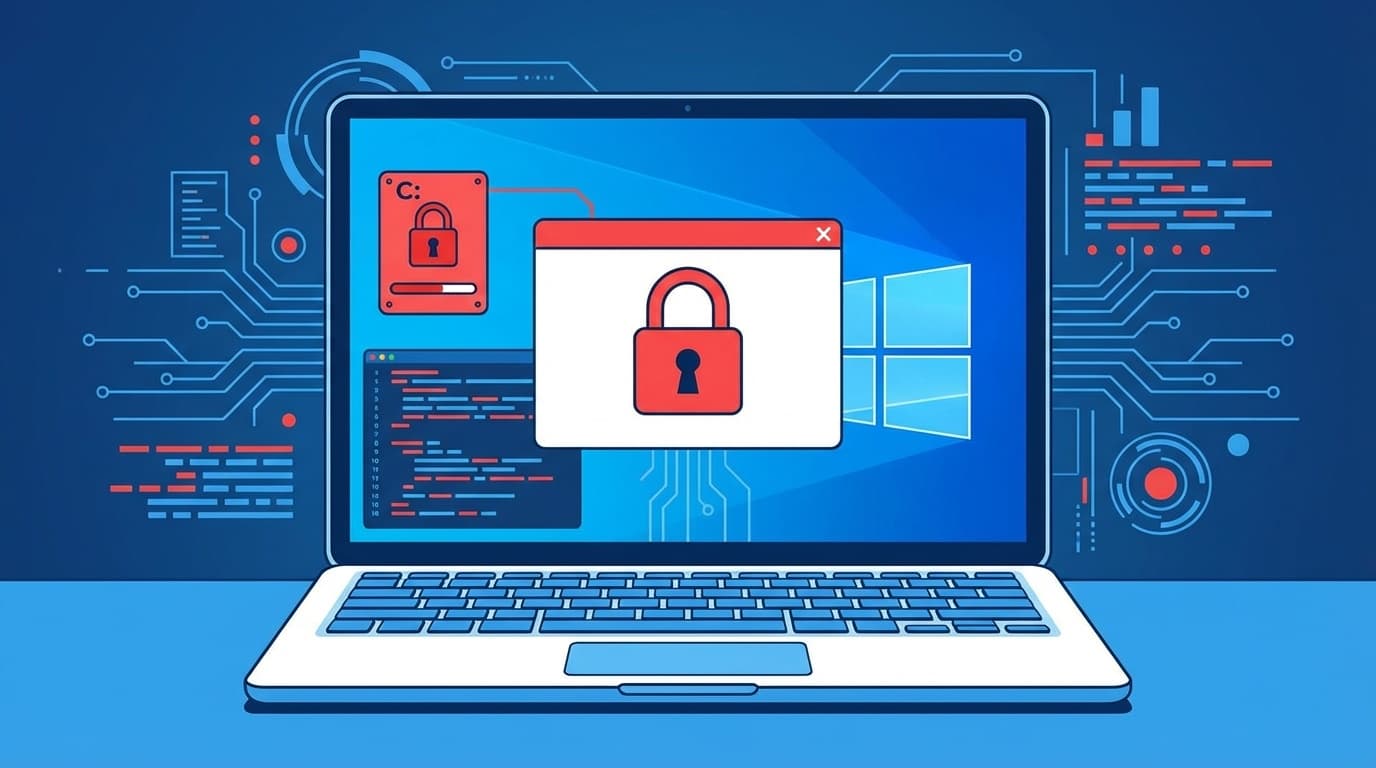
If you’re using Windows 11 and suddenly see an error like “C:\ is not accessible - Access is denied,” it’s natural to panic. The C drive stores system files and app data, so when you can’t access it, your PC can become almost unusable.
In February 2026, a serious bug was also reported on Samsung laptops after a Windows Update, leaving some users unable to access the C drive. In this article, we’ll break down five common reasons for the C drive “Access is denied” error and explain the fixes you can try yourself.
What does “Access is denied” actually mean?
Windows has a system that controls “who’s allowed to access what” for each file and folder. This is called an ACL, or access control list. In simple terms, imagine each file has a list attached to it that says “this person is allowed, this person isn’t.”
“Access is denied” means the user account you’re currently signed in with isn’t included on that list, so Windows blocks you. If that happens to the entire C drive, it can become a serious problem: apps won’t open, files won’t load, and tools like Outlook or your browser may stop working.
5 reasons you might lose access to the C drive
Cause 1: A bug in the Samsung Galaxy Connect app (February 2026 onward)
After the February 2026 Windows 11 security update (KB5077181), many users reported that some Samsung PCs, including Galaxy Book 4 models, could no longer access the C drive.
At first, Windows Update was suspected. Later, Microsoft and Samsung found that the real cause was a bug in a preinstalled app called Samsung Galaxy Connect. The app incorrectly changed the C drive’s ACL, or access permissions, which effectively locked users out of the whole system.
Microsoft officially acknowledged the issue on Windows Release Health as a known issue specific to Samsung devices as of February 2026.
Cause 2: Windows Update damaged access permissions
Even on non-Samsung PCs, access permissions for system folders can become corrupted if something goes wrong during a major update, such as an upgrade to 24H2 or 25H2. This is more likely if the PC loses power during the update or runs out of disk space.
Cause 3: Security software or system tools misbehaved
Third-party security software, antivirus tools, or disk management utilities can sometimes change C drive permissions unintentionally. Features like “folder protection” or “ransomware protection” can be especially aggressive and may block even legitimate users.
Cause 4: A corrupted user account or SID mismatch
Every Windows user account has its own unique identifier, called a SID. If you recreate an account, change domain membership, or otherwise cause the file owner information to stop matching your current SID, Windows may show “Access is denied” even on your own PC.
Cause 5: BitLocker or device encryption
Windows 11 Home and Pro may have device encryption, or BitLocker, enabled by default. If Windows asks for the encryption recovery key and you can’t provide it, you may lose access to the entire drive. This often happens after BIOS/UEFI setting changes or hardware replacement.
Fix: If this is the Samsung Galaxy Connect issue
If you’re using a Samsung PC and lost access to the C drive after installing KB5077181, try the steps below.
Step 1: Start in Safe Mode
Because apps may not work during a normal startup, start by booting into Safe Mode.
- Hold down the power button to force shut down the PC, turn it back on, then hold the power button again while the logo is showing. Repeat this 3 times to bring up the Automatic Repair screen
- Select “Advanced options” → “Troubleshoot” → “Advanced options” → “Startup Settings” → “Restart”
- After the restart, press the number key “5” to start “Safe Mode with Networking”
Step 2: Uninstall Samsung Galaxy Connect
Once you’re in Safe Mode, remove the problem app.
- Open “Settings” → “Apps” → “Installed apps”
- Find “Galaxy Connect” or “Samsung Galaxy Connect” and uninstall it
- If you also see “Galaxy Share Folder,” uninstall that too
Step 3: Repair access permissions (advanced users)
If uninstalling the app doesn’t restore the permissions, reset the ACL from Command Prompt.
- In Safe Mode, open an administrator Command Prompt by searching for “cmd” in the Start menu, then selecting “Run as administrator”
- Run the following command:
icacls C:\ /reset /T /C /Q⚠️ Note: This command resets access permissions across the entire C drive to their default state. Any custom permissions will also be reset, so before running it, we recommend checking Microsoft’s official support page or contacting Samsung Support.
Step 4: Contact Samsung Support
Microsoft advises affected users to contact Samsung Support for device-specific help. If you’re not comfortable fixing this yourself, it’s better to let a professional handle it.
Fixes for non-Samsung PCs showing “Access is denied”
If you’re seeing “Access is denied” on a PC that isn’t made by Samsung, try the following methods in order.
Method 1: Take ownership again
- Right-click the folder you can’t access, then select “Properties” → the “Security” tab
- Click “Advanced”
- Next to “Owner” at the top, click “Change”
- Enter your user name, or Administrators, in the text box and click “OK”
- Check “Replace owner on subcontainers and objects,” then click “OK”
Method 2: Uninstall the problematic Windows Update
If the problem started right after an update, try removing that update.
- Go to “Settings” → “Windows Update” → “Update history” → “Uninstall updates”
- Find the most recently installed update and select “Uninstall”
- Restart your PC and check whether you can access the C drive
Method 3: Use System Restore
This lets you roll Windows back to a point before the problem started.
- Search for “Create a restore point” in the Start menu and open it
- Click “System Restore”
- Choose a restore point dated before the issue began and run the restore
If no restore point was created, you won’t be able to use this method. For the future, enable automatic restore points from “Settings” → “System” → “About” → “System protection”.
Method 4: Repair system files with SFC and DISM
If Windows system files are corrupted, repair commands can help. Open an administrator Command Prompt and run these commands in order.
sfc /scannow
DISM /Online /Cleanup-Image /RestoreHealth
SFC detects and repairs damaged system files, while DISM repairs the Windows image itself. Each command can take about 10 to 30 minutes to complete.
3 things to do now to prevent this later
1. Create restore points regularly
If restore points are created automatically before Windows Update, you can roll back your PC if something goes wrong. In the System Protection screen, make sure protection is enabled for the C drive.
2. Save your BitLocker recovery key
If encryption is enabled on your PC, you can check your BitLocker recovery key on the Microsoft account recovery key page. Write it down and store it somewhere safe.
3. Be careful with automatic updates for preinstalled apps
As this Samsung case shows, updates to manufacturer-installed apps can sometimes cause serious problems. If you don’t use a manufacturer’s bundled app, uninstalling it may be the simplest option.
FAQ
Can KB5077181 block C drive access on non-Samsung PCs too?
According to Microsoft’s official statement as of February 2026, this specific issue is limited to Samsung devices such as the Samsung Galaxy Book 4. It hasn’t been reported on PCs from other manufacturers, though “Access is denied” can still happen for other reasons.
Is it safe to run the icacls /reset command?
It resets access permissions for the entire C drive back to their defaults. That’s generally safe, but if your work PC uses custom permission settings, those will be wiped too. Before running it, check with your IT administrator or contact Samsung Support.
What if I can’t even boot into Safe Mode?
You can use Command Prompt from the Windows Recovery Environment, or WinRE. Open “Advanced options” → “Command Prompt,” then run commands such as icacls or sfc /scannow from there. If that still doesn’t work, try booting from Windows installation media, such as a USB drive, and running repair tools.
Will I lose the data on my C drive?
“Access is denied” doesn’t mean your data has been deleted. It usually means Windows permissions are blocking access. Once the permissions are repaired, your data should still be there. That said, repeatedly forcing changes can make the situation worse, so if you have important data on the drive, consider consulting a data recovery professional.
References
- Windows release health - Known issues - Microsoft, February 2026
- Microsoft and Samsung scramble to fix a major C: drive lockout bug on Galaxy devices - Tom's Hardware, February 2026
- Microsoft says Windows Update wasn’t responsible for the C drive corruption issue - Window Forest, February 2026
- Troubleshoot problems updating Windows - Microsoft Support
- Samsung Japan Support - Samsung