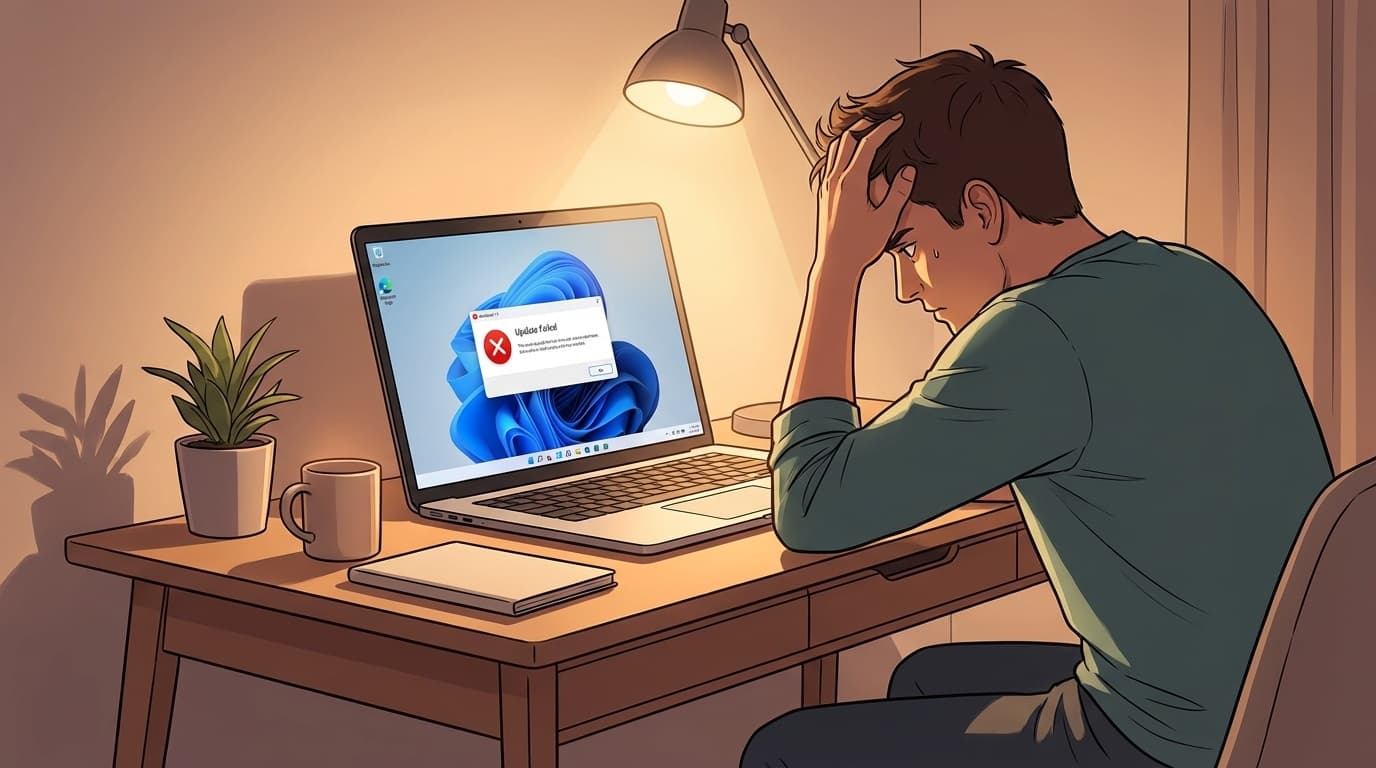
After installing the Windows 11 cumulative update program ``KB5077181'' distributed by Microsoft on February 10, 2026, there have been many reports on SNS and communities that the computer restarted many times and became unusable.
This article provides an easy-to-understand explanation of the cause of the "boot loop (infinite restart)" that occurs with KB5077181 and specific steps to recover from a state in which the computer cannot start. This information is compiled based on the latest information as of February 2026.
What is KB5077181? Why is the problem occurring?
KB5077181 is a Windows version distributed by Microsoft in "Patch Tuesday (Monthly Security Update)' in February 2026. This is a cumulative update program for 11. Targets Windows 11 24H2 (Build 26100.7840) and 25H2 (Build 26200.7840).
This update fixes a total of 58 security issues, including six previously exploited zero-day vulnerabilities. This is a very important update from a security perspective.
However, after installation, some PCs experience a "boot loop" in which the computer does not stop rebooting. On the Microsoft Q&A forum, there is also a report that ``I can't even get to the login screen after restarting more than 15 times.''
Major symptoms reported
The problems reported after installing KB5077181 can be broadly divided into the following four patterns.
1. Boot loop (infinite restart)
After the update is completed and the computer reboots, it restarts again before reaching the login screen—this repeats endlessly. In its most severe form, the PC becomes completely unusable.
2. Unable to log in due to SENS error
Even if you can get to the login screen, a System Event Notification Service (SENS)-related error appears saying "The specified procedure cannot be found" and you cannot sign in.
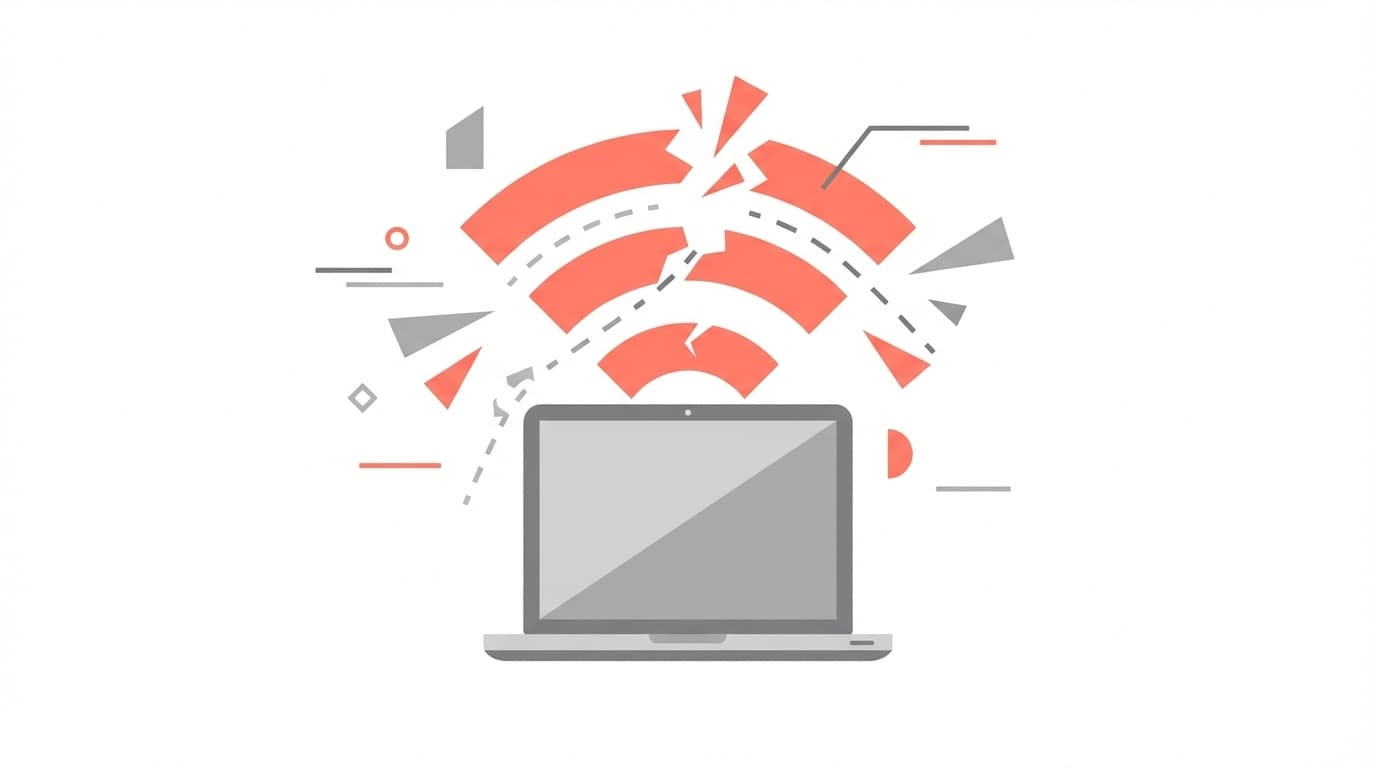
3. Unable to use Wi-Fi/Network
This is a symptom where you are able to log in but cannot connect to the Internet due to a Wi-Fi or DHCP connection error.
4. The installation itself fails
There are also patterns in which the error code "0x800f0983" or "0x800f0991" appears and fails while installing the update program. In this case, you will not be in a boot loop, but the security updates will not be applied.
What is the cause? ——Triggered by update failure in December 2025
According to Microsoft research, the root cause of the bootloop is Failed installation of the December 2025 Security Update.
Roughly speaking, the process goes like this.
① December 2025 update fails to install and rollback (undo process) is performed
② The OS remains in a "half-finished state"
③ If you apply subsequent updates (KB5074109 in January 2026 or KB5077181 this time), an inconsistency will occur and it will become unbootable
In short, KB5077181 has pulled the trigger where past update failures remained as a "bomb". Secure in English-speaking media "NotebookCheck' It is reported that changes in the Boot (Secure Boot) mechanism are also involved.
Solution 1: If you can still start
If your PC can start normally, you can uninstall KB5077181 by following the steps below.
■ How to uninstall from settings
- Open "Start" → "Settings" → "Windows Update"
- Click "Update History"
- Click "Uninstall updates"
- Find "KB5077181" in the list and click "Uninstall"
- Complete when the PC restarts
■ What to do after uninstalling
If you leave it as is, Windows Update will automatically install KB5077181 again. Be sure to set ``Pause updates'' from ``Settings'' → ``Windows Update''. It is OK only until Microsoft releases a fixed version.
Note:Environment Construction Z for Niche PC Gamers, you will not be able to uninstall it after 10 days from installation, so if you notice any problems, take action as soon as possible.
Solution 2: If you cannot start due to restart loop
Even if you fall into a boot loop, you can recover by using "Windows Recovery Environment (WinRE)".
■ How to enter the recovery environment
- Press and hold the power button to force shut down the PC
- Turn on the power and when the Windows logo appears, press and hold again to force quit
- Repeat this 2 to 3 times and the "Automatic Repair" screen will automatically appear
- Go to "Advanced Options" → "Troubleshooting" → "Advanced Options"
■ How to uninstall from the recovery environment
- Select "Uninstall updates" on the "Advanced options" screen
- Select "Uninstall the latest quality updates"
- Select your account and enter your password
- Restart after uninstallation is complete
■ If that still doesn't work, delete it manually using the command prompt
Open "Advanced Options" → "Command Prompt" in the recovery environment and execute the following command.
dism /image:C:\ /remove-package /packagename:Package_for_RollupFix~31bf3856ad364e35~amd64~~26100.7840.1.0
*The drive where Windows is installed may not be c:. Please check dir D:\Windows before executing.
When the command completes, type exit to restart your PC.
Is it okay to uninstall? Security considerations
Uninstalling KB5077181 will remove 58 security fixes, including 6 zero-day vulnerabilities. According to a report by Techzine, the modified zero-day includes Microsoft Word security feature bypass (CVE-2026-21514) and Desktop Window These include Manager privilege escalation (CVE-2026-21519).
In other words, the uninstalled state is security-wise. Please take the following precautions.
- Do not open attachments or links in suspicious emails
- Disable macros in Office files (especially Word)
- Keep antivirus software definition files up to date
- Apply the fix as soon as Microsoft releases it
If there are no problems, we strongly recommend that you continue to use KB5077181 without uninstalling it.
FAQ
Does the KB5077181 bootloop occur on all PCs?
No, it doesn't happen on all PCs. It is said that the problem is less likely to occur in environments where the December 2025 update program has been successfully installed. This is occurring on some PCs where past update failures remain.
If I uninstall KB5077181, will it not be reinstalled?
Windows Update will automatically reinstall it. After uninstalling, be sure to pause updates from Settings → Windows Update. It is safe to wait until Microsoft releases a fixed version.
What should I do if it has been more than 10 days since installation?
It will no longer be possible to uninstall from the normal "Settings". You can manually remove it using the DISM command from a command prompt in the recovery environment, or you can revert to a system restore point if you have one.
What if the installation fails due to error code 0x800f0983?
This may be caused by component store corruption. Try opening a command prompt as administrator and running DISM /Online /Cleanup-Image /RestoreHealth and then rerunning Windows Update.
References
- Microsoft February 2026 Patch Tuesday fixes 6 zero-days, 58 flaws — BleepingComputer, February 10, 2026
- Uninstallation of KB5077181 fails — Microsoft Q&A
- WindowsUpdate February 2026 Bug Information - KB5077181 — Environment construction Z for niche PC gamers, February 2026
- Serious bugs reported, boot loops and network failures occurring in Windows 11 KB5077181 — Soft Antenna, February 2026
- Windows 11 KB5077181: Update causes boot loops, DHCP errors, and sign-in failures — NotebookCheck, February 2026