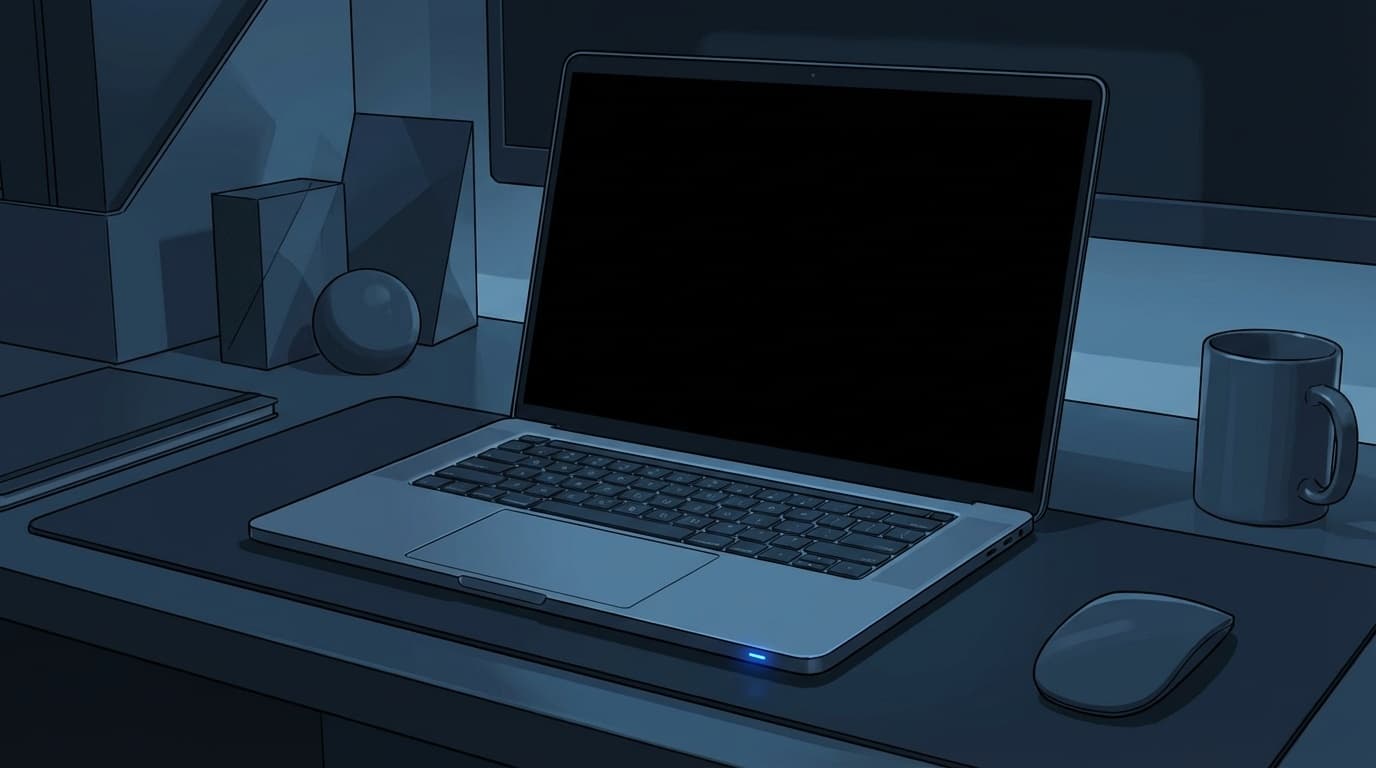
You step away from your PC for a bit, come back, and the screen is completely black. Moving the mouse does nothing. Pressing keys does nothing. If Windows 11 won’t wake from sleep, you’re definitely not alone. It’s a very common problem.
In this guide, based on information current as of March 2026, we’ll walk through six common reasons your PC may fail to wake from sleep and the fixes you can try yourself. We’ll also cover the issue reported with the January 2026 update “KB5074109,” so if this started happening recently, that’s worth checking.
Try These First: Basic Ways to Wake Your PC
Before you panic and assume the computer is broken, try these steps in order.
- Click the mouse or press any key on the keyboard (Enter or the arrow keys are good choices)
- Press the power button briefly for about one second (don’t hold it down, or you may force the PC to shut off)
- If you’re using a laptop, close the lid once, then open it again
- Press Ctrl + Alt + Delete (if the lock screen appears, the PC has successfully woken up)
If the display comes back, it was probably a temporary glitch. If the screen stays black no matter what you try, move on to the next section.
6 Reasons Windows 11 Won’t Wake From Sleep
There are six main reasons Windows 11 may fail to wake from sleep.
Cause 1: A Windows Update Bug (the KB5074109 Issue)
After installing the January 2026 cumulative update “KB5074109,” many users reported that their PCs wouldn’t wake from sleep or would stay stuck on a black screen. According to a report from Mynavi News, the issue seems more likely to appear on PCs that support S3 sleep or in setups with a USB camera connected.
Microsoft is aware of the issue and has already released fixes for some related bugs. If your sleep problem started suddenly and recently, this should be one of the first things you check.
Cause 2: A Display Driver Problem
If your graphics driver is outdated, or if the newest version has a bug, Windows may fail to send the display signal properly when waking from sleep. This can happen with NVIDIA, AMD, or Intel graphics.
Cause 3: Fast Startup and Hybrid Sleep Are Interfering
Windows 11 includes power-saving features called “Fast Startup” and “Hybrid Sleep.” Sometimes these features clash in the background and interfere with waking from sleep. In simple terms, several “start faster” features are trying to help at the same time, and Windows gets confused.
Cause 4: USB Devices Are Interfering With Power Management
External hard drives, USB hubs, webcams, and other USB devices can sometimes turn partially on and off during sleep, which can prevent the PC from waking correctly. ASUS’s official support page also recommends disconnecting USB devices as a troubleshooting step.
Cause 5: Your BIOS Power Settings Are Outdated
If your BIOS or UEFI firmware is outdated, it may not handle Windows 11’s newer sleep behavior correctly, causing wake failures. This is especially common on PCs bought several years ago.
Cause 6: Windows System Files Are Damaged
Failed Windows Updates or repeated forced shutdowns can damage internal Windows system files. When that happens, sleep problems may show up alongside other small glitches.
Fixes You Can Try Yourself, From Easiest to Hardest
Here are the fixes, starting with the simplest ones. Try them from top to bottom.
Fix 1: Uninstall KB5074109
If the problem started after January 2026, try this first.
- Open Settings → Windows Update → Update history
- Click Uninstall updates at the bottom
- Find “KB5074109” in the list and click “Uninstall”
- Restart your PC and check whether it can wake from sleep
If you can’t find it, a newer update may have already replaced it. In that case, move on to the next fix.
Fix 2: Turn Off Fast Startup and Hybrid Sleep
In many cases, turning these two settings off is enough to fix the problem.
- Open Control Panel → Power Options (typing “power” in the search bar is the quickest way)
- Click Choose what the power buttons do in the left menu
- Click Change settings that are currently unavailable
- Uncheck Turn on fast startup → click “Save changes”
- Go back to Power Options and open Change plan settings → Change advanced power settings
- Go to Sleep → Allow hybrid sleep and change it to Off
- Click “OK” and restart your PC
Fix 3: Update Your Display Driver
- Right-click the Start button → open Device Manager
- Expand Display adapters, then right-click the GPU name that appears
- Select Update driver → Search automatically for drivers
- If Windows doesn’t find one, download and install the latest driver from the manufacturer’s official site: NVIDIA / AMD / Intel
Fix 4: Review USB Device Power Management
- Open Device Manager
- Expand Universal Serial Bus controllers
- Right-click “USB Root Hub” → Properties → Power Management tab
- Uncheck Allow the computer to turn off this device to save power
- Repeat the same step for every “USB Root Hub” entry
If that doesn’t help, unplug all USB devices once, then try putting the PC to sleep and waking it again. If one specific device is causing the problem, this can help you narrow it down.
Fix 5: Update Your BIOS
Updating the BIOS is a little more advanced, but it can be very effective.
- Go to your PC manufacturer’s official website and enter your model number to open the support page
- Download the latest “BIOS” or “firmware” version
- Follow the manufacturer’s instructions to install it (never turn off the power during the update)
Dell’s official support page also notes that updating the BIOS can help resolve sleep-related issues.
Fix 6: Repair Windows System Files
If none of the fixes above work, Windows itself may have damaged system files.
- Right-click the Start button → open “Terminal (Admin)”
- Enter the following command, then press Enter:
sfc /scannow
This usually takes 10 to 15 minutes. If you see a message saying corrupted files were found and repaired, restart your PC.
If it still doesn’t work, run this next:
DISM /Online /Cleanup-Image /RestoreHealth
This can take around 20 to 30 minutes, but it performs a deeper system repair.
3 Settings That Help Prevent Sleep Wake Problems
Once the issue is fixed, these settings can help prevent it from coming back.
- Check Windows Updates manually before installing them: Go to “Settings” → “Windows Update” → “Advanced options” and use “Pause updates” when needed. Right after major updates, it’s safer to wait for bug reports before installing
- Keep your display driver updated: If you install your GPU maker’s app, such as GeForce Experience or AMD Adrenalin, you’ll get update notifications
- Use Hibernate instead of Sleep: Hibernate saves the contents of memory to the disk and then powers down, so it has a lower risk of wake failures than Sleep
If Nothing Fixes It
If you’ve tried everything and the problem still isn’t fixed, consider these options.
- Contact your PC manufacturer’s support team: There may be a model-specific issue or recall
- Reset Windows: Go to “Settings” → “System” → “Recovery” → “Reset this PC.” You can reset Windows while keeping your personal files, but you’ll need to reinstall apps
- Consider a hardware problem: Faulty memory or motherboard issues can also cause wake failures. If your PC is more than five years old, replacing it may be more practical than repairing it
FAQ
What’s the difference between Sleep and Hibernate?
Sleep keeps your work in memory while putting the PC into a low-power state. It wakes quickly, but it still uses a little power. Hibernate writes the contents of memory to the disk and then turns the PC fully off, so it takes a little longer to resume, but it uses no power.
Is it okay to force shut down the PC? Will I lose data?
If the PC won’t wake from sleep, you may have no choice but to hold the power button for 5 to 10 seconds to force it off. Unsaved files may be lost, but the PC itself usually won’t be damaged. Office apps like Word and Excel often have AutoSave or recovery features, so you may be able to restore your work the next time you open them.
Can I disable Sleep completely?
Yes. Go to “Settings” → “System” → “Power & battery” → “Screen and sleep,” then set the sleep timer to “Never.” Just note that this can drain the battery faster on laptops.
Has the KB5074109 problem been fixed?
As of March 2026, Microsoft has released fixes for some related bugs, including Remote Desktop and shutdown issues. However, sleep-related problems can depend heavily on the device and setup, so some cases may not be fully resolved. Install the latest cumulative update first, then try the fixes in this guide if the problem continues.
References
- Unable to wake Windows 11 after sleep — Microsoft Q&A
- Troubleshooting: When the PC cannot wake from Sleep or Hibernate — ASUS Official Support
- Troubleshooting Sleep and Hibernate issues on Dell computers running Windows 11 — Dell Official Support
- Windows 11 update “KB5074109” adds two new bugs, including sleep issues — Mynavi News, January 22, 2026
- Windows 11 won’t wake from sleep — FMV Support (Fujitsu)