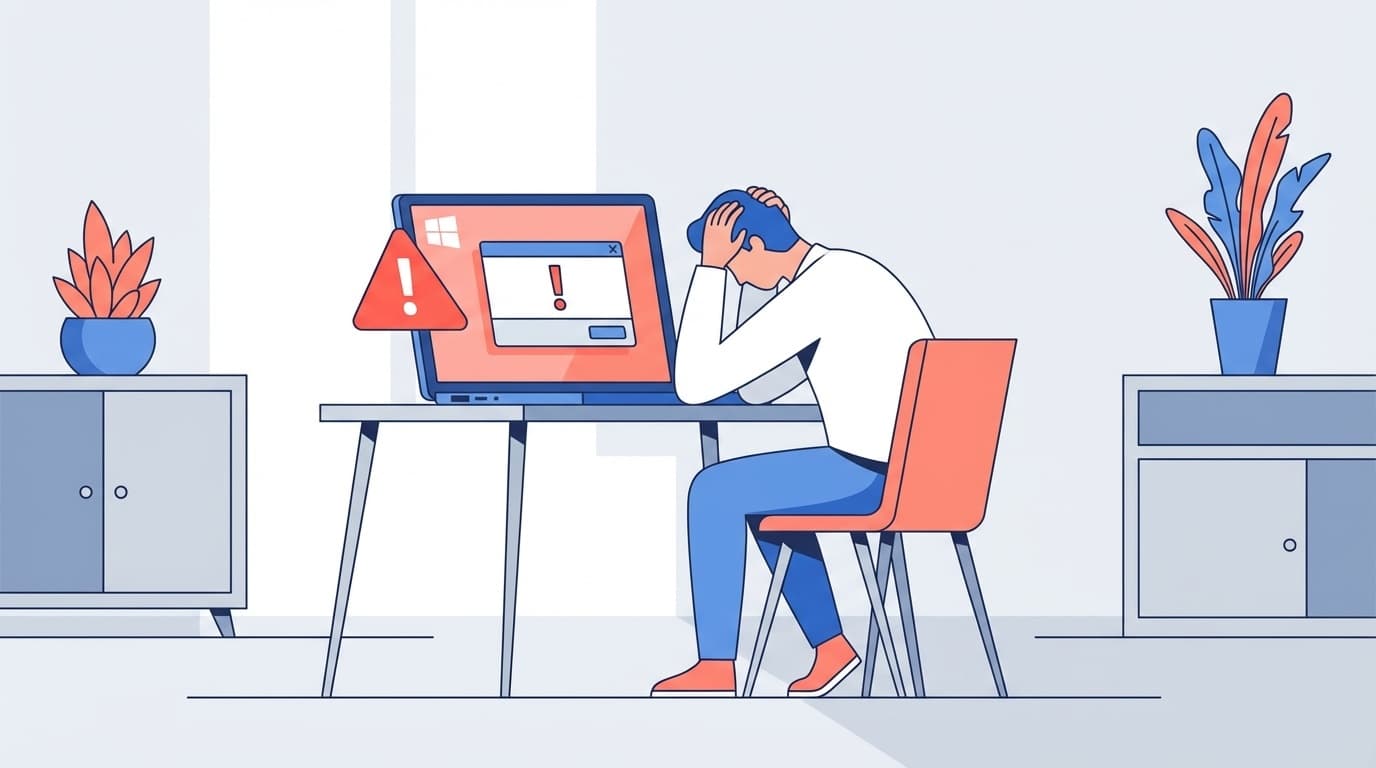
Are you using Windows 11 and suddenly seeing the error “You’ll need the internet for this (0x800704cf)”? You may be connected to the internet just fine, but still can’t sign in to Microsoft Store, OneDrive, or Office apps. This issue has been reported quite a bit throughout 2025 and 2026.
In this guide, we’ll break down five common causes of error code 0x800704cf and the fixes you can try right away. The information here is based on what’s current as of March 2026, so work through the steps in order.
What Is Error Code “0x800704cf,” and When Does It Appear?
0x800704cf is an error code Windows shows when it thinks “the network location can’t be reached.” In plain English, even if your PC is online, Windows isn’t communicating properly with Microsoft’s servers.
It commonly appears in situations like these:
- When downloading or updating apps in the Microsoft Store
- When trying to sign in to OneDrive
- When logging in to a Microsoft account in Office apps such as Word, Excel, or Outlook
- When running Windows Update
- When activating Windows and seeing a message that your digital license can’t be found
The frustrating part is that websites may load normally in your browser, while only Microsoft services refuse to work.
5 Common Causes of Error 0x800704cf
There isn’t just one possible cause. Here are the five patterns people run into most often.
Cause 1: Your Network Adapter Settings Are Wrong
After a Windows Update or driver update, your network adapter settings can sometimes change. The network adapter is the part of your PC that handles connectivity. In particular, if “Client for Microsoft Networks” is unchecked, Windows may not be able to reach Microsoft’s servers correctly.
Cause 2: The TCP/IP NetBIOS Helper Service Is Stopped
If the background Windows service called “TCP/IP NetBIOS Helper” is stopped, network name resolution may fail and trigger 0x800704cf. Some users report that this service gets stopped unexpectedly after Windows updates.
Cause 3: A VPN or Proxy Is Interfering
If you use a VPN or proxy server, your connection route to Microsoft’s servers can change, which may cause authentication to fail. This is especially common on work computers or when security software includes a built-in VPN feature.
Cause 4: There’s a DNS Problem
DNS, or Domain Name System, converts domain names like “microsoft.com” into IP addresses. If your DNS settings aren’t working properly, your PC may not be able to reach Microsoft’s servers. Sometimes your internet provider’s DNS server may simply be having a temporary issue.
Cause 5: Microsoft Domains Are Blocked in the hosts File
If you’ve previously used privacy tools or telemetry-blocking settings, Microsoft-related domains may still be blocked in your Windows hosts file. That can prevent your PC from connecting to Microsoft’s servers.
Fix 1: Check Your Network Adapter Settings
The first thing to try is checking your network adapter settings.
- Press Windows key + R to open Run
- Type ncpa.cpl and press Enter
- Right-click your active network connection, either Wi-Fi or Ethernet, and select “Properties”
- Look for “Client for Microsoft Networks” in the list and make sure it’s checked
- If it’s unchecked, check it and click “OK”
- On the same screen, try unchecking “Internet Protocol Version 6 (TCP/IPv6)”
Many users have reported that disabling IPv6 fixes the issue. If that works, leave it that way for a while and see if the error stays away.
Fix 2: Check and Restart the TCP/IP NetBIOS Helper Service
Next, check the service status.
- Press Windows key + R, type services.msc, and press Enter
- Find “TCP/IP NetBIOS Helper” in the services list
- Double-click it and set “Startup type” to “Automatic”
- If the service status is “Stopped,” click “Start”
- While you’re there, also check that “Microsoft Account Sign-in Assistant” is set to “Automatic” and running
If either of these services is stopped, Microsoft account sign-ins can fail across multiple apps.
Fix 3: Reset Your Network Settings
If the first two fixes don’t help, reset your network settings completely.
- Open the Settings app with Windows key + I
- Click “Network & internet” → “Advanced network settings”
- Click “Network reset”
- Click “Reset now”. Your PC will restart automatically
Important: A network reset removes saved Wi-Fi passwords and VPN settings. Write down your Wi-Fi password first. After the restart, you can reconnect and set things up again.
If you’d rather reset manually from Command Prompt as an administrator, run these commands in order:
netsh winsock reset
netsh int ip reset
ipconfig /release
ipconfig /renew
ipconfig /flushdns
After running the commands, make sure to restart your PC.
Fix 4: Change Your DNS Server Manually
If your internet provider’s DNS is the problem, switching to a public DNS service from Google or Cloudflare may help.
- Open your network connection properties using the same steps from Fix 1
- Double-click “Internet Protocol Version 4 (TCP/IPv4)”
- Select “Use the following DNS server addresses”
- Preferred DNS server: 8.8.8.8 (Google Public DNS)
- Alternate DNS server: 1.1.1.1 (Cloudflare DNS)
- Click “OK” to close the window
After changing this, check whether the issue is fixed. If you want to go back, choose “Obtain DNS server address automatically.”
Fix 5: Check the hosts File
If you’ve used telemetry-blocking tools or privacy utilities in the past, the hosts file may be the cause.
- Run Notepad as administrator. Search for “Notepad” in the Start menu, right-click it, and choose “Run as administrator”
- Go to “File” → “Open” and enter this path:
C:\Windows\System32\drivers\etc\hosts - Check whether any Microsoft-related domains, such as microsoft.com or login.live.com, are being blocked
- If you find one, add # to the beginning of that line to comment it out and disable it
- Save the file and restart your PC
Even if you’re not sure what the hosts file means, a line like “127.0.0.1 login.microsoftonline.com” is a sign that the site is being blocked.
What to Try If It Still Doesn’t Work
If you’ve tried all five fixes above and the error still appears, check these too:
- Check your date and time settings: Go to “Settings” → “Time & language” → “Date & time” and make sure “Set time automatically” is on. If your clock is wrong, certificate verification can fail and block sign-in
- Try a different network: Connect through another connection, such as your phone’s hotspot, and see if the same error appears. If it doesn’t, your router or internet provider may be the issue
- Run Microsoft account and network troubleshooters: Go to “Settings” → “System” → “Troubleshoot” → “Other troubleshooters” and run the network-related troubleshooters
- Temporarily disable security software: Your firewall may be blocking communication with Microsoft’s servers
FAQ
Could error 0x800704cf mean I have a virus or someone hacked me?
No. This error is usually caused by a network settings issue, not a virus or unauthorized access. That said, malware can sometimes modify the hosts file, so it’s worth running a scan with Windows Security just to be safe.
I reset my network and now I can’t connect to Wi-Fi. What should I do?
After a network reset, you’ll need to re-enter your Wi-Fi password, also called the security key. Click the Wi-Fi icon on the taskbar, choose your network, and enter the password again. If you don’t know it, it’s often printed on a label on your router.
What if only OneDrive shows the error, but the browser version works?
The problem may be specific to the desktop OneDrive app. Open OneDrive settings, choose “Unlink this PC,” and sign in again. If that doesn’t help, uninstall OneDrive and reinstall it from Microsoft’s official website.
Can I fix this myself on a work computer?
On company computers, network settings and services are often restricted by administrator permissions. Start by contacting your IT department or help desk. If your VPN or proxy settings are part of your company’s security policy, changing them yourself could violate internal rules.
References
- Can’t sign in to a Microsoft account because of error 0x800704cf — Microsoft Q&A
- Error 0x800704cf appears in Store and OneDrive — Microsoft Q&A
- Fix Wi-Fi connection issues in Windows — Microsoft Support
- You’ll need the internet for this. (0x800704cf) — Microsoft Q&A