Bought a new Mac, moved your data with Migration Assistant, and now you’re seeing “my password won’t work” or “I can’t sign in to my Apple ID”? You’re not the only one.
As of March 2026, MacBook Pro and Mac Studio models with the M5 chip are out, and plenty of people are upgrading. But right after moving data from an old Mac, reports on Apple Community keep popping up about passwords being rejected at the login screen.
In this article, we’ll break down five reasons you may be unable to log in after using Migration Assistant, plus clear fixes for each one.
What Does Migration Assistant Actually Do?
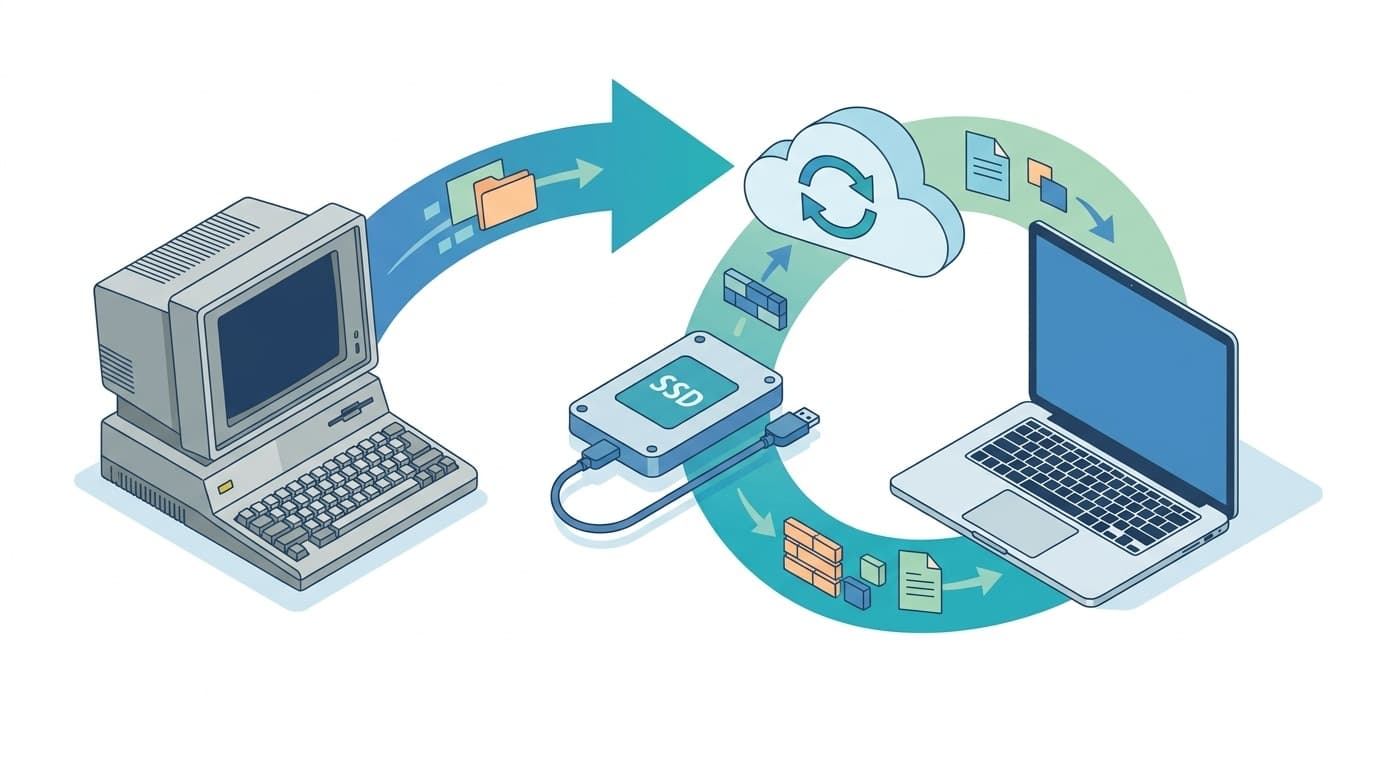
Migration Assistant is Apple’s built-in data transfer tool for moving from one Mac to another, or from Windows to Mac. It copies your documents, apps, user accounts, and settings to your new Mac.
There are three main ways to connect:
- Wi-Fi: No cable needed, but it’s slower and more likely to drop partway through
- Thunderbolt cable: The fastest and most stable option, and the method Apple’s official help page recommends
- Restore from a Time Machine backup: If you have a backup on an external HDD or SSD, you can migrate even without the old Mac
In simple terms, it copies almost everything from your old Mac. The catch is that passwords and security information don’t always transfer cleanly.
5 Reasons You Can’t Log In and How to Fix Each One
Reason 1: Your User Account Password Didn’t Carry Over
This is the most common issue. Migration Assistant copies your user account, but the same password you used on your old Mac still won’t let you in.
In this Apple Community thread, many users report the same thing: the password is correct, but login fails anyway. This can happen when password data doesn’t copy correctly during migration, or when a newer security policy rejects it.
What to do:
- On the login screen, click the “Reset Password” link. If it doesn’t appear, hold the power button to start up in Recovery Mode
- From Terminal in Recovery Mode, run the
resetpasswordcommand - Reset the password using your Apple ID
In other words, the fastest path is to stop fighting the old password and set a new one.
Reason 2: Apple ID Sign-In Keeps Looping or Failing
After migration, your Mac may repeatedly ask for your Apple ID password, or it may refuse to finish signing in even when you enter the right password.
This usually happens because your old Mac’s Apple ID session data was only partially copied. If you use two-factor authentication, it can get even messier: your Mac may expect you to receive a verification code on the old Mac, even if you no longer have it.
What to do:
- Go to “System Settings” → “Apple ID” and sign out
- Restart your Mac, then sign in to your Apple ID again
- You can receive the two-factor authentication code on your iPhone or another Apple device
- If you don’t have another device, request account recovery at iforgot.apple.com
Reason 3: Activation Lock Is Getting in the Way
If you see a screen saying this Mac is locked and you can’t continue, Activation Lock is probably the reason.
According to Apple’s official help page, Activation Lock is a security feature that turns on automatically when Find My is enabled. If you forgot to turn off Find My on the old Mac before migrating, the new Mac may get stuck behind that lock.
What to do:
- If you still have the old Mac: On the old Mac, go to “System Settings” → “Apple ID” → “Find My” and turn it off
- If you don’t have the old Mac: Sign in to iCloud.com/find and remove the old Mac from your account
- If that still doesn’t work, take proof of purchase to an Apple Store or Apple Authorized Service Provider
Reason 4: Keychain Is Out of Sync and Your App Passwords Are Gone
Maybe you can log in, but all the passwords you saved in Safari, Chrome, Mail, and other apps are suddenly missing. That’s usually a Keychain problem. Keychain is macOS’s built-in password management system.
If the password for your login Keychain no longer matches your user account password after migration, Keychain can stay locked.
What to do:
- Open “Applications” → “Utilities” → “Keychain Access”
- In the menu bar, choose “Keychain Access” → “Change Password for Keychain ‘login’”
- Enter your old password, the one you used on the source Mac, then change it to your new password
- If you use iCloud Keychain, check that “System Settings” → “Apple ID” → “iCloud” → “Passwords and Keychain” is turned on
Reason 5: Different macOS Versions Caused an Incomplete Migration
One easy-to-miss cause is a macOS version mismatch. Migration Assistant works best when the destination Mac is running the same macOS version as the source Mac, or a newer one.
For example, if your old Mac is on macOS Sequoia 15.3 but the new Mac ships with Sequoia 15.1, the migration can fail or leave some data behind.
What to do:
- Update the new Mac first using Software Update
- Then run Migration Assistant again
- If you’ve already migrated and problems are showing up, the most reliable fix is to erase the new Mac and redo the migration: “System Settings” → “General” → “Transfer or Reset” → “Erase All Content and Settings”
3 Things to Do Before Migrating
A little prep before migration can save you a lot of frustration.
1. Update macOS on Your Old Mac
Go to “System Settings” → “General” → “Software Update” and install the latest version. Keeping both Macs on compatible versions prevents many migration issues.
2. Check Your Apple ID Password and Two-Factor Authentication
Do you know your Apple ID password? Do you have a device nearby that can receive two-factor authentication codes? Migration can ask you to verify your Apple ID, so checking this ahead of time is a must.
3. Make a Full Time Machine Backup
If migration fails, a Time Machine backup gives you a way to try again. Use an external SSD, preferably 1TB or larger, and make a fresh backup before you start the move.
Wi-Fi vs. Cable: Which Should You Use?
The short answer: use a Thunderbolt cable if you can.
| Connection method | Typical speed | Stability | Things to know |
|---|---|---|---|
| Wi-Fi | Several hours to half a day | Fair; it may disconnect midway | Both Macs must be on the same network |
| Thunderbolt cable | 30 minutes to 2 hours | Excellent; wired and stable | You’ll need a USB-C/Thunderbolt cable |
| Time Machine | 1 to 3 hours | Good, depending on backup quality | You need a backup ahead of time |
Over Wi-Fi, large migrations, such as 100GB or more, can time out or disconnect, leaving the transfer only partially completed. That can also lead to password problems.
A Thunderbolt cable usually costs around 2,000 to 3,000 yen, and it can easily be worth it just for a smoother migration.
FAQ
Can I move my data without using Migration Assistant?
Yes. You can manually copy only the files you need using AirDrop, external storage, iCloud Drive, and similar tools. Apps and settings won’t carry over, but you’re less likely to run into password trouble.
Can I erase my old Mac right after migration?
It’s better to use the new Mac for a few days first and confirm your data and settings are all there. If you erase the old Mac too soon, you may not be able to recover anything that didn’t transfer.
Are there any special issues when moving from an M1/M2 Mac to an M5 Mac?
Since they’re all Apple silicon Macs, there usually aren’t major compatibility problems. Still, macOS version differences matter. Update both Macs to the latest version before migrating.
If I migrate from Time Machine, will that prevent password problems?
Not completely. Login password and Keychain issues can still happen with Time Machine migration. That said, it’s usually more stable than Wi-Fi, so the risk of a failed transfer is lower.
References
- Transfer to a new Mac with Migration Assistant — Apple Support
- Activation Lock for Mac — Apple Support
- If you forgot your Mac login password — Apple Support
- After migration, passwords do not work — Apple Community
- If you need to update your Keychain password — Apple Support